AegisClip 1.6 Update: AI Bar is Here — Process Selected Content In Place
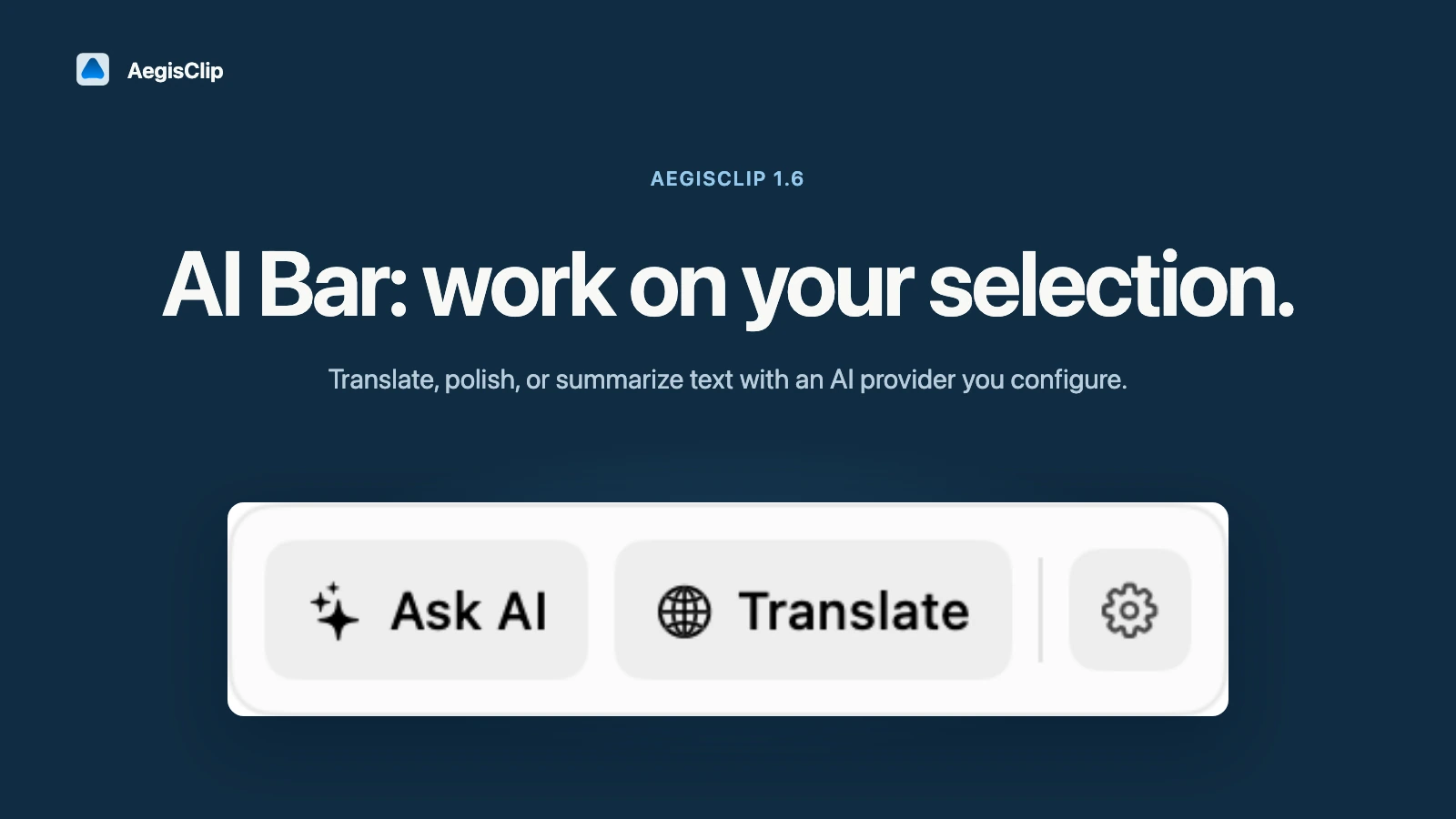
AegisClip 1.6 introduces the AI Bar: translate, polish, summarize, or analyze images right next to selected text, clipboard items, or screenshots. Choose your own AI provider or use browser search actions without AI.
On this page5 sections
AegisClip 1.6 is now available. This release introduces the AI Bar: after selecting text, a clipboard item, or a screenshot, you can translate, polish, summarize, or analyze images right next to the content — no more copying into a chat window and pasting the answer back.
What the AI Bar is
The AI Bar is a set of in-place processing actions inside AegisClip. Select text in any app, or choose a text item, image, or screenshot from AegisClip history, then pick Translate, Polish, Summarize, Ask, or Image Analysis. Results can be copied directly, or used to replace the original text where supported.
This update note answers three questions: what it can process, where data goes, and what the trial boundaries are.
Three data paths with separate boundaries
AI Bar features use three different data paths, and they stay separate in settings and authorization:
- AI requests: call the AI provider and model you configured, sending only the disclosed text, OCR result, or image. Before sending, AegisClip scans for high-risk content and blocks or warns about requests that may contain keys, tokens, or ID numbers.
- External search actions: do not call an AI provider and do not use an API key. The query is written into an HTTPS URL and handed to your default browser and the target site, so it may enter browser history and site logs.
- Local OCR: image text recognition runs on-device with Apple Vision — no network, and no Screen Recording permission needed (when recognizing an existing image).
Bring your own provider, or use browser search only
The AI Bar is not locked to one model. Current options include OpenAI, Anthropic Claude, Google Gemini, OpenRouter, SiliconFlow, Kimi, DeepSeek, MiniMax, Zhipu GLM, Alibaba Qwen, and Volcano Ark, plus generic OpenAI-compatible services. API keys are stored in the macOS Keychain.
If you just want to hand the current text to a search engine, add preset external search actions such as ChatGPT Search, Google web search, Claude, or Perplexity, or create a custom HTTPS web action. This path does not go through AI authorization or AI privacy scanning, so check the query before running it.
Trial and upgrade boundaries
You can experience the full capability during the 7-day trial. After the trial, the basic AI Bar, built-in instructions, and preset external search actions remain available. Creating or editing custom instructions and web actions, AI OCR translation, and Ask AI about screenshots require the Full Version. Third-party AI API usage is billed separately by your provider and is not included in the one-time AegisClip upgrade price.
Where to start
New users should test translation and polishing on a short, non-sensitive text first to confirm the provider, model, and output style. For images, decide whether the task is "extract the text" or "understand the picture" — local OCR for the former, image analysis for the latter.
Full usage guide: AI Bar feature. For image text extraction: Mac Screenshot OCR. For privacy boundaries: Clipboard Privacy.
Download AegisClip
Clipboard · Screenshot OCR · AI Bar — core history stays on your Mac by default.
Free download · 7-day full trial · Optional one-time upgrade.