AI Bar for Mac: Work with Selected Text, Clips, and Screenshots
Use AegisClip's AI Bar to translate, polish, summarize, or analyze selected text, clipboard items, and screenshots with your provider or browser search.
On this page9 sections
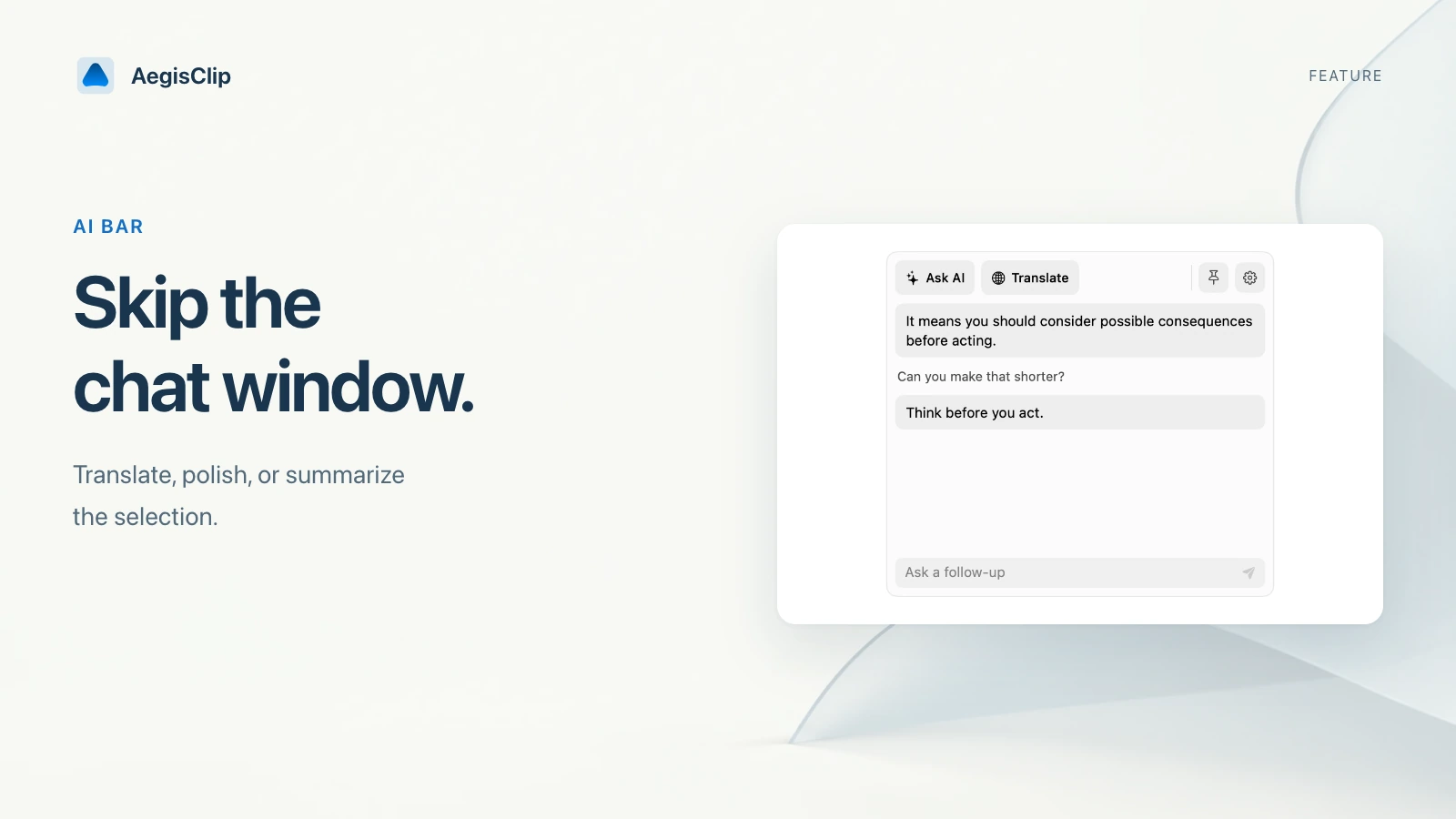
AI Bar for Mac shortens the round trip between the content you are working on and the next service you choose. Use an AI provider when the task needs model interpretation, or run an external search action when you only need to look up the current text. Both start from the bar, but they have different data and authorization paths.
Where the AI Bar starts
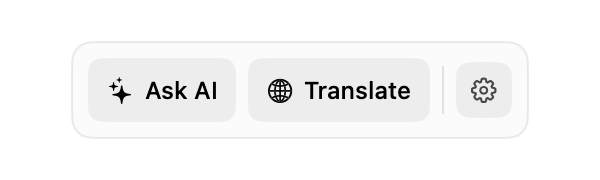
The bar can start from three kinds of input:
- selected text in the active app
- a text item in AegisClip clipboard history
- a screenshot or image clip
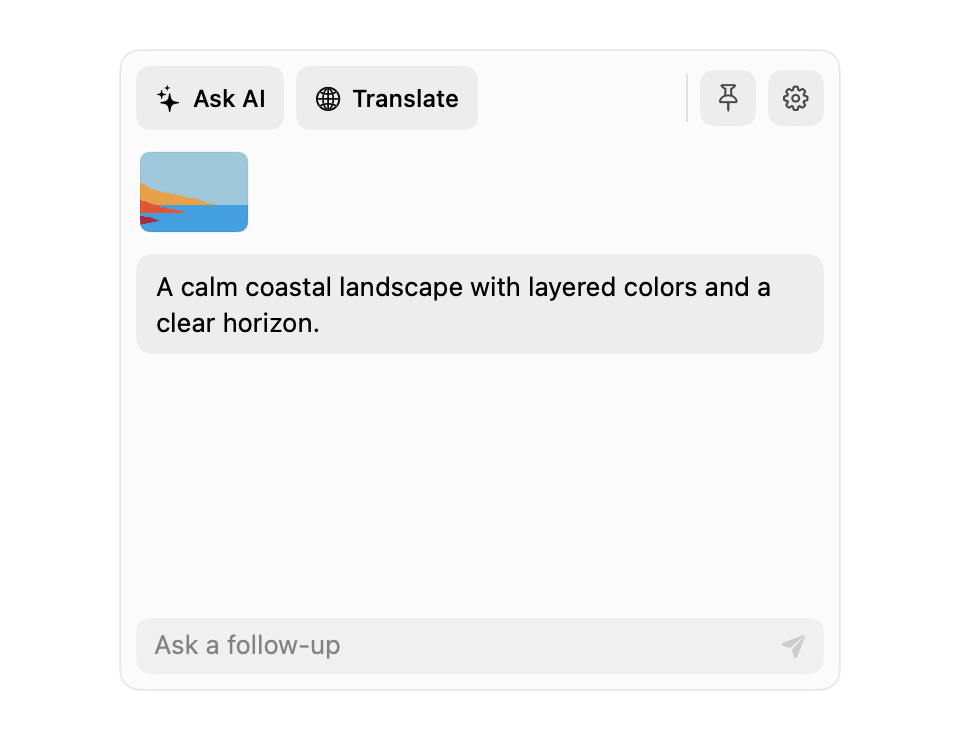
The available actions depend on the input. Text works well with translation, polishing, summarization, and free-form prompts. Images can go to visual analysis or a question that includes the screenshot as context.
AegisClip does not continuously send clipboard history to an AI provider. An AI request is prepared after you invoke an AI action and follow the authorization flow. An external search opens the browser without that AI consent or privacy scan, so review sensitive text before using either path.
Local privacy check before AI
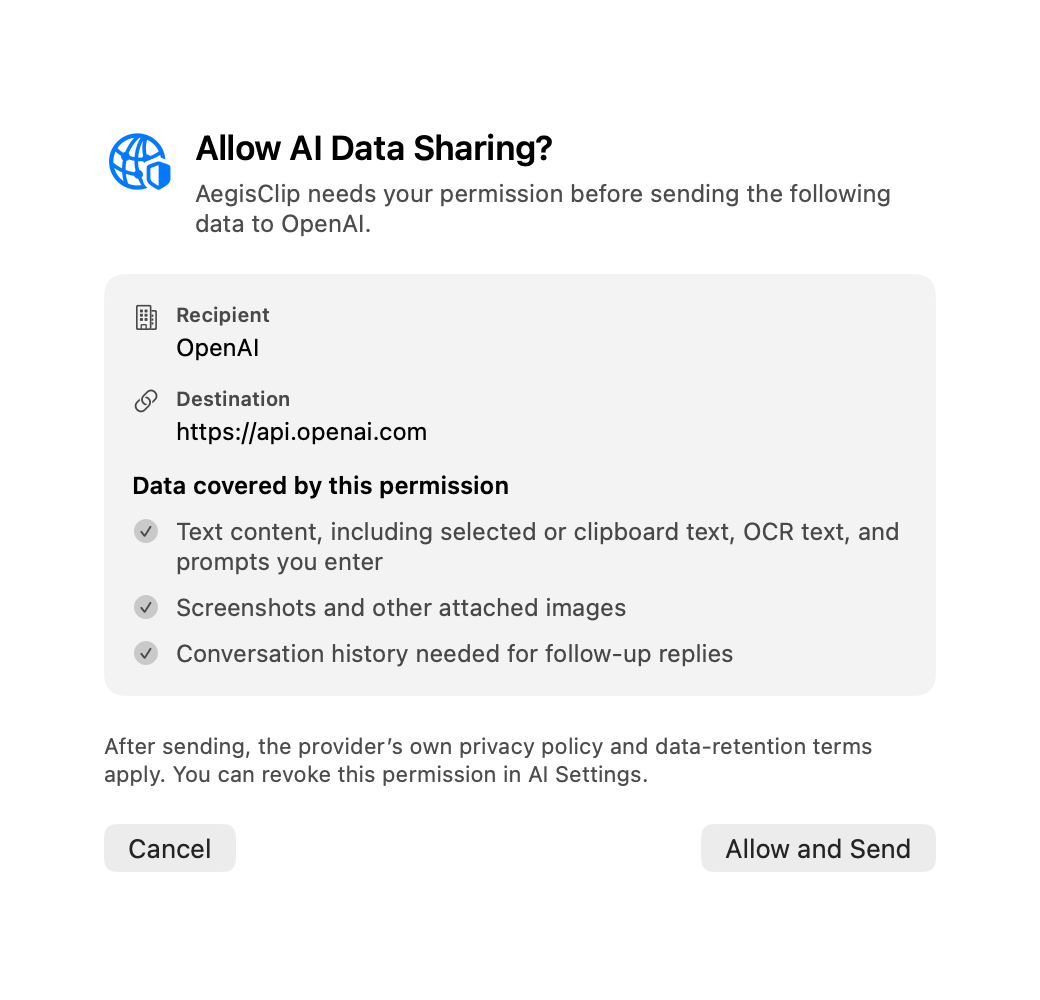
Before an AI request, AegisClip scans locally for high-risk content and can block or warn about likely keys, tokens, or identity data. This reduces accidental disclosure but is not a compliance audit and cannot identify every secret. You still need to confirm the disclosed content, provider, target domain, and data category.
External search actions bypass this AI privacy scan because they create a browser URL. "No API key" does not make a browser query private.
How to use it
- Select text in an app, or choose a text or image item in AegisClip.
- Open the AI Bar and choose Translate, Polish, Summarize, Ask, or image analysis.
- Review the content, provider, and model involved in the request.
- Send the request and wait for the result.
- Copy the result, or replace selected text when that workflow is supported.
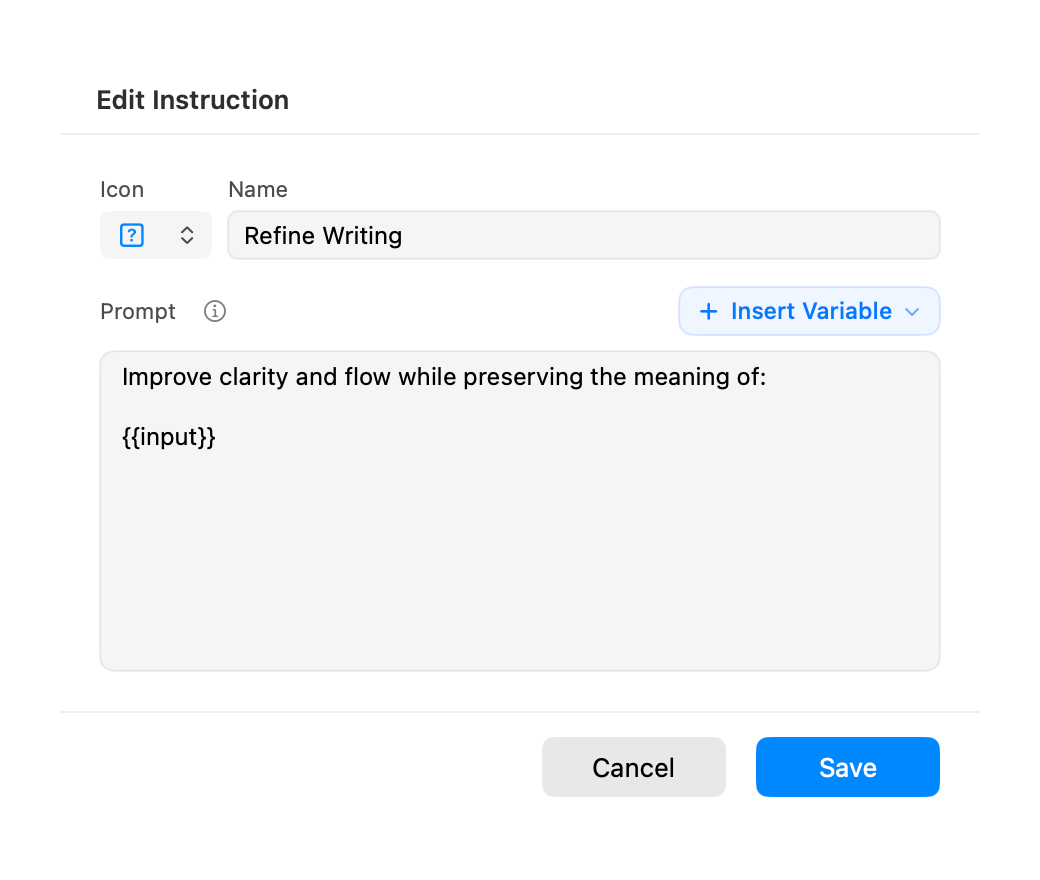
For repeated tasks, custom prompts can store a consistent instruction, output language, or writing constraint. Creating or editing them is a Full Version feature; built-in actions do not require templates.
Bring your own provider and model
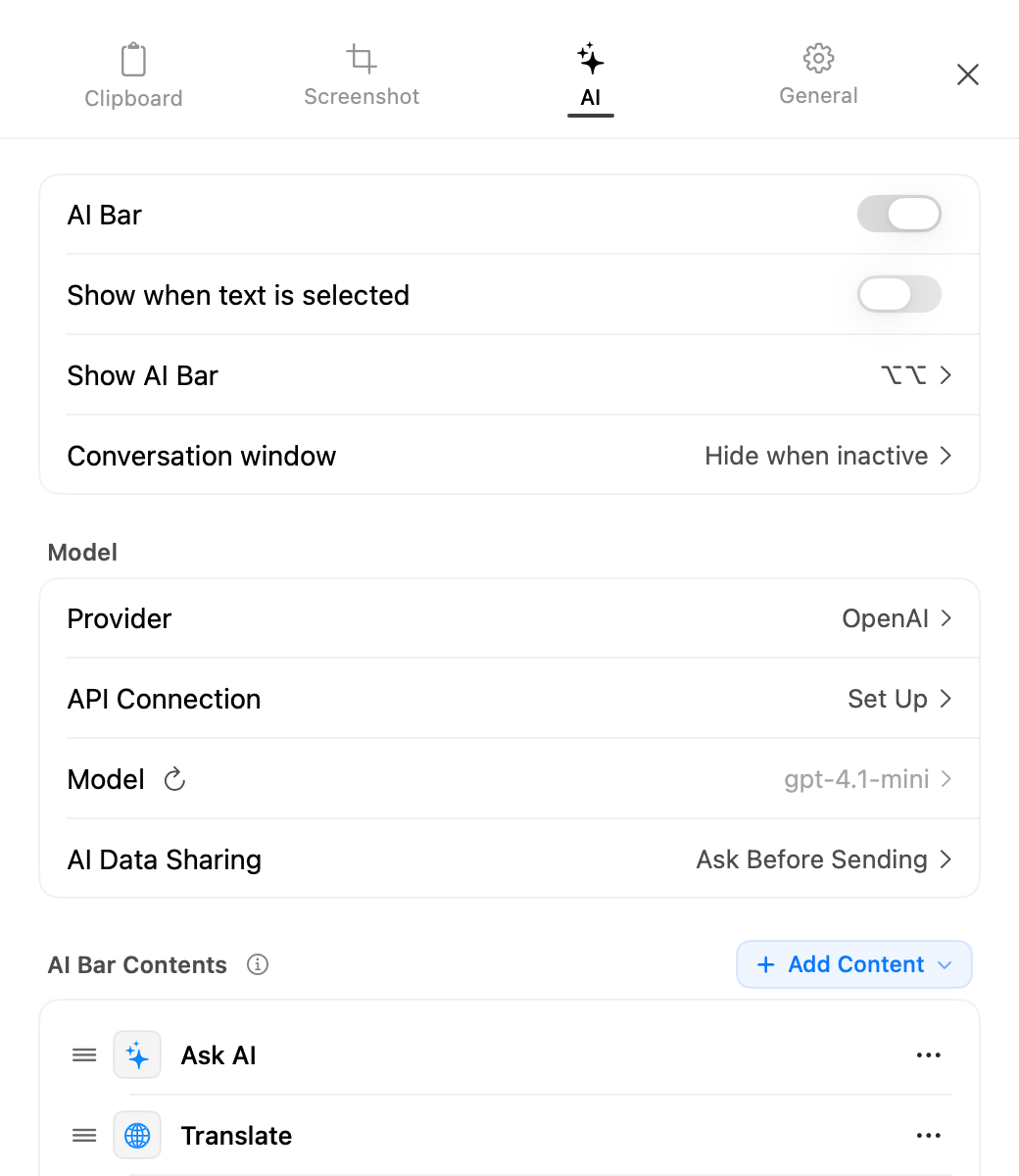
AegisClip includes OpenAI, Anthropic Claude, Google Gemini, OpenRouter, SiliconFlow, Kimi, DeepSeek, MiniMax, Zhipu GLM, Alibaba Qwen through DashScope, and Volcano Ark for Doubao, plus a generic OpenAI-compatible option. You can select a model and configure a Base URL where needed.
The API key is stored in macOS Keychain. Requests are sent to the service you configure, so pricing, retention, regional processing, and content policies come from that provider. AegisClip is the workflow layer; it does not present third-party AI processing as an on-device feature.
Core clipboard history stays on your Mac by default. An AI request is a separate network path that sends disclosed content to the selected provider. API keys are stored in macOS Keychain.
External search actions without an AI request
When you only need to search the current text, add a preset for ChatGPT Search, Google Web Search, Claude, or Perplexity, or create a custom web action. A custom template must use HTTPS and include {{query}} for the encoded query.
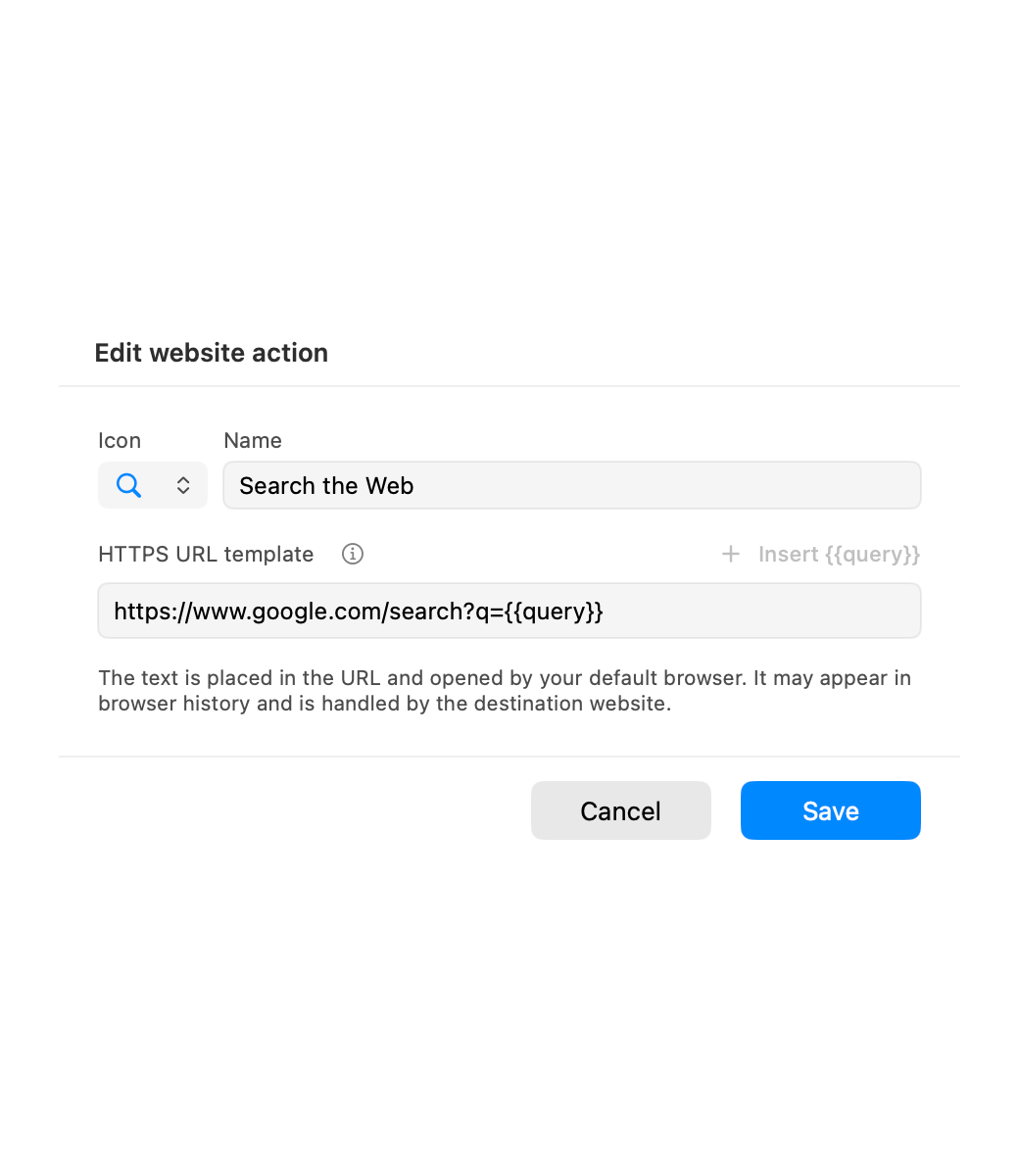
Running the action closes the AI Bar and asks macOS to open the target in your default browser. It does not use the configured AI provider, API key, AI consent, or AI privacy scanner. Because the query becomes part of the URL, it may appear in browser history, browser sync, target-site logs, or account history. Do not use this path for secrets, tokens, or content you are not authorized to disclose.
Preset search actions remain available after the trial. Creating or editing a custom web action requires the Full Version; deleting a custom action remains available.
Choose the right action
- Translate is useful for messages, interface text, and OCR results.
- Polish can adjust clarity, tone, structure, or length while preserving the original meaning.
- Summarize is a good fit for long clips, meeting notes, research, and support tickets.
- Ask lets you provide a specific instruction such as extracting action items or drafting a reply.
- Image analysis can explain a UI, chart, error screenshot, or visual reference.
If the goal is only to extract the original words from an image, start with local Screenshot OCR. Use networked image analysis when the task requires interpretation rather than transcription.
Return the result to your work
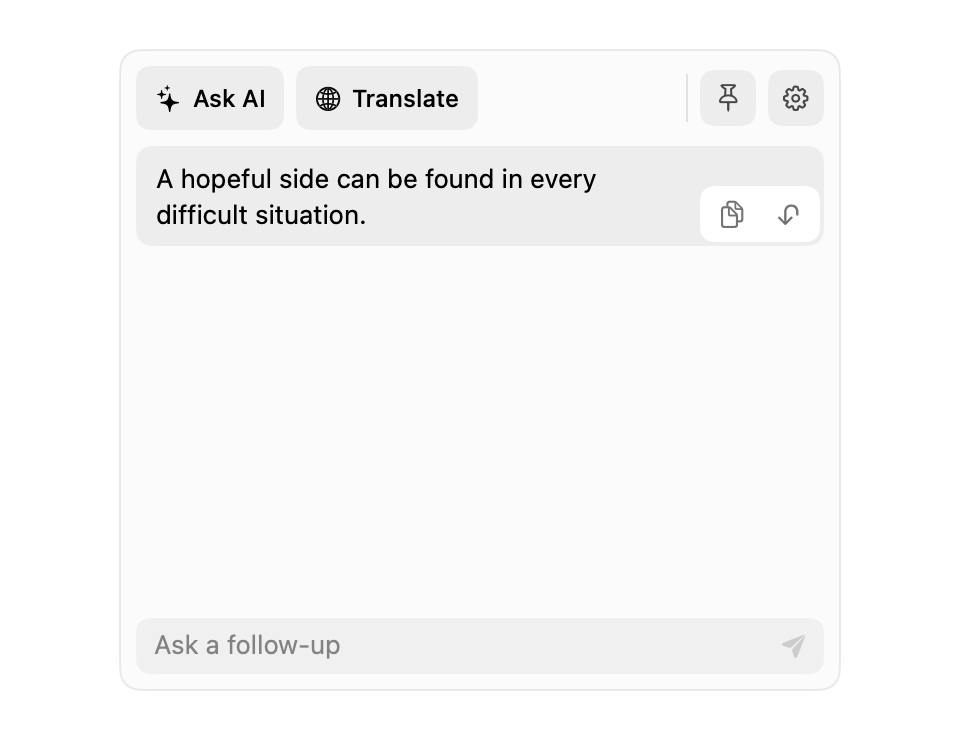
After processing, copy the answer into clipboard history or replace the selected text where available. Review names, numbers, code, links, and tone before using the result. AI output can be incorrect and should not be accepted without review for contracts, medical or financial decisions, or production commands.
Pair the bar with Auto Paste when a reviewed result needs to move into the active app. Pair it with Screenshot Tools when you want to capture and mark up a visual before choosing between local OCR and provider-based image analysis.
Trial and upgrade boundaries
The 7-day trial includes the complete experience. After the trial, the base AI Bar, built-in prompts, preset search actions, and sorting remain available. Creating or editing custom prompts and web actions, AI-assisted OCR translation, and screenshot image analysis require the one-time upgrade; deleting custom items remains available. AI-provider usage is billed separately.
A safe first test
Start with a short, non-sensitive paragraph. Try translation and polishing, confirm the provider and model behave as expected, and check how the copy or replace action fits the destination app. For images, decide whether the task is extraction or interpretation before choosing Screenshot OCR or image analysis.
FAQ
What can the AI Bar process?
It can work with selected text in another app, text clips in AegisClip, and screenshots or image clips. Actions include translation, polishing, summarization, free-form prompts, and image analysis.
Do I have to use one specific AI provider?
No. Current choices include OpenAI, Anthropic Claude, Google Gemini, OpenRouter, SiliconFlow, Kimi, DeepSeek, MiniMax, Zhipu GLM, Alibaba Qwen, Volcano Ark, and a generic OpenAI-compatible service.
Do external search actions call an AI API?
No. They place the query in an HTTPS URL and hand it to the default browser and target site without using the AI provider, API key, or AI consent. The query may appear in browser history or target-site logs.
Where is my API key stored?
AegisClip stores the API key in macOS Keychain. AI requests go to the provider you configure, so that provider's privacy and retention policies also apply.
Does the AI Bar work after the trial?
In supported App Store storefronts, the base AI Bar, built-in prompts, and preset search actions remain available. Creating or editing custom prompts and web actions, AI OCR translation, and screenshot image analysis require the Full Version; provider usage is separate.
Download AegisClip
Clipboard · Screenshot OCR · AI Bar — core history stays on your Mac by default.
Free download · 7-day full trial · Optional one-time upgrade.