Clipboard Privacy and Ignore Apps on Mac
See how AegisClip stores clips locally, ignores selected apps, manages retention, and when iCloud, AI requests, or browser search send data to another service.
On this page8 sections
Clipboard privacy on Mac is not only about where data is stored. A practical clipboard manager should also help you decide what should never enter history, when recording should pause, and which permissions are used for which workflow.
AegisClip is local-first, but local history still deserves boundaries. Ignore-app and sensitive-type filtering are best-effort safeguards, not a guarantee that every secret or third-party clipboard format can be recognized.
Start with what should not be saved
Clipboard history is useful because it remembers copied material. That same memory can be risky if it captures content from the wrong place.
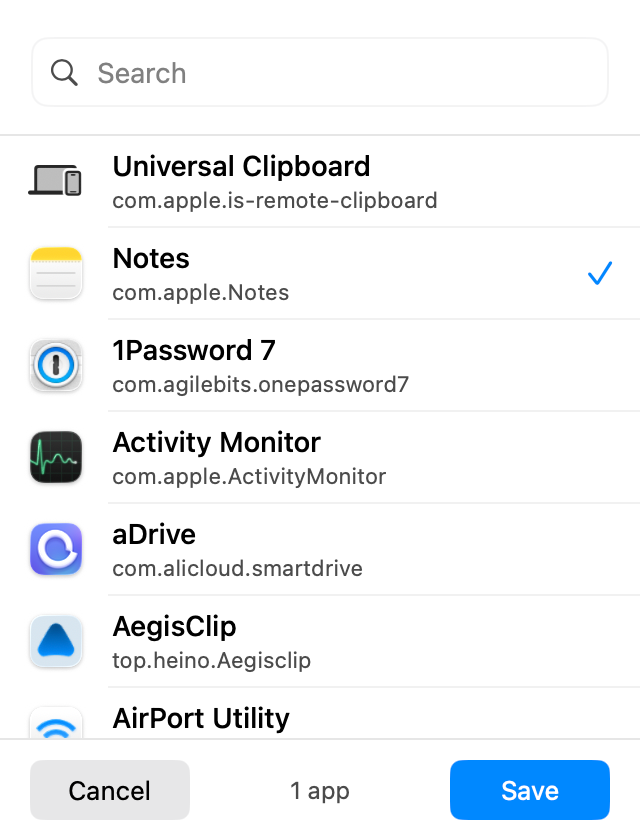
Good candidates for the ignore list include:
- password managers and two-factor code tools
- banking, payroll, tax, or finance apps
- private notes and personal journals
- secure workspaces or managed enterprise apps
- any app that often contains one-time secrets
Ignoring an app is better than cleaning up afterward because the sensitive clip never becomes part of normal retrieval, search, tags, or batch actions.
Use pause monitoring for one-off moments
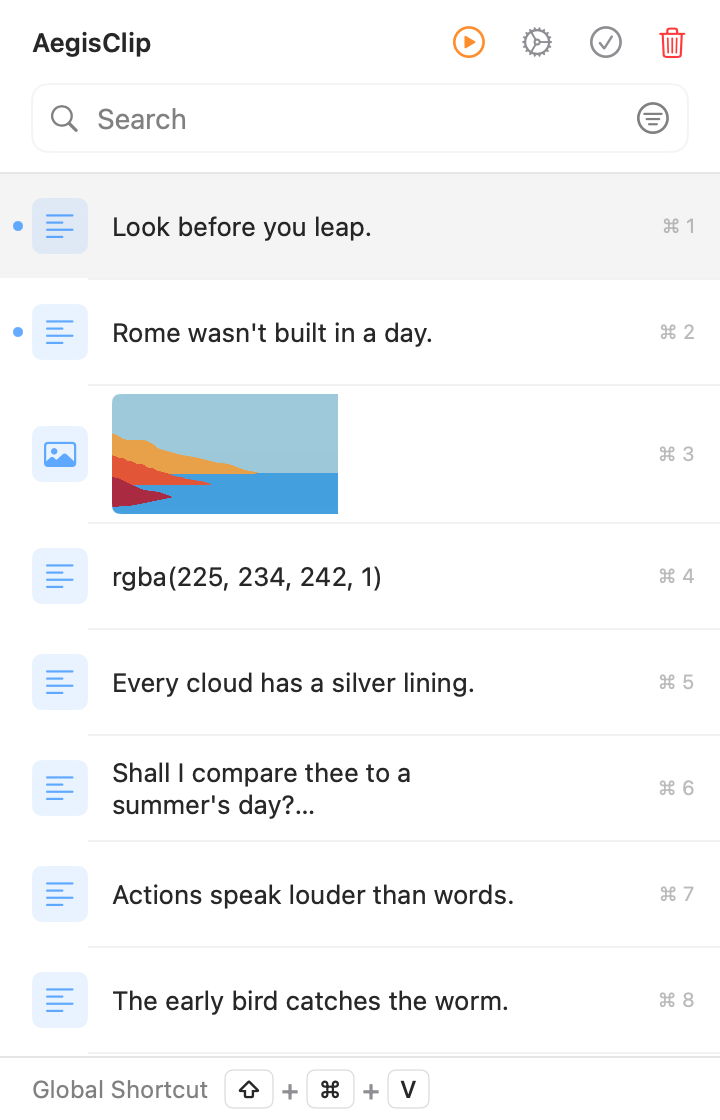
Ignore apps are best for repeated privacy boundaries. Pause monitoring is better for temporary cases: copying a recovery code, a private message, a contract value, or a one-time internal note.
The habit is simple: pause recording, copy the sensitive item, paste it where it belongs, then resume normal clipboard history. That keeps your everyday workflow fast without turning every private copy into a saved item.
Keep local storage understandable
AegisClip keeps clipboard history in its sandbox on your Mac by default and does not require an account for local use. History uses Core Data / SQLite, images and temporary resources use App Support storage, and AI API keys are stored separately in Apple Keychain. Individual history records are not given an additional file-encryption layer; at-rest protection depends on macOS, the Mac account, and FileVault.
Local-first does not mean "save everything forever." Review old clips, delete material you do not need, and use tags for reusable work items rather than private records. For the broader evaluation checklist, read Clipboard Manager for Mac.
Set retention and cleanup habits
Available retention periods are 1, 7, 15, 30, 60, or 100 days, plus Forever. Forever disables scheduled age-based cleanup, but a production build may still remove ordinary old items when disk space becomes critically low to protect App and system availability.
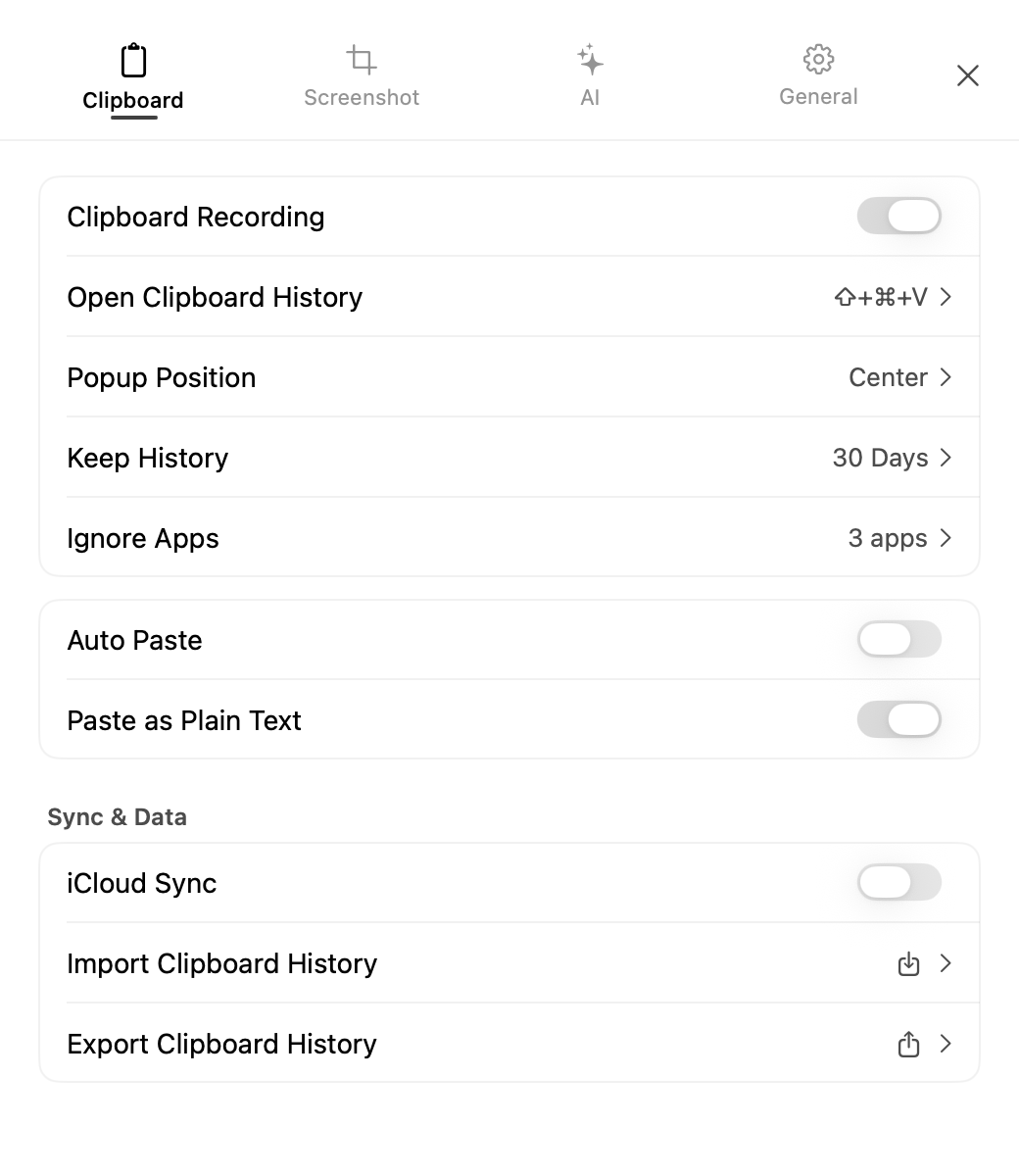
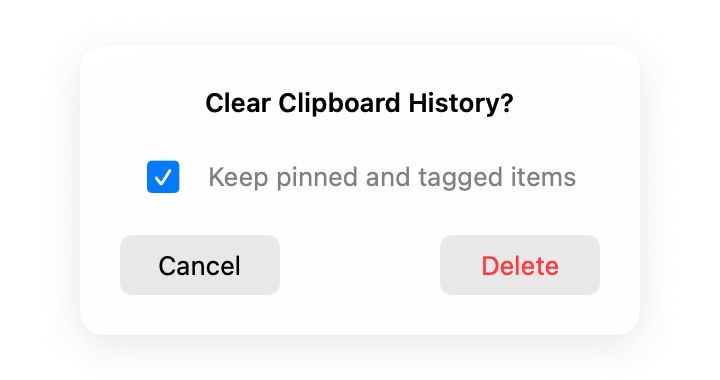
When clearing history, you can preserve pinned or tagged items. Use cleanup as part of the workflow: remove private clips, delete old temporary items, and keep reusable snippets organized.
Separate privacy from permissions
macOS permissions have different jobs:
| Area | What it supports |
|---|---|
| Accessibility | Auto Paste, Step Paste, AI selected-text triggering, and replacing selected text |
| Screen Recording | Capturing screen pixels and starting screenshot editing; OCR on an existing image does not need it |
| Notifications | Clear-history results and Step Paste completion; denial degrades silently |
| Clipboard history settings | What gets saved, ignored, deleted, or retained |
If a paste automation workflow fails, check AegisClip Accessibility Permission. If screenshot capture is blocked, check Screen Recording Permission on Mac.
Keep iCloud, AI, and browser search separate
- iCloud sync is off by default. When enabled, eligible history and metadata are processed through Apple iCloud / CloudKit.
- AI requests start after you invoke an AI action and approve the provider, endpoint, and disclosed data categories. Text, OCR, images, or conversation context can then go to that provider.
- External search actions do not call the configured AI provider. They put the query in a URL and hand it to the browser and target site without AI consent or the AI privacy scan.
Local-first does not mean every optional workflow is offline. Review the content before enabling sync, sending an AI request, or opening an external search.
Turning iCloud sync off stops later synchronization but does not automatically delete data already in CloudKit. To block an online AI path reliably, disable the AI Bar or revoke consent for the provider and actual target domain; removing an API key alone does not block a custom OpenAI-compatible endpoint that accepts unauthenticated requests.
A simple privacy setup
- Add password managers, finance tools, and private apps to the ignore list.
- Keep pause monitoring available for one-off sensitive copies.
- Delete private clips as soon as you notice them.
- Use tags for reusable work content, not confidential material.
- Review permissions only when you enable a workflow that needs them.
This setup keeps the clipboard manager useful without making it a place for secrets. For everyday retrieval, pair privacy controls with Search and Filter and Clipboard Tag Management.
When not to rely on clipboard history
Do not use a clipboard manager as a password manager, secret store, payroll archive, legal records system, or permanent source of truth. Those jobs belong in dedicated tools with stronger access control and ownership.
AegisClip is best for active working material: snippets, links, drafts, screenshots, commands, notes, and reusable text that helps you move between apps faster.
FAQ
What does clipboard privacy mean in AegisClip?
It means treating clipboard history as local working data: ignore apps that should not be recorded, pause monitoring when needed, delete private clips, and understand which macOS permissions each feature uses.
Which apps should I ignore?
Start with password managers, banking or finance tools, private notes, secure work apps, and any app where copied content should not become reusable history.
Does local storage replace good privacy habits?
No. History lives in the App sandbox using Core Data and support files, without separate per-item file encryption. At-rest protection still depends on the Mac account and FileVault, so sensitive clips should be excluded or deleted.
Is Accessibility permission related to reading clipboard history?
Clipboard history is stored by the App. Accessibility supports cross-app actions including Auto Paste, Step Paste, selected-text detection for the AI Bar, and replacing selected text with an AI result.
Does AI consent cover external search actions?
No. A search query is placed in an HTTPS URL and handed to the default browser, where it may enter browser history or target-site logs. This path does not use the AI API key or AI privacy scanner.
Download AegisClip
Clipboard · Screenshot OCR · AI Bar — core history stays on your Mac by default.
Free download · 7-day full trial · Optional one-time upgrade.