Loading… 正在加载…
Find the right feature
Recover an old clip, paste several items, or extract text from a screenshot. Start with what you want to do.
Less switching. Faster pasting.
Find something you copied, paste it into your current app, or work with several clips at once.
Auto Paste
Choose a clip and send it directly into the active app without an extra Command-V step.
See how it works — Auto PasteView the interface — Auto Paste
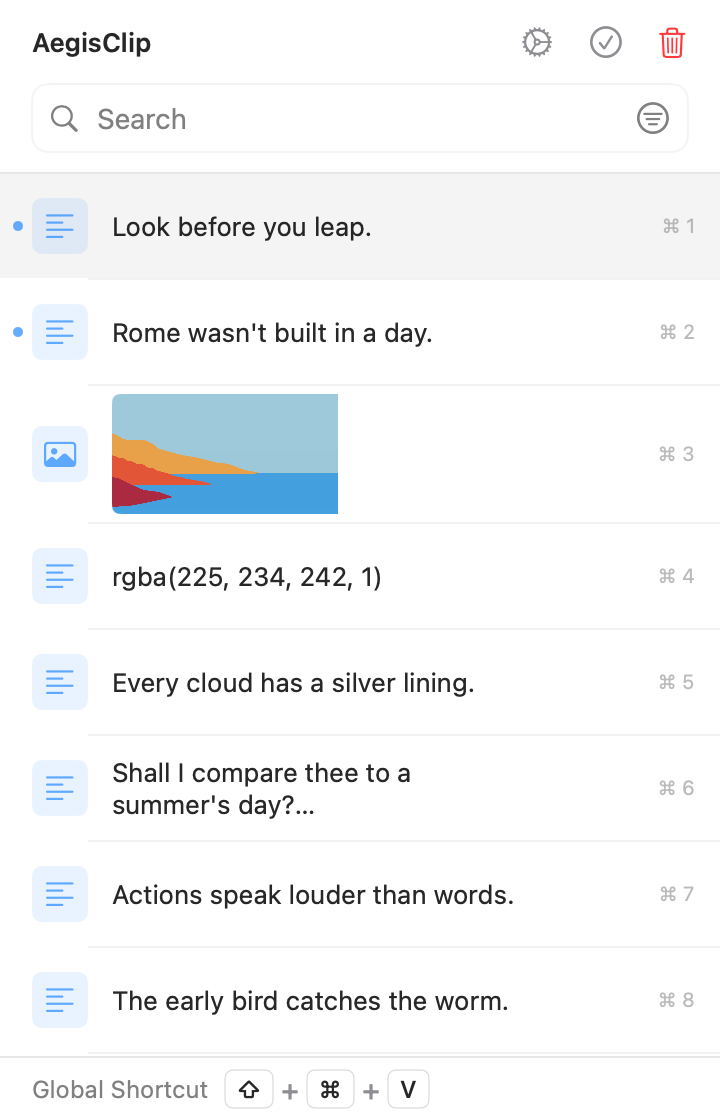
Clipboard history
More ways to paste
Split Text into Items
Turn long notes, prompts, lists, or replies into separate reusable clipboard items.
Copy All
Select several clips and copy them as one batch for notes, reports, or handoffs.
Step Paste
Paste selected items one by one when filling forms, tables, or repeated fields.
Plain Text Paste
Choose cleaner plain-text paste behavior when web, PDF, or email formatting gets in the way.
Keep useful clips within reach
Search, tag, and pin your history. Preview or edit a clip before you reuse it.
Search and Filters
Find old clips by text, source app, content type, date, and tag.
See how it works — Search and FiltersView the interface — Search and Filters
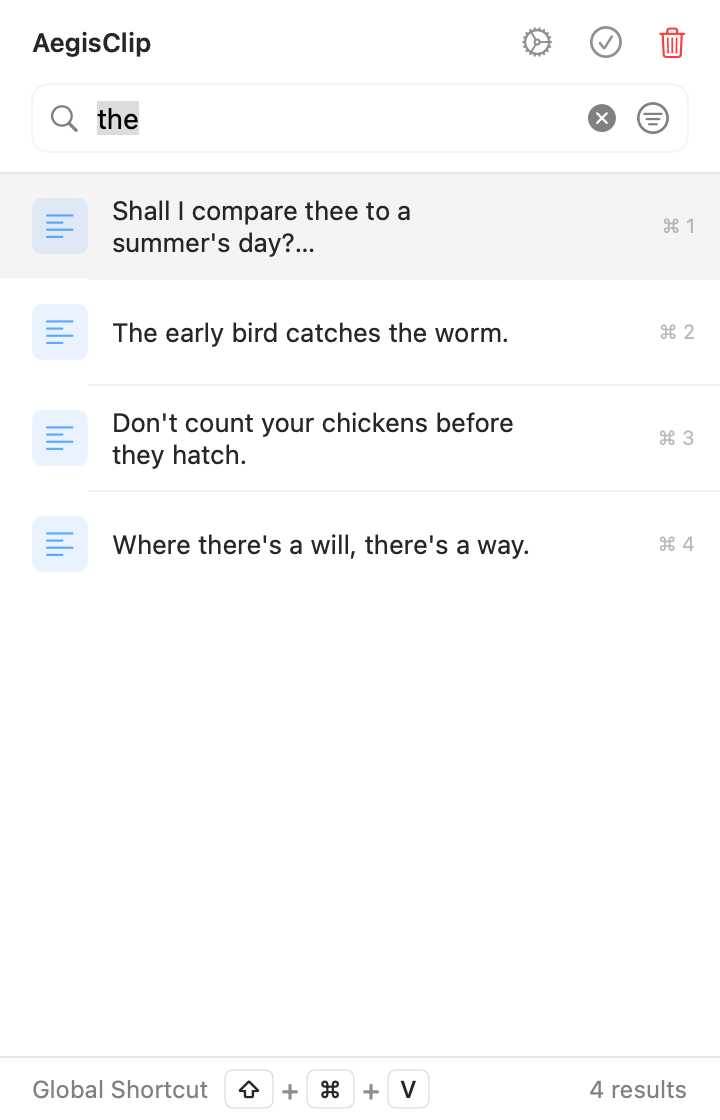
Tag Management
Group reusable clips by project, topic, workflow, or source.
Pin to Top
Keep important clips above the regular history list and arrange multiple pinned items in the order you need.
Clipboard Item Actions
Copy, pin, delete, inspect, and manage clips from the item menu.
Preview & Color Preview
Preview text, images, files, and color codes before using a clip.
Text Editing
Clean up text clips before saving, tagging, splitting, or pasting them.
Word Count
Check length and character counts before reusing text in documents, prompts, or replies.
Put your screenshots to work
Capture and annotate a screen, recognize image text, and copy it wherever you need it.
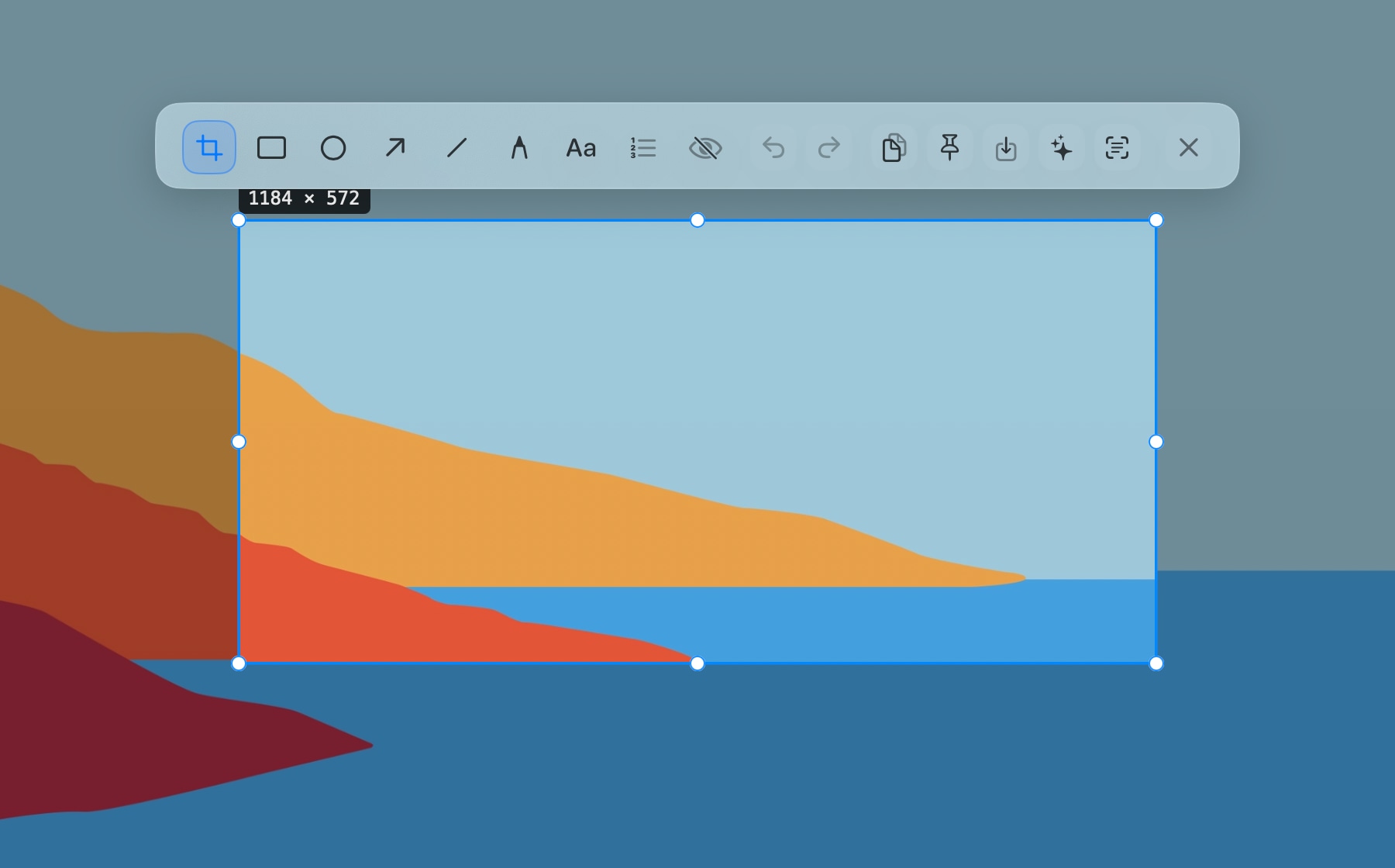
Screenshot Enhancement
Capture, annotate, pin, copy, save, OCR, or send screenshots to the AI Bar inside one workflow.
See how it works — Screenshot EnhancementView the interface — Screenshot Enhancement
Take the next step with selected text
Use your chosen AI provider, or take content to a browser search.
AI Bar
Translate, polish, summarize, ask freely, or analyze selected text, clipboard items, and screenshots with your chosen AI provider.
See how it works — AI BarMake AegisClip work your way
Choose what to record and retain, set your shortcuts and appearance, and manage your data.
Privacy and history
Pause Monitoring
Pause clipboard monitoring temporarily when copying private or one-off content.
Ignore Apps
Exclude password managers, finance tools, or private apps from clipboard history.
On-device Storage
Keep clipboard history on your Mac by default without requiring an account.
History Retention
Choose how long history stays available and clean it up when needed.
Shortcuts, settings, and data
Keyboard Shortcuts
Open, search, select, paste, and manage clips from the keyboard.
Minimal Menu Bar App
Stay out of the way until you open the clipboard window from the menu bar or shortcut.
Personalized Settings
Tune launch, paste, shortcut, screenshot, language, and appearance settings.
Import and Export
Back up, migrate, or rework clipboard history with CSV and image exports.
Launch at Login
Start AegisClip automatically so history is ready when you begin working.
Multi-language Interface
Use the app in a localized interface that fits your system language preference.
Dark Mode
Match light, dark, or system appearance for long work sessions.
App Intents & Shortcuts
Connect clipboard actions to system automation where supported.
iCloud Sync
Sync clipboard history through iCloud when the feature is enabled.
Try it in your everyday work
Start with something you copy and paste every day.