Auto Paste Not Working on Mac
Fix Auto Paste not working on Mac by checking Accessibility permission, target app focus, manual paste, paste mode, and app-specific limits.
On this page7 sections
Use this checklist when AegisClip opens normally but the selected clip does not appear in the target app. Auto Paste Not Working on Mac is usually caused by permission, focus, or target-app behavior rather than the clipboard item itself.
The fastest way to narrow it down is to separate three questions: can AegisClip access paste automation, is the cursor in the right field, and does the target app accept normal paste for the same content?
1. Check Accessibility permission
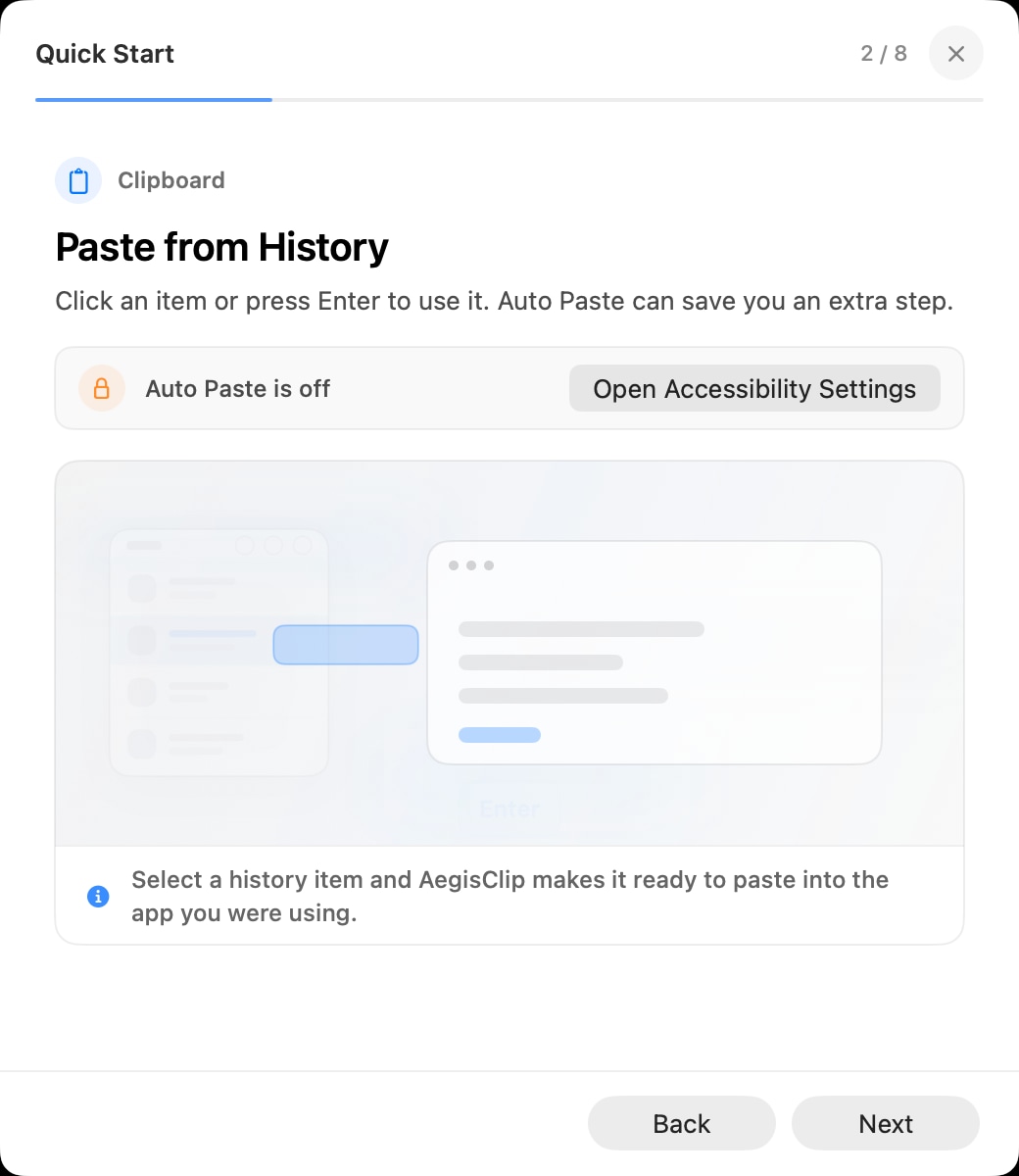
Open System Settings > Privacy & Security > Accessibility and confirm AegisClip is enabled. If you recently changed the switch, quit and reopen AegisClip.
Auto Paste needs this permission because AegisClip performs a paste action into another app.
If the switch was already enabled, turn it off and on again, then restart AegisClip. macOS privacy state can occasionally stay stale after app updates, restores from backup, or moving the app to a different folder.
2. Check target focus
Auto Paste sends content to the app and field that are active. Click inside the exact text field first, then open AegisClip and choose the clip.
Focus issues are common in browsers, chat apps, admin panels, sidebars, and apps with multiple panes.
If a page has several editable areas, click once inside the field, type one test character, delete it, and then try Auto Paste. That confirms the field is actually receiving keyboard input.
3. Test manual paste
Copy the same clip from AegisClip, then press Command + V in the target app.
- If manual paste fails, the app or field may not accept that content type.
- If manual paste works, continue checking Auto Paste settings and permission.
4. Test a simple Mac app
Try Notes or TextEdit. If Auto Paste works there but not in the original app, the original app may block simulated paste, handle focus differently, or use a secure input field.
This does not always mean AegisClip is broken. It can be an app-specific limitation.
5. Check paste mode
Confirm whether you are testing normal paste, plain text paste, formatted paste, or Step Paste. Different modes can produce different results, especially when the target app accepts only plain text or only certain pasteboard types.
Also confirm Auto Paste is enabled in AegisClip settings.
For rich text, code, or content copied from a web page, try plain text paste once. If plain text works but formatted paste does not, the target app is probably rejecting the richer clipboard format.
6. Restart after permission changes
macOS privacy changes sometimes apply only after the app starts again. Quit AegisClip, reopen it, and test in a simple app before returning to the original target.
If you use multiple monitors, full-screen apps, remote desktops, or browser-based virtual desktops, test outside those environments too. They can change how keyboard focus and paste events are delivered.
Still not working
When reporting the issue, include:
- macOS version
- AegisClip version
- target app name
- whether manual
Command + Vworks - whether Notes or TextEdit works
- whether the item is text, image, rich text, or file content
For the permission setup page, read AegisClip Accessibility Permission.
FAQ
Why is Auto Paste not working on Mac?
The most common causes are missing Accessibility permission, the target text field not being focused, the target app blocking paste, or macOS not applying a recent permission change until AegisClip restarts.
What should I test first?
Paste the same clip manually with Command + V in the target app. If manual paste fails too, the issue is probably the target app, field, or clipboard content type.
Why does Auto Paste work in Notes but not another app?
Some apps handle focus, secure fields, or keyboard events differently. If Notes works, AegisClip and permission are likely working, and the issue is app-specific.
Does Step Paste use the same permission?
Yes. Step Paste also relies on Accessibility permission because it watches paste actions and prepares the next clipboard item.
Download AegisClip
Clipboard · Screenshot OCR · AI Bar — core history stays on your Mac by default.
Free download · 7-day full trial · Optional one-time upgrade.