Auto Paste for Mac
Turn on AegisClip Auto Paste and grant Accessibility permission so a selected history item goes straight back into the app you were using.

On this page5 sections
This workflow starts after you find the right clip. Instead of selecting an item from clipboard history, closing the panel, returning to the app, and pressing Command + V, AegisClip can send the selected item into the active app for you.
That one removed step matters when you paste many times per day.
What changes in the workflow
The normal history workflow is:
- Open clipboard history.
- Find the old item.
- Select or copy it.
- Return to the destination app.
- Press
Command + V.
With Auto Paste, the last two steps are shortened. You place the cursor in the destination first, open AegisClip, choose the clip, and the content goes into the field that was already active.
Where Auto Paste helps most
Auto Paste is most useful for repeated text work:
- support replies and standard explanations
- links, addresses, IDs, and reusable notes
- code snippets or safe terminal commands
- research fragments moved into a draft
- structured form or admin work
It is less important when you only paste one item occasionally. The value appears when recall and insertion happen repeatedly.
Setup and permission
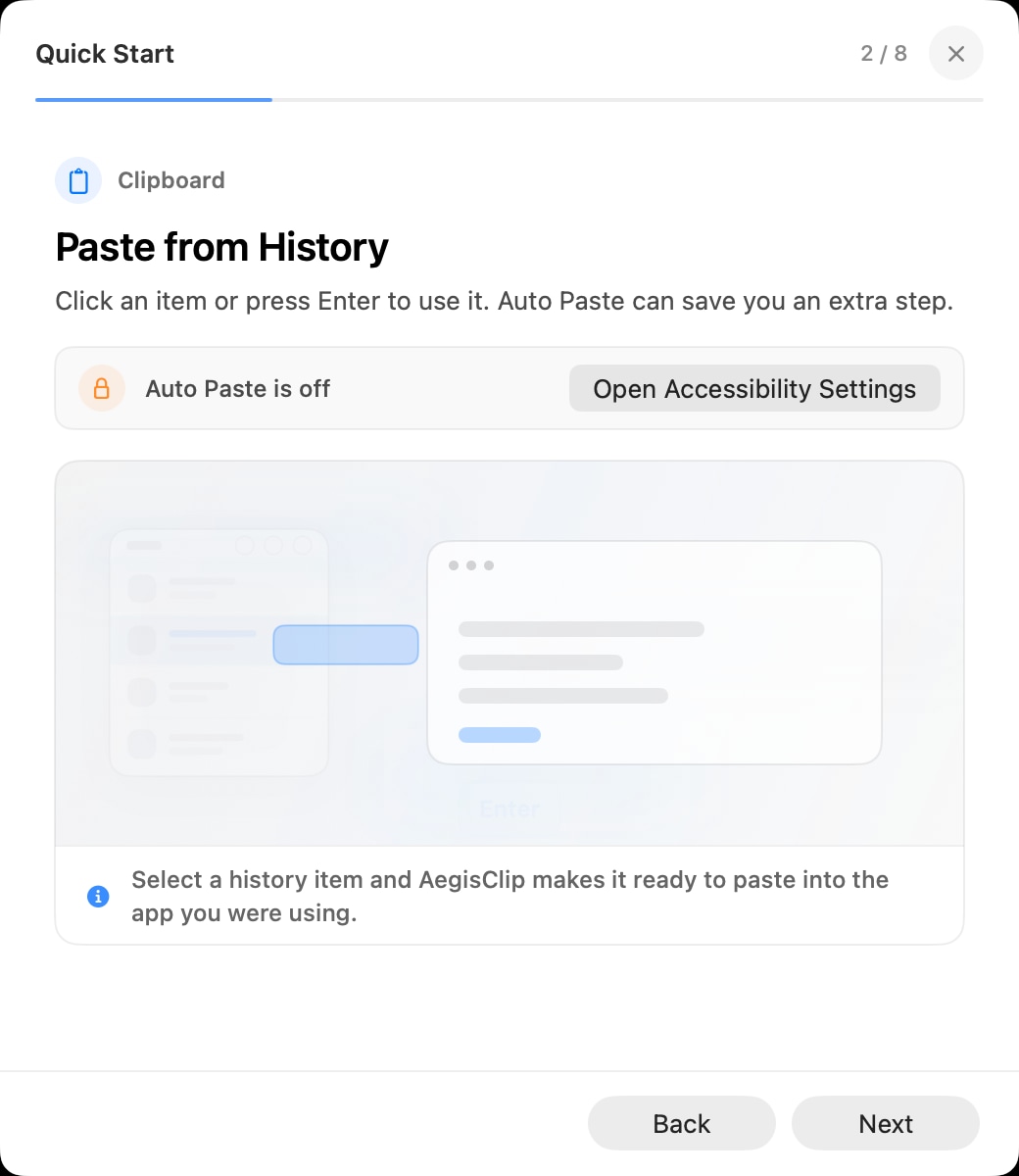
Auto Paste needs Accessibility permission because macOS treats simulated paste as control of another app. AegisClip asks for this permission when the feature is enabled or when the action needs it.
The basic setup is:
- Enable Auto Paste in AegisClip settings.
- Grant Accessibility permission in System Settings.
- Click the destination field in the target app.
- Open AegisClip with your clipboard shortcut.
- Select the item to paste.
If you change the permission, restart AegisClip so macOS applies the new privacy state cleanly.
Auto Paste only handles the final insertion step: AegisClip writes the selected item to the system clipboard, closes its window, returns focus, and simulates Command + V. The "Paste as plain text" setting controls the data written to the clipboard and is enabled by default on a new install. Shift + Enter can force a formatted copy for the current item.
The destination app still decides which text, image, rich-text, or file types it accepts. Terminals, remote desktops, full-screen apps, and high-security fields may impose their own focus or simulated-paste restrictions.
Best pairings
Auto Paste works best when the history itself is easy to navigate. Use Search and Filter to find the right item, Tag Management for reusable sets, and Paste as Plain Text when formatting should be stripped before insertion.
If the task involves several fields, use Step Paste instead. If several clips should become one output, use Copy Multiple Clipboard Items.
Troubleshooting
If Auto Paste does not work, test a simple app like Notes first. If the same clip pastes there, AegisClip is working and the original app may be handling focus or keyboard events differently.
For a step-by-step checklist, read Auto Paste Not Working on Mac. For the broader setup guide, read How to Paste on Mac.
FAQ
What is Auto Paste for Mac?
The feature lets AegisClip send the selected clipboard history item into the active app, so you do not need to select a clip and then press Command + V yourself.
What permission does Auto Paste need?
It needs macOS Accessibility permission because AegisClip performs a paste action into another app. The permission is used for this interaction, not for reading your screen continuously.
When should I use Auto Paste?
Use it for repeated replies, snippets, links, commands, notes, and form values. For one-off copy and paste, normal Command + V is still enough.
What should I check if Auto Paste fails?
Confirm the target field has focus, Auto Paste is enabled, Accessibility permission is granted, and manual Command + V works in the same app.
Download AegisClip
Clipboard · Screenshot OCR · AI Bar — core history stays on your Mac by default.
Free download · 7-day full trial · Optional one-time upgrade.