AegisClip Accessibility Permission
Enable AegisClip Accessibility Permission on Mac so Auto Paste and Step Paste can send clipboard items into the active app.
On this page4 sections
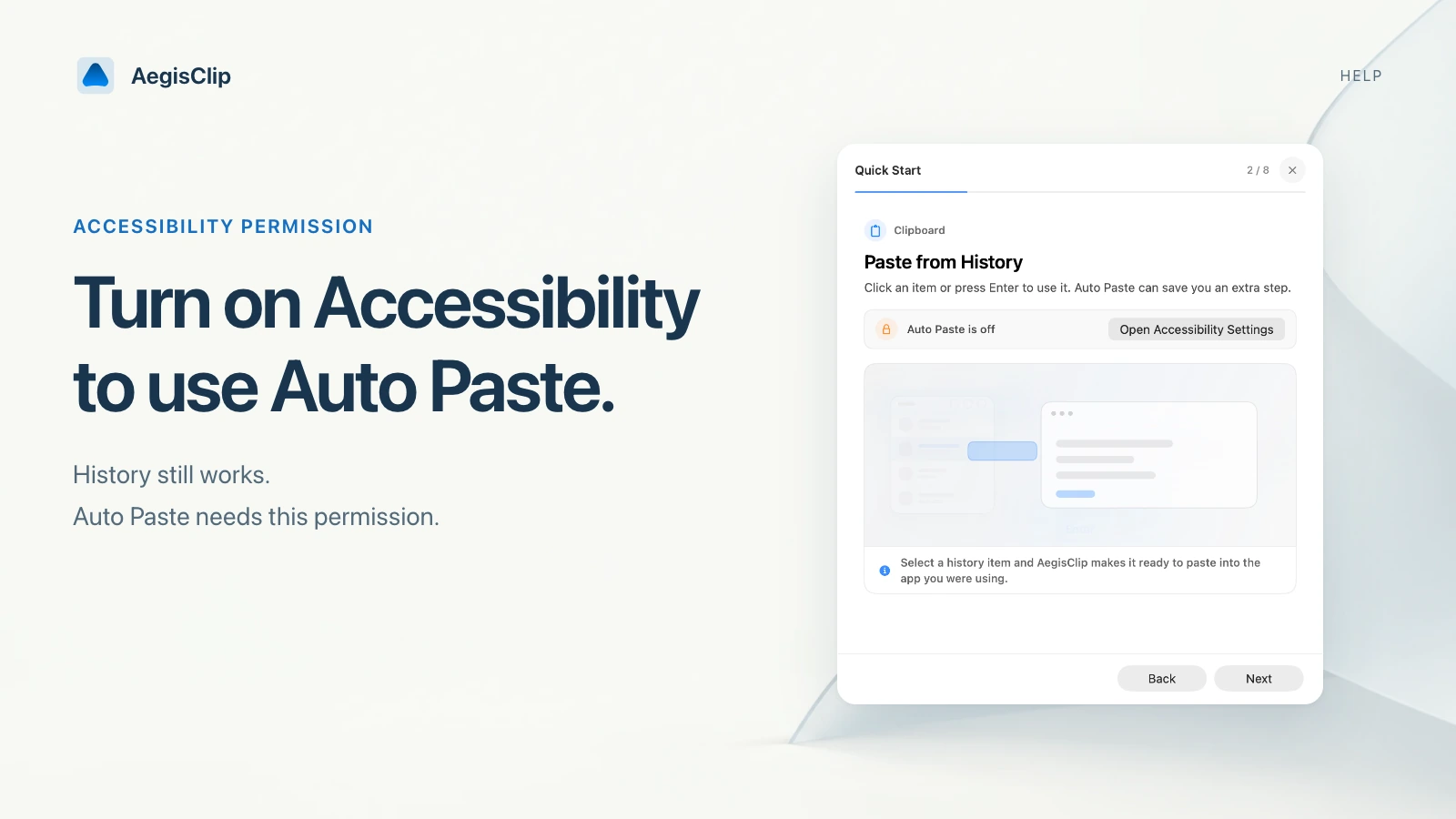
AegisClip Accessibility Permission is required for features that paste into another app for you. The main examples are Auto Paste and Step Paste.
Clipboard history can still be viewed without this permission. The permission matters when AegisClip needs to send the selected clip into the active app or respond to a controlled paste sequence.
You can think of it as the approval that lets AegisClip press paste on your behalf. If you only open history, search clips, copy an item again, or organize saved clips, you may not notice the permission at all. If you expect AegisClip to place text into Mail, Notes, a browser form, a code editor, or a support tool automatically, this is the permission to check first.
Enable the permission
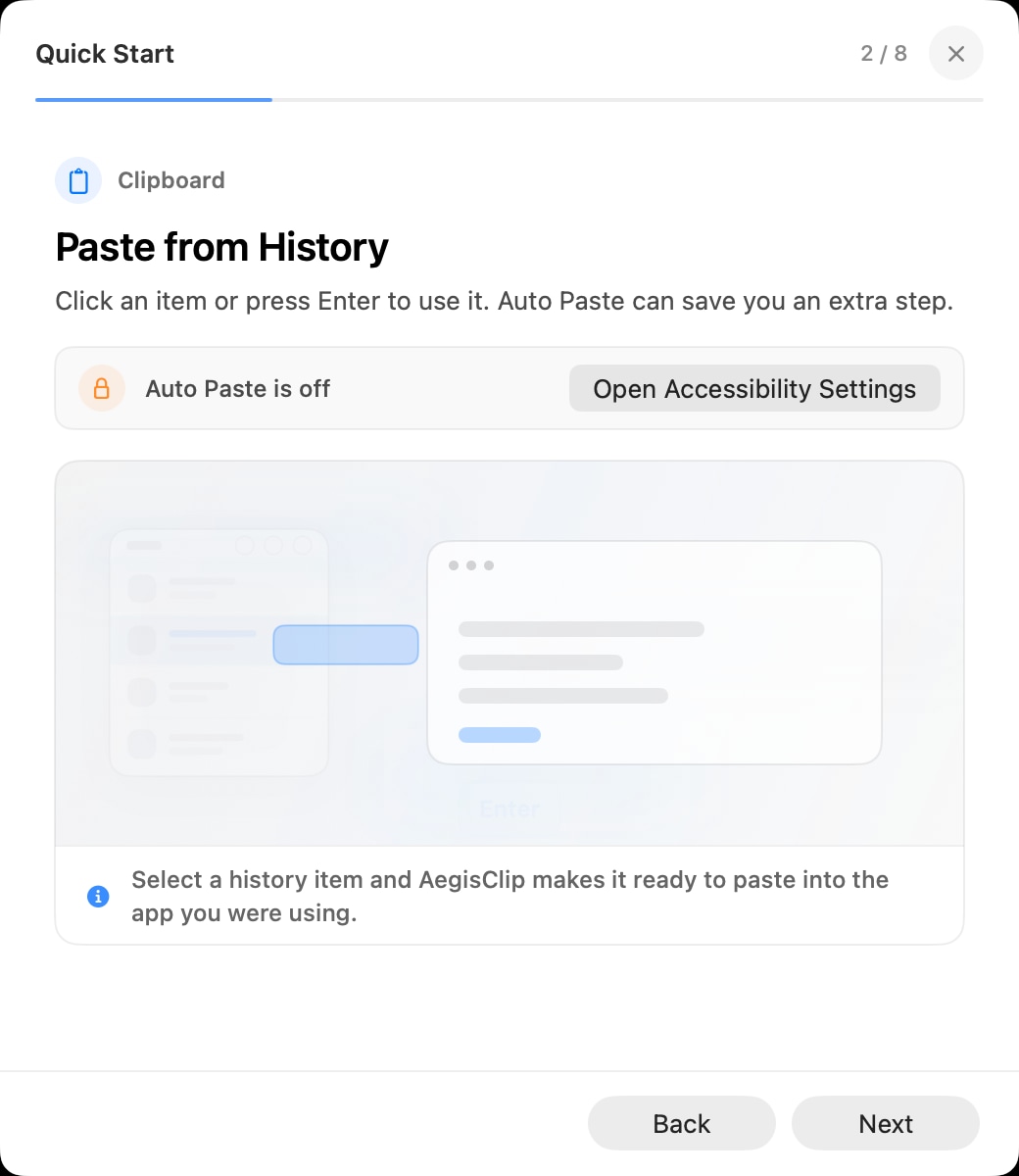
- Open AegisClip.
- Go to Settings and find Auto Paste or the permission prompt.
- Open System Settings.
- Go to Privacy & Security > Accessibility.
- Enable AegisClip.
- Quit and reopen AegisClip if the feature still does not respond.
Some Macs require administrator approval before privacy settings can be changed.
After enabling the switch, test in a simple text field before returning to a complex app. Notes, TextEdit, or a plain browser text box are good first tests because they make focus and paste behavior easy to see.
If AegisClip is not listed
Try this order:
- Quit and reopen AegisClip.
- Trigger Auto Paste setup again from AegisClip settings.
- Open Privacy & Security > Accessibility manually.
- Use the add button if macOS lets you add AegisClip from the Applications folder.
If you installed a new version, macOS may treat it as a refreshed app and require you to re-enable the switch.
If the app still does not appear, confirm that you are opening the installed app from Applications rather than a temporary download location. macOS privacy prompts are easier to refresh when the app is installed in a stable location.
What this permission does
Accessibility permission lets AegisClip perform the paste action you would normally trigger with Command + V. It also supports Step Paste, where AegisClip prepares the next item as you move through fields.
It does not mean AegisClip is uploading clipboard history. It also does not replace normal macOS security habits: avoid saving passwords, tokens, private keys, or confidential customer content in clipboard history.
If Auto Paste still fails
First test manual paste in the same target app. If Command + V does not work, the target app or field may not accept the content. If manual paste works but Auto Paste fails, continue to Auto Paste Not Working on Mac.
Also check whether the target field is a password field, secure input, remote desktop window, terminal prompt, or embedded web view. Those areas can handle pasted content differently from normal text fields, even after Accessibility permission is enabled.
FAQ
Why does AegisClip need Accessibility permission?
AegisClip uses Accessibility permission for actions that interact with another app, such as Auto Paste and Step Paste. macOS requires user approval before an app can perform those actions.
Does this permission upload my clipboard history?
No. Accessibility permission is for local app interaction. AegisClip remains local-first unless you explicitly use sync, export, or another action that moves data elsewhere.
Where do I enable it?
Open System Settings, go to Privacy & Security, choose Accessibility, and enable AegisClip. You may need to unlock settings with an administrator password or Touch ID.
Do I need to restart AegisClip after changing permission?
If Auto Paste or Step Paste still does not respond after enabling the switch, quit and reopen AegisClip so macOS applies the updated privacy state.
Download AegisClip
Clipboard · Screenshot OCR · AI Bar — core history stays on your Mac by default.
Free download · 7-day full trial · Optional one-time upgrade.