Mac Clipboard Shortcuts
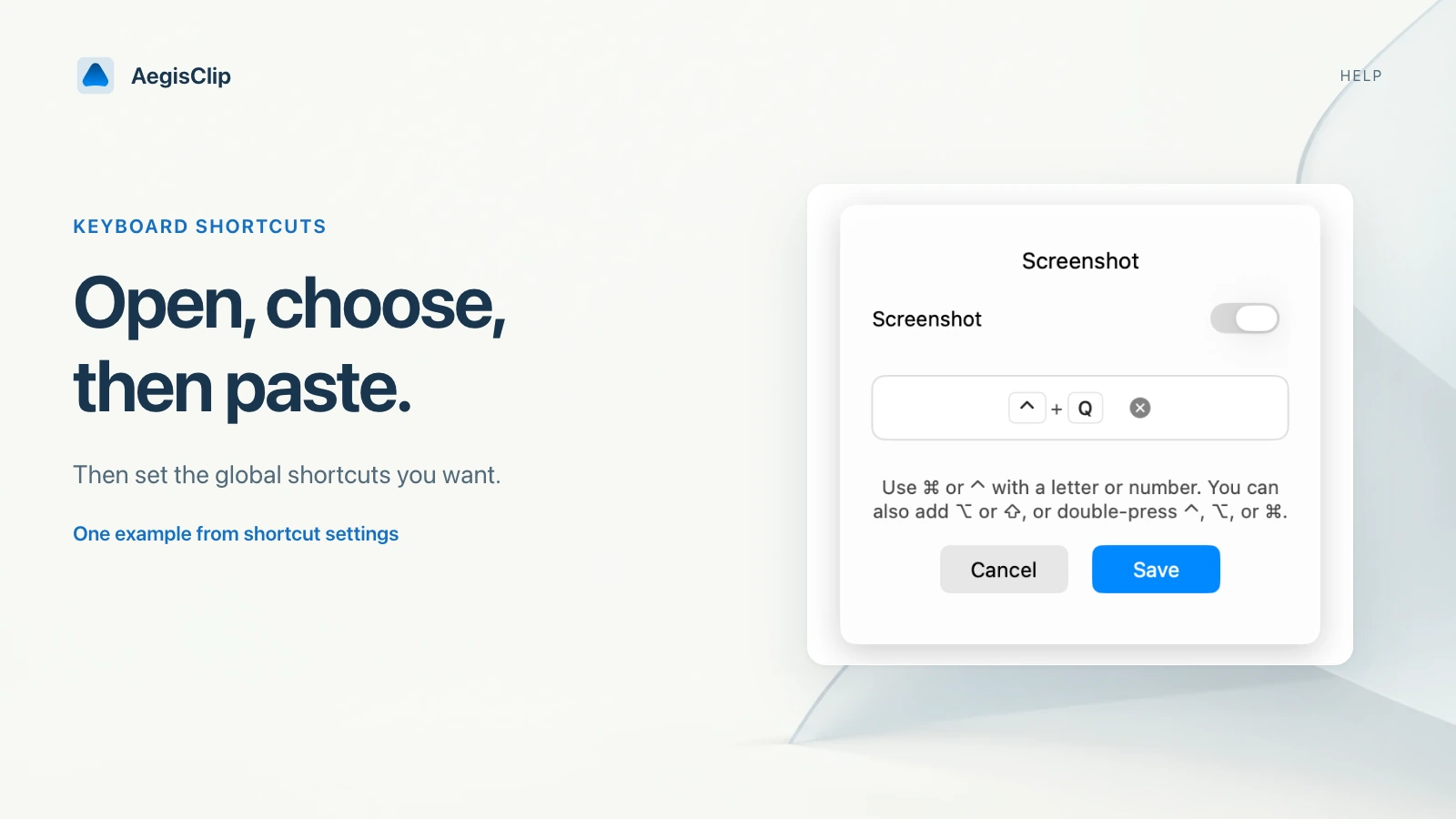
AegisClip keyboard shortcuts for the history list, filters, tags, multi-select, editing, screenshots, and the AI Bar. Check Settings for global triggers.
On this page8 sections
Mac clipboard shortcuts make AegisClip faster because you do not need to leave the keyboard to search, preview, tag, copy, or paste. You do not need to learn everything on day one. Start with the few shortcuts that match your daily workflow.
Start with the core loop
| Action | Shortcut |
|---|---|
| Open or close clipboard history | New installs normally use Shift + Command + V; use the current Settings value |
| Move through clips | Up / Down |
| Copy or paste selected item | Enter |
| Preserve formatting for selected item | Shift + Enter |
| Preview selected item | Space or Option |
| Close panel or popup | Esc |
This is enough for most users: open history, choose an item, preview if needed, then paste.
Three configurable global triggers
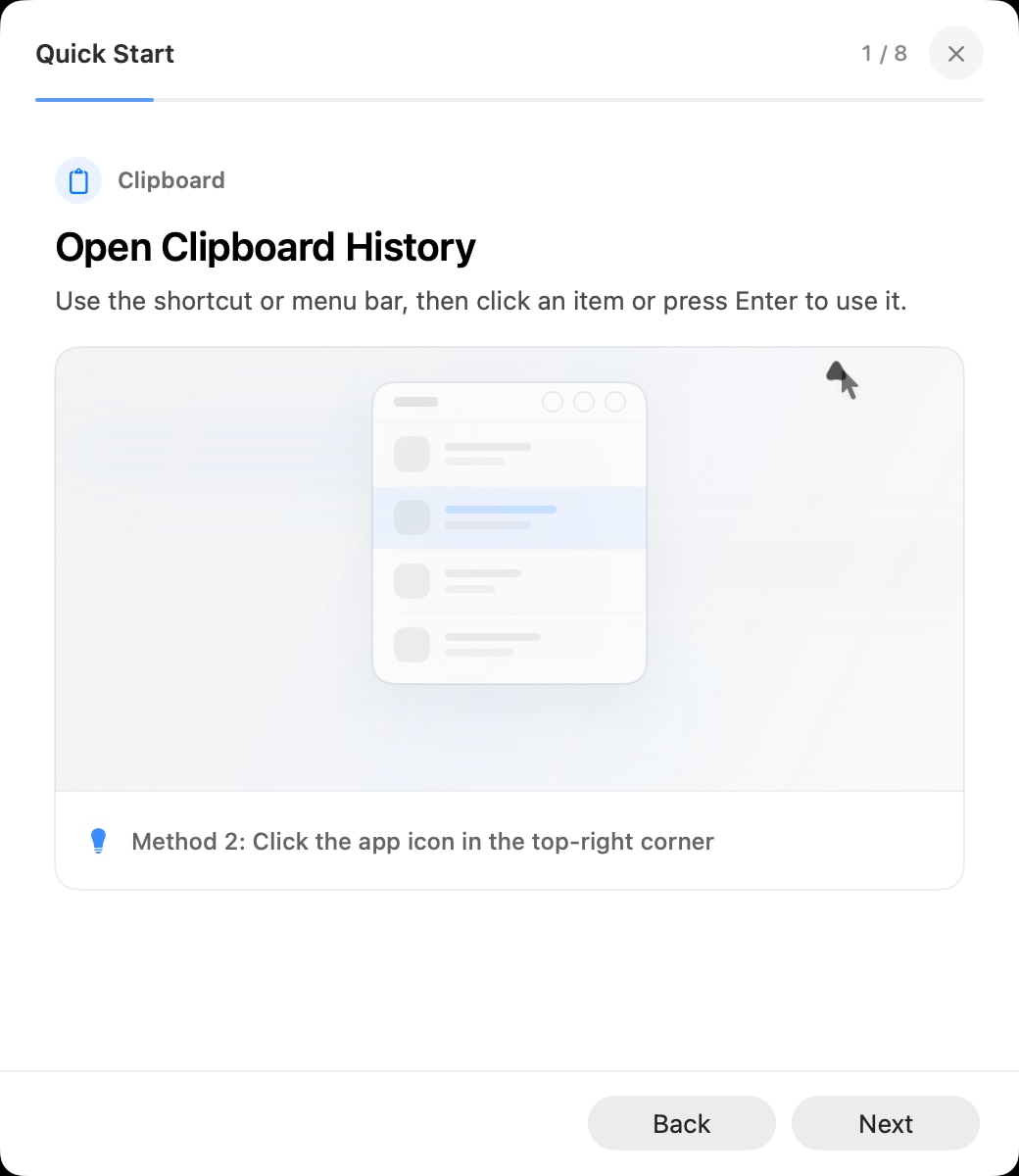
- Clipboard history normally starts as
Shift + Command + Von a new install and can be re-recorded in the Clipboard tab. - Screenshot Enhancement registers its own trigger while the feature is enabled. Its current combination is shown in the Screenshot tab.
- AI Bar normally uses a double Option tap (
⌥⌥) on a new install. An upgraded install may retain an older combination, and the recorder accepts both key combinations and double-modifier triggers.
Recording pauses related global listeners and checks conflicts so the key press used to record a trigger does not also run the feature.
Faster item actions
| Action | Shortcut |
|---|---|
| Quick copy item 1-9 | Command + 1 to Command + 9 |
| Quick copy item 1-9 with formatting | Command + Shift + 1 to Command + Shift + 9 |
| Pin or unpin current item | Command + P |
| Edit text item | Command + E |
| Run image OCR or close OCR window | Command + O |
| Delete current item | Command + Delete |
| Open settings | Command + S |
| Move to next item | Release Command by itself |
| Move to previous item | Release Command + Shift by itself |
Use quick numbers only when the top results are predictable. If you are unsure, preview first.
Filters, tags, and multi-select
| Action | Shortcut |
|---|---|
| Open filters | Command + F |
| Reset filters | Command + R |
| Apply filters | Command + Enter |
| Open tag panel | Command + T |
| Toggle a tag in the tag panel | Enter |
| Enter multi-select mode | Command + M |
| Toggle item selection | Enter |
| Select or deselect all available items | Command + A |
| Copy all selected items | Command + Enter |
| Start Step Paste | Option + Enter |
These shortcuts are most useful once your clipboard history becomes more than a recent-items list.
Text editing shortcuts
When editing a text item, normal macOS text shortcuts still apply: copy, paste, cut, select all, undo, redo, and cursor movement. Use Command + Enter to save edits and Esc to cancel.
Tag and filter panels isolate their shortcuts from the main list. In the tag panel, use Up / Down, Enter, Command + A, and Command + T or Command + Enter to close. In filters, Command + R resets, Command + Enter applies, and Command + F or Esc closes.
Screenshot shortcuts
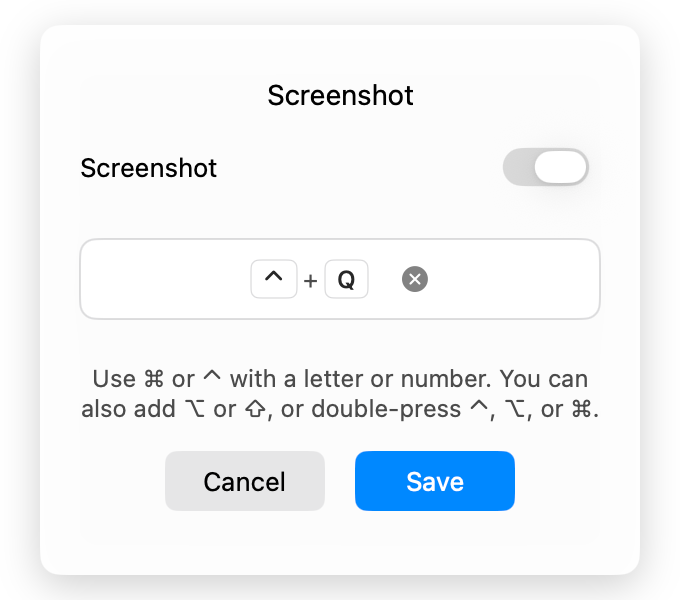
Screenshot Enhancement has its own configurable global shortcut. Inside the screenshot editor, tool keys include V, R, E, A, L, P, T, N, M, and B for selection, shapes, arrows, drawing, text, numbering, mosaic, and blur tools.
Configure screenshot shortcuts in AegisClip settings if the default conflicts with another app.
Inside the editor, Command + Z / Command + Shift + Z undo and redo; Command + C, Command + S, and Command + P copy, save, and pin; O opens OCR/translation; Enter performs the default copy; Esc cancels. During region selection, Command + A selects the full screen, C copies the pointer color, R / Shift + R browse selection history, and arrow keys nudge by 1 pixel or 10 pixels with Shift.
For a pinned screenshot, Command + E reopens editing, Command + Enter confirms an edit, and Command + C, Command + S, and Command + W copy, save, and close.
AI Bar shortcuts
After the AI Bar opens, Enter runs the selected action, Command + C copies the result, Command + R replaces selected source text when supported, and Esc closes. Reading selected text and replacing it require Accessibility permission.
Troubleshooting shortcuts
If a shortcut does not work:
- Check whether another app or macOS already uses it.
- Change the global shortcut in AegisClip settings.
- Close open subpanels and try again.
- If paste automation fails, check AegisClip Accessibility Permission.
- If a shortcut behaves differently while typing Chinese or Japanese, finish the input composition first.
AegisClip adapts common letter shortcuts to the current keyboard layout, including non-QWERTY layouts, and avoids treating Enter as an action while an input method is composing text.
For feature-level workflows, see Auto Paste for Mac, Step Paste on Mac, Preview and Color Preview, and Clipboard Privacy and Ignore Apps.
FAQ
What shortcut opens AegisClip?
A new install normally uses Shift + Command + V for clipboard history, but the recorded shortcut in AegisClip Settings is authoritative and can be changed when it conflicts.
Which shortcuts should beginners learn first?
Start with the current global history shortcut, Up and Down, Enter, Space or Option for preview, Command + F for filters, Command + T for tags, and Command + M for multi-select.
What shortcut copies several selected items?
In multi-select mode, Command + Enter copies all selected items. Option + Enter starts Step Paste.
Why is a shortcut not working?
It may conflict with macOS or another app, the current panel may be intercepting keys, or Accessibility permission may be needed for paste automation.
Download AegisClip
Clipboard · Screenshot OCR · AI Bar — core history stays on your Mac by default.
Free download · 7-day full trial · Optional one-time upgrade.