How to Paste on Mac
Learn how to paste on Mac with Command-V, menu paste, paste without formatting, clipboard history, Auto Paste, and quick troubleshooting.
On this page6 sections
If you only need the basic answer, here it is: copy with Command + C, click where the content should go, then paste with Command + V.
But how to paste on Mac depends on the situation. Sometimes you want the latest copied item. Sometimes you want an older clipboard item, clean text without formatting, or several items pasted in order. This guide separates the common cases.
Paste the current clipboard item
Use the standard Mac flow:
- Select text, an image, a file, or another item.
- Press
Command + Cto copy. - Click the destination field or app.
- Press
Command + Vto paste.
You can also use Edit > Copy and Edit > Paste from the menu bar, or Control-click and choose Copy or Paste in supported apps. If Paste is dimmed, the target may not accept that content type.
Paste without formatting
When copying from webpages, PDFs, email, or rich documents, formatting can follow the text. That may bring fonts, colors, links, spacing, or hidden styles into the destination.
For many apps, Paste and Match Style is the built-in solution. Apple lists Option + Shift + Command + V as the shortcut for applying the surrounding style in supported apps, though individual apps may vary.
Use Paste as Plain Text on Mac in AegisClip when you want a consistent plain-text workflow for editors, CMS fields, support tools, Markdown, code, terminal commands, or forms.
Paste from clipboard history
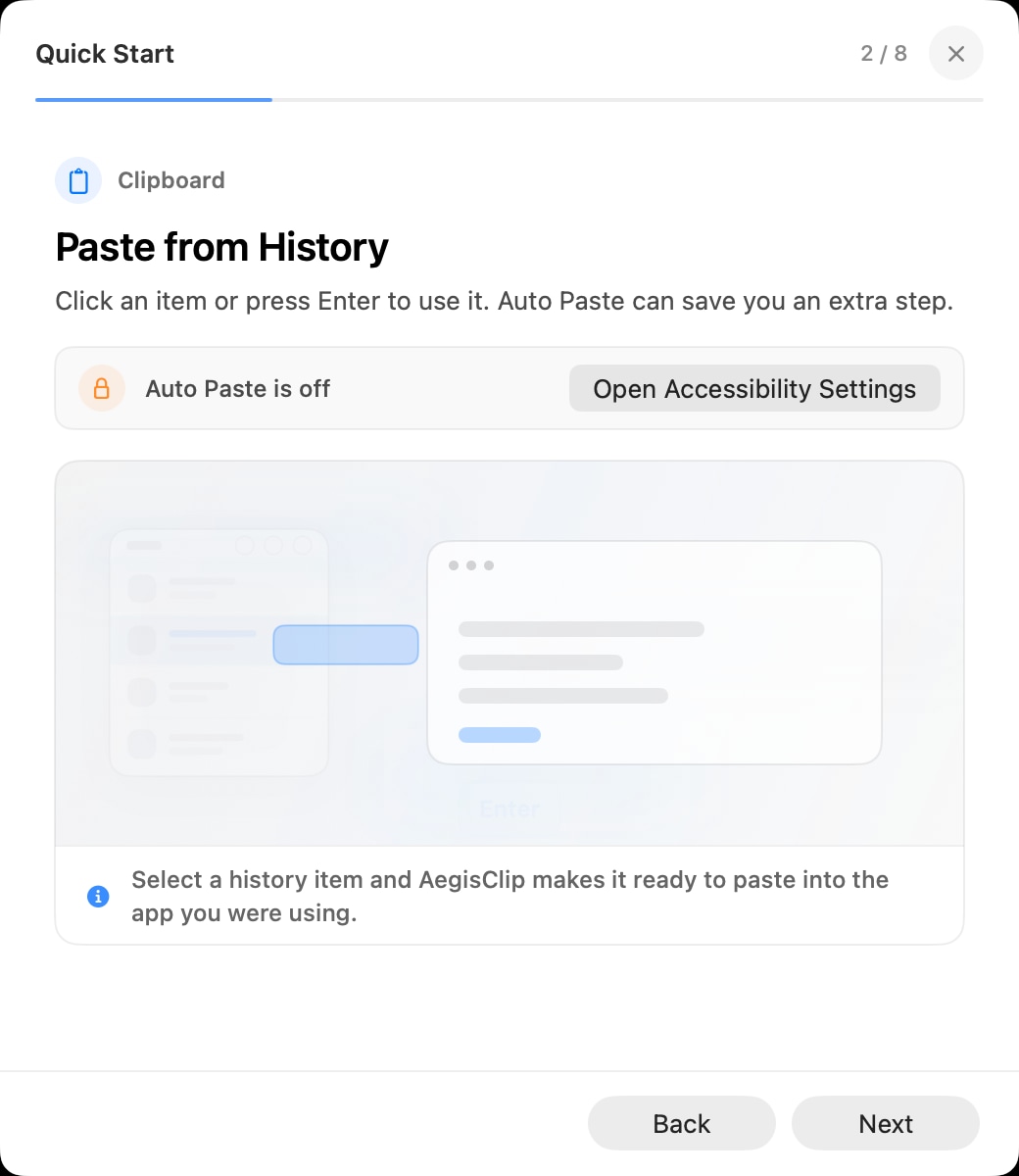
Normal paste only uses the current clipboard item. If you need something copied earlier, use clipboard history.
On macOS Tahoe 26, Spotlight can search clipboard history and let you copy an old item back. In AegisClip, press Shift + Command + V, search the history, then select the item you want.
This is useful for:
- reusing support replies or standard notes
- recovering a link copied earlier
- inserting code snippets or commands
- moving research quotes into a draft
- finding a screenshot or image clip
Use Auto Paste when speed matters
Auto Paste reduces one step after you find the clip. Put the cursor in the target field, open AegisClip, choose a history item, and AegisClip can send it into the active app.
This requires Accessibility permission because macOS treats automated paste as control of another app. AegisClip uses that permission for the paste action, not to read your screen continuously.
Auto Paste is most useful when you paste many clips per day. For a single one-off paste, normal Command + V is still fine.
Paste several items
If you need several copied items, decide where they should go:
| Goal | Better option |
|---|---|
| Several clips into one document or message | Copy All |
| Several clips into several fields | Step Paste |
| One old clip into the active app | Auto Paste |
| Current clipboard only | Command + V |
Read Multiple Copy Paste Mac for the full workflow.
Troubleshooting paste problems
If paste does not work, test in this order:
- Paste into Notes or TextEdit to confirm the clipboard has usable content.
- Click the target field again so it has focus.
- Try manual
Command + V. - Check whether the app blocks paste or accepts only certain content types.
- If Auto Paste fails, confirm AegisClip Auto Paste is enabled and Accessibility permission is granted.
- Restart AegisClip after changing macOS privacy permissions.
If normal paste works but AegisClip Auto Paste does not, continue to Auto Paste Not Working on Mac. If you are not sure where the clipboard is, start with How to Access Clipboard on Mac.
FAQ
What is the normal way to paste on Mac?
Copy content with Command + C, click where you want it to appear, then press Command + V. You can also use Edit > Paste or a Control-click shortcut menu in many apps.
How do I paste without formatting on Mac?
Some apps support Paste and Match Style, often with Option + Shift + Command + V. AegisClip can also paste as plain text when you want to remove formatting from copied content.
How is Auto Paste different from normal paste?
Normal paste uses the current clipboard item. AegisClip Auto Paste lets you open history, choose an older clip, and send it into the focused app without pressing Command + V again.
What should I check if paste does not work?
Confirm the content copied successfully, the destination field has focus, the app allows paste, manual Command + V works, and AegisClip has Accessibility permission if Auto Paste is involved.
Download AegisClip
Clipboard · Screenshot OCR · AI Bar — core history stays on your Mac by default.
Free download · 7-day full trial · Optional one-time upgrade.