Set Up the AI Bar on Mac
Configure an AI provider and model in AegisClip, test your first request, and learn custom prompts, external search, permissions, and data-sharing boundaries.
On this page6 sections
AI Bar setup has two parts: connect a provider, then choose what you want it to do. If you are still exploring the feature, start with the AI Bar overview for translation, polishing, summaries, and image analysis.
Check availability before starting
AI and external search are unavailable in the mainland China App Store storefront or while the storefront cannot be verified. Upgrading does not remove this restriction. In other storefronts, the selected provider must also be available. Read AI availability for the rule.
Have the connection and authorization information required by your provider ready. Provider usage is billed separately from AegisClip's one-time upgrade. API keys are stored in macOS Keychain. Do not put keys into shared documents or example prompts.
Configure the provider, connection, and model
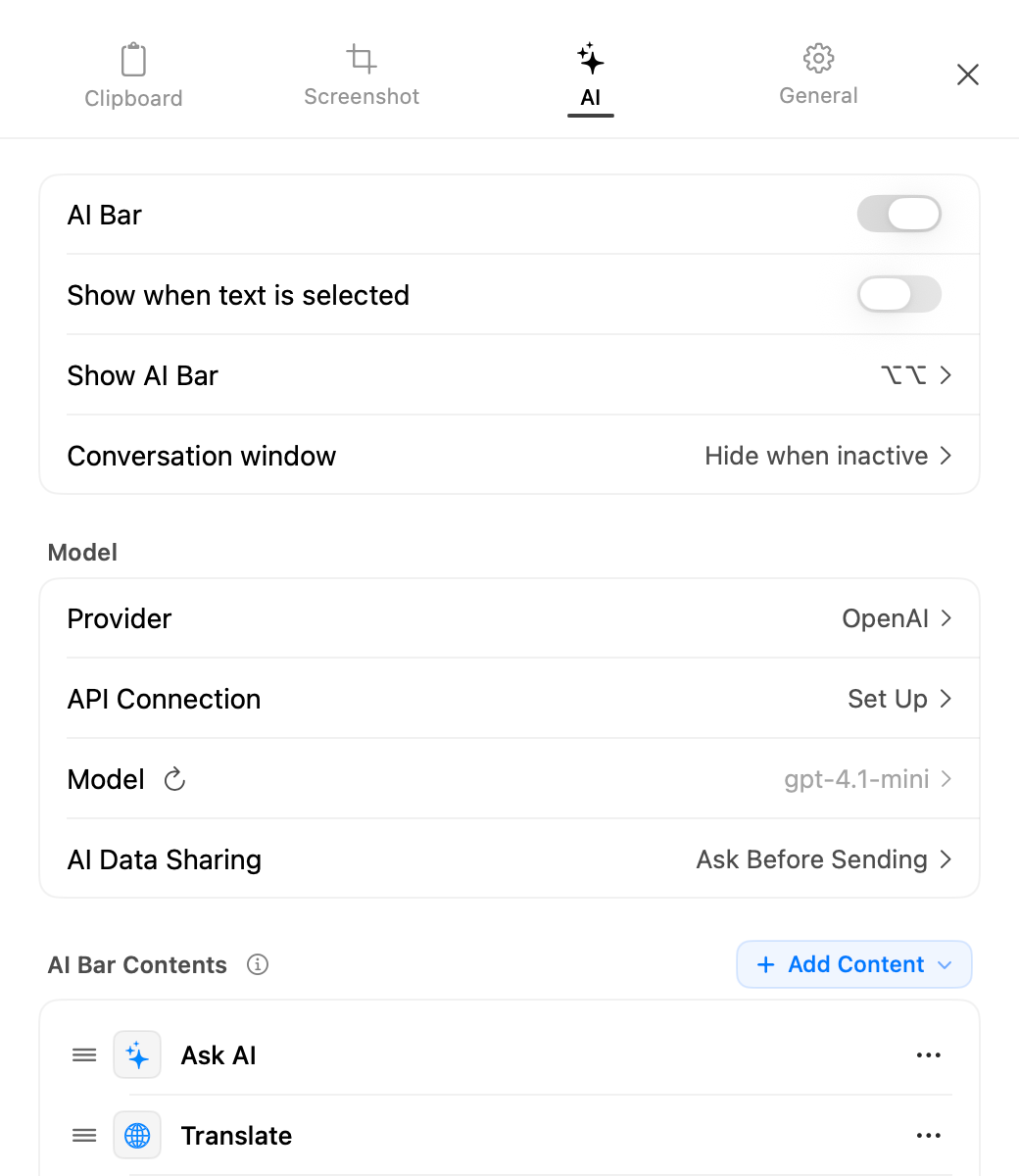
- Open the AI settings in AegisClip and choose the service you plan to use.
- Configure its connection and authorization. If you need a custom endpoint, check that the Base URL points to the intended service.
- Choose a model supported by that service. Start with text; for direct image understanding, confirm vision support.
- Review data-sharing and action settings, then test with a short, non-sensitive passage.
These settings have distinct jobs: the provider determines who receives the content, the model determines what processes it, and the action supplies the task. Keep your first setup simple; custom prompts can wait.
Choices include OpenAI, Anthropic Claude, Google Gemini, OpenRouter, SiliconFlow, Kimi, DeepSeek, MiniMax, Zhipu GLM, Alibaba Qwen, Volcano Ark, and a generic OpenAI-compatible service. Use the connection details and models supported by your selected provider.
Complete your first request
Select a short passage and use the AI trigger shortcut configured in settings, or start from a text item in AegisClip. Choose translation or polishing and specify a language or tone. Check the provider, destination, and data categories in the consent dialog before sending. Review the answer before copying or replacing text.
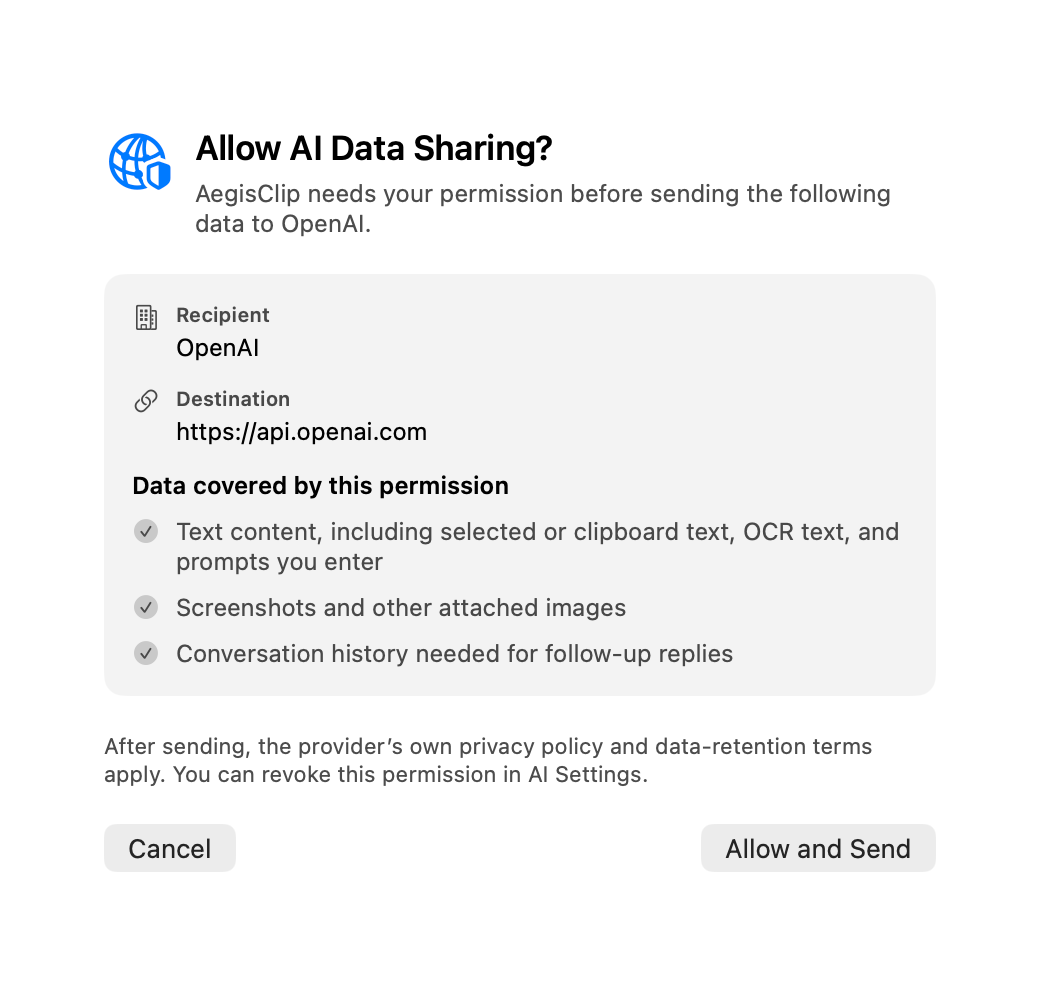
A local check may block or flag potentially high-risk material such as keys or tokens, but cannot detect every sensitive detail. AI requests send content to the chosen service; this is not local AI inference.
Reading selections in other apps and replacing text need Accessibility permission. If you can get a response but cannot replace text, copy and paste manually, then check the selection and permission.
Save a recurring task as a custom instruction
Start with one clear task, such as “Make this reply shorter and more polite while preserving all numbers and dates.” In the instruction editor, give it a name, enter the prompt, and use the variables offered by the interface to include the current content. Test it with a few different passages before relying on it.
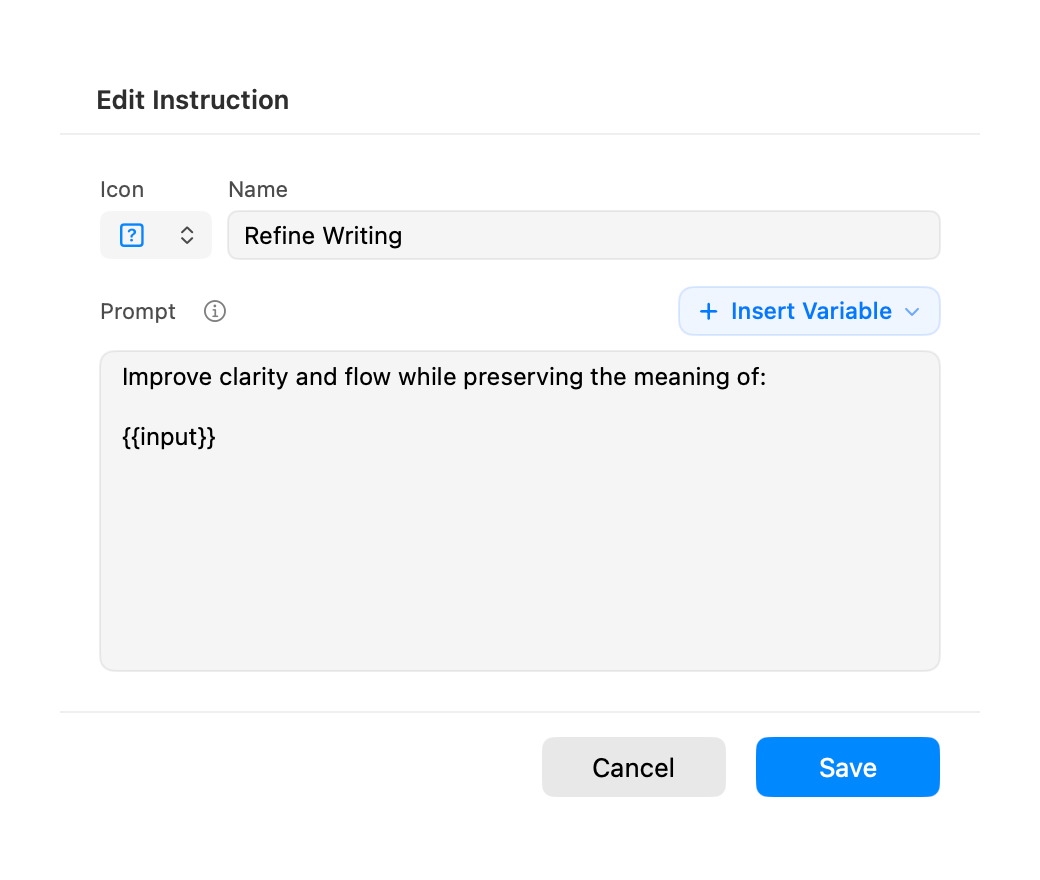
In supported storefronts, built-in prompts remain available after the trial. Creating or editing custom instructions requires Full; deletion remains available.
Use an external action for a web search
Preset actions can send selected text to websites such as ChatGPT Search, Google, Claude, or Perplexity. Custom URL templates must use HTTPS and {{query}} for the encoded query. Use a search URL supported by a site you trust rather than hard-coding the entire question into the template.
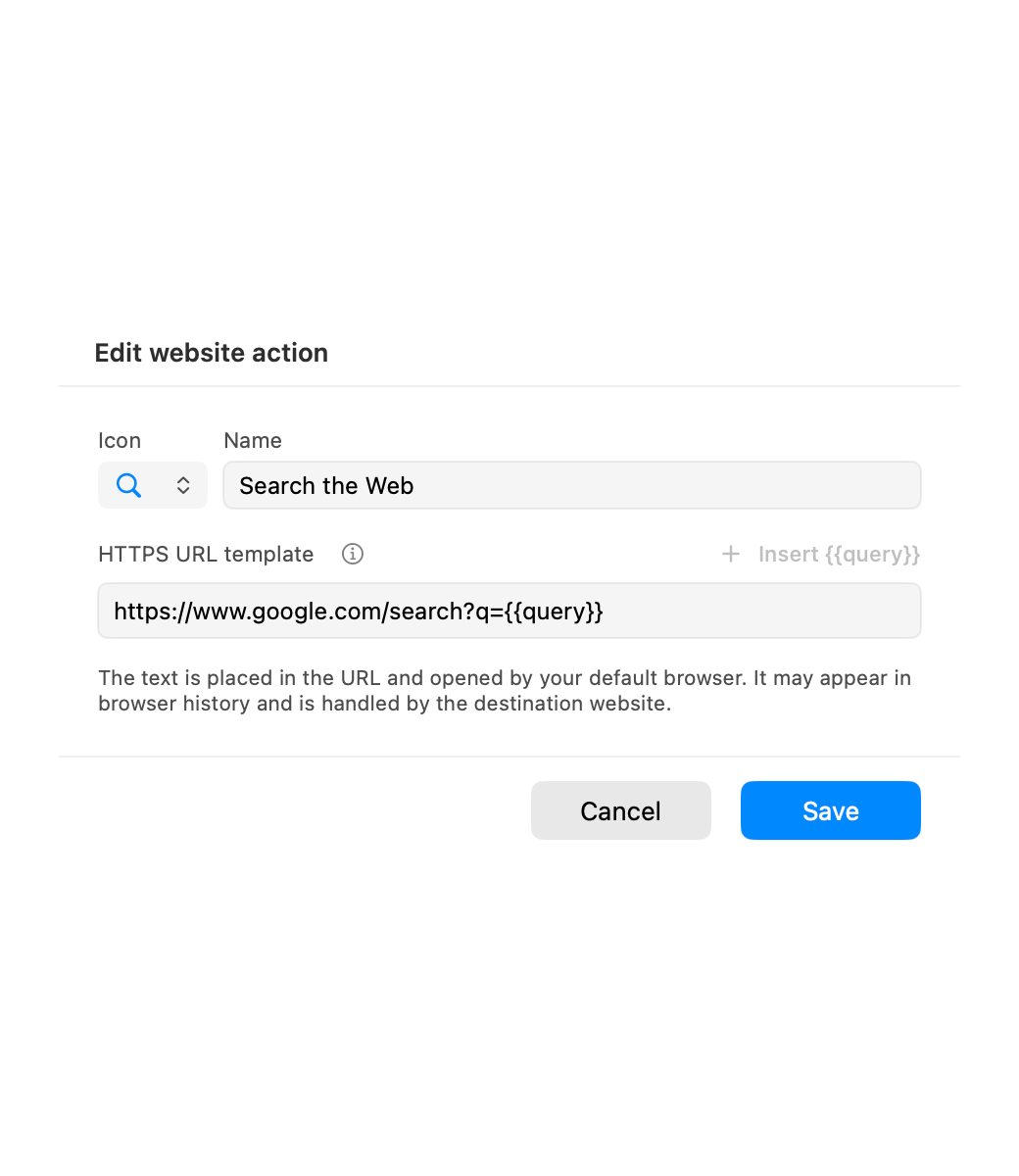
Running an action closes the bar and opens the target in your default browser. It does not call the configured AI service, use its API key, or go through AI consent and privacy scanning. The query may appear in browser history, sync, website logs, or account history. Do not include keys or confidential material.
Preset searches can still be added, ordered, and used after the trial. Creating or editing a custom web action requires Full; deletion remains available. Storefront restrictions also apply to these actions.
Troubleshoot the part that failed
| What happens | What to check first |
|---|---|
| AI is unavailable | Whether the App Store storefront is supported and verified |
| The shortcut does not open the bar | Whether AegisClip is running, shortcut conflicts, a valid selection, and Accessibility access |
| A request fails | Provider, authorization, Base URL, model, and provider usage status |
| Image analysis is not what you expected | Vision support; non-vision models use OCR and QR text context |
| The answer appears but cannot replace text | A usable selection in the target app and Accessibility permission |
For the original words from an image, use local OCR. To change how you open the bar, see Keyboard Shortcuts. After setup, return to the AI Bar overview to choose another task.
FAQ
Does Full include AI API usage?
No. Your provider bills API usage separately. Upgrading AegisClip does not remove App Store storefront restrictions on AI and external search.
Why can the bar not read my selected text?
Check Accessibility permission, a valid selection in the target app, and your configured shortcut. Trying a copied text item helps distinguish selection access from a provider connection problem.
Download AegisClip
Clipboard · Screenshot OCR · AI Bar — core history stays on your Mac by default.
Free download · 7-day full trial · Optional one-time upgrade.