AegisClip iCloud Sync: How to Enable It, Its Limits, and Data Boundaries
AegisClip iCloud Sync is optional: when enabled, qualifying clipboard history syncs through CloudKit. This guide covers enabling steps, asynchronous limits, what closing the switch does, and privacy boundaries.
On this page6 sections
AegisClip's core clipboard history is stored locally on your Mac by default. iCloud Sync is an optional capability: when enabled, qualifying clipboard history syncs through Apple iCloud / CloudKit so other devices on the same Apple ID can access it. This guide covers the enabling steps, limits, and data boundaries.
Decide before enabling
iCloud Sync is for people who genuinely move clipboard history between multiple devices. If you work on a single Mac, local history is already enough — you do not need sync to feel "complete".
Before enabling, confirm:
- Your Mac is signed in to iCloud
- You accept that clipboard history leaves the machine via CloudKit
- You understand sync is asynchronous, not real-time
Privacy matters more than local control? Read Clipboard Privacy and Ignore Apps first, then decide.
How to enable
- Confirm your Mac is signed in to iCloud.
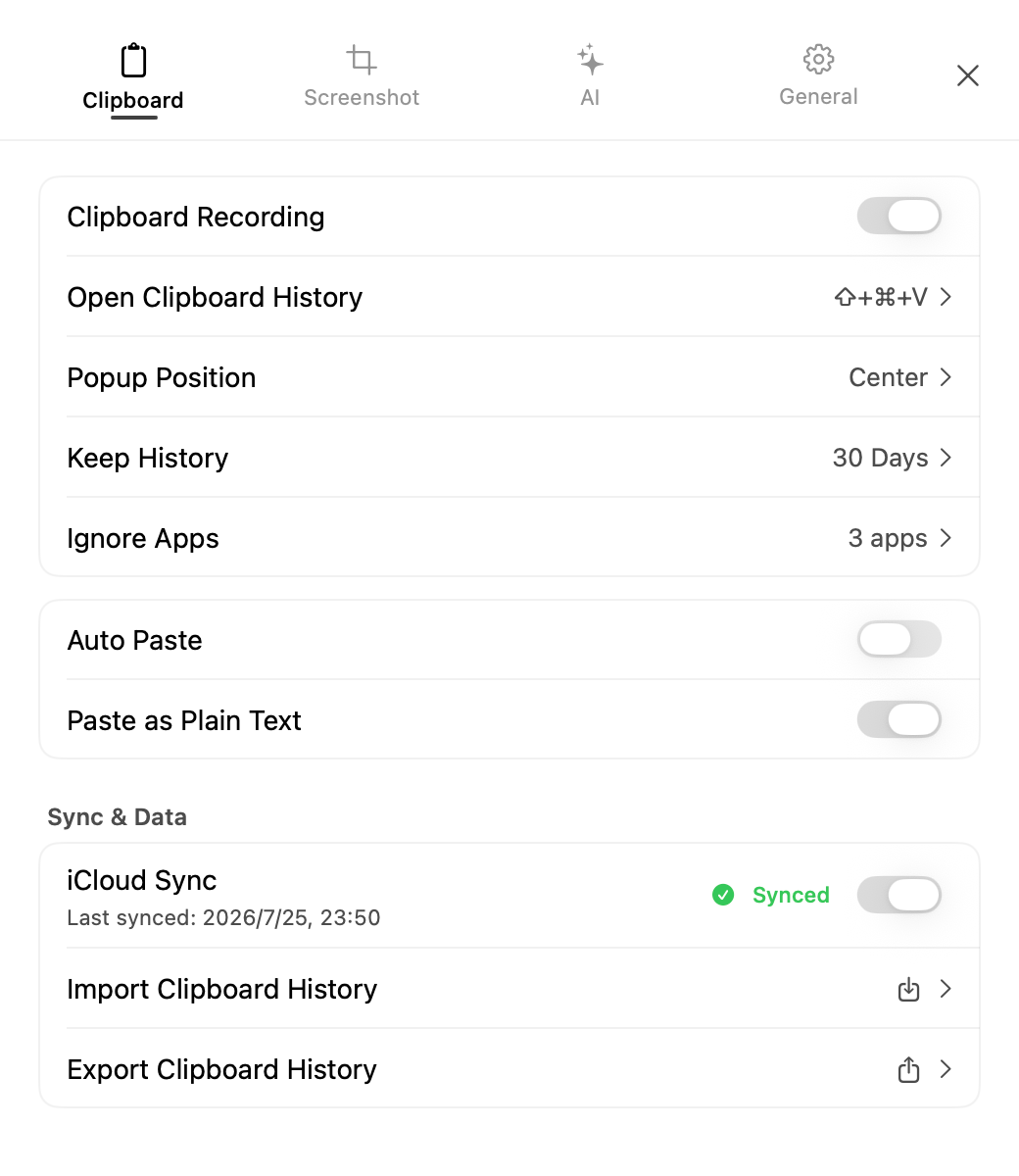
- Open AegisClip Settings → Clipboard → Sync & Data.
- Turn on the iCloud Sync switch.
- Restart AegisClip as prompted.
- After restart, check the sync status and last completed time.
Sync limits
- Asynchronous: sync runs via CloudKit; do not expect every item to appear instantly on another device.
- Visible status: the app shows account, network, storage, permission, or sync error states.
- Conditional scope: only qualifying history and metadata sync; not everything on-device is uploaded unconditionally.
Disabling and data boundaries
Turning off iCloud Sync only stops future sync — it does not automatically delete data already written to CloudKit. If you want to remove the cloud copy, manage iCloud data on Apple's side.
Synced data is managed by Apple iCloud / CloudKit. Before enabling, confirm the clipboard content is appropriate to leave the machine; sensitive keys, credentials, and one-time content should not rely on sync.
Relationship with import/export
If you prefer not to use iCloud, you can always back up and migrate history manually with Import and Export — a CSV plus images folder export package works for switching machines or reinstalls. iCloud is for ongoing automatic sync; import/export is for one-time migration.
Next steps
Still exploring AegisClip? Read Mac Clipboard Manager. Want to set privacy boundaries before syncing? See Clipboard Privacy and Ignore Apps. Need a manual backup? See Import and Export.
FAQ
Do I need iCloud Sync to use AegisClip?
No. Clipboard history is stored locally by default. iCloud Sync is an explicit choice, not a requirement for local history.
What does iCloud Sync sync?
When enabled, qualifying clipboard history and metadata sync through Apple iCloud / CloudKit to other devices on the same Apple ID.
Do I need to restart AegisClip after enabling sync?
Yes. After turning the switch on, restart AegisClip as prompted so CloudKit picks up the current configuration.
Does disabling iCloud Sync delete cloud data?
No. Turning the switch off only stops future sync; data already written to CloudKit is not deleted automatically.
Is sync real-time?
No. Sync is asynchronous via CloudKit; do not expect every item to appear instantly on another device.
Download AegisClip
Clipboard · Screenshot OCR · AI Bar — core history stays on your Mac by default.
Free download · 7-day full trial · Optional one-time upgrade.