Clipboard Import and Export
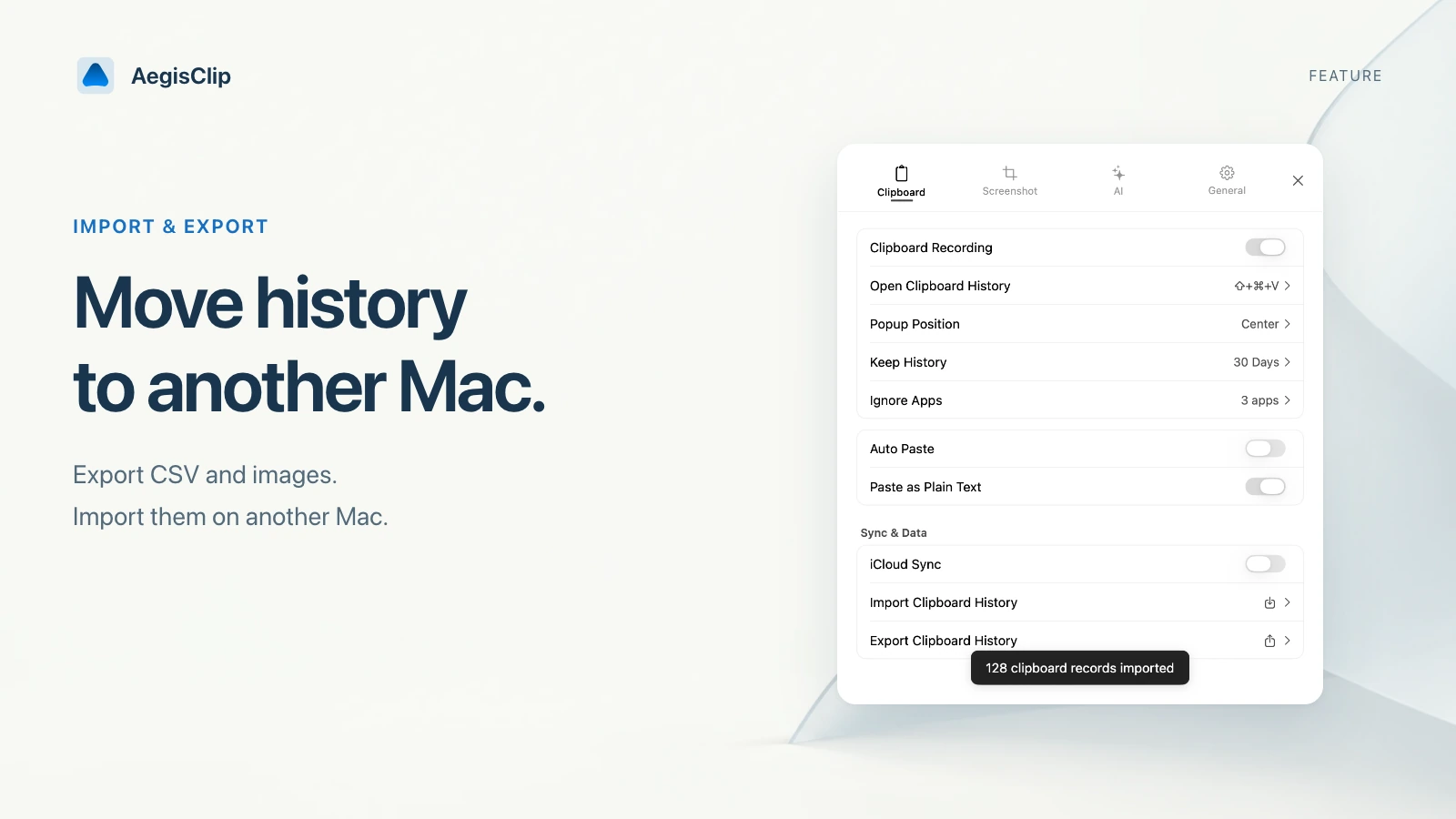
Export AegisClip clipboard history to CSV plus an images folder, then restore text, images, tags, pinned state, and timestamps on another Mac.
On this page5 sections
Clipboard Import and Export is for the part of clipboard history that is worth keeping. Most copied items are temporary. A smaller set becomes reusable: templates, safe snippets, reference notes, tagged project material, and images you may need later.
Import and Export gives that useful set a way to move.
What export creates
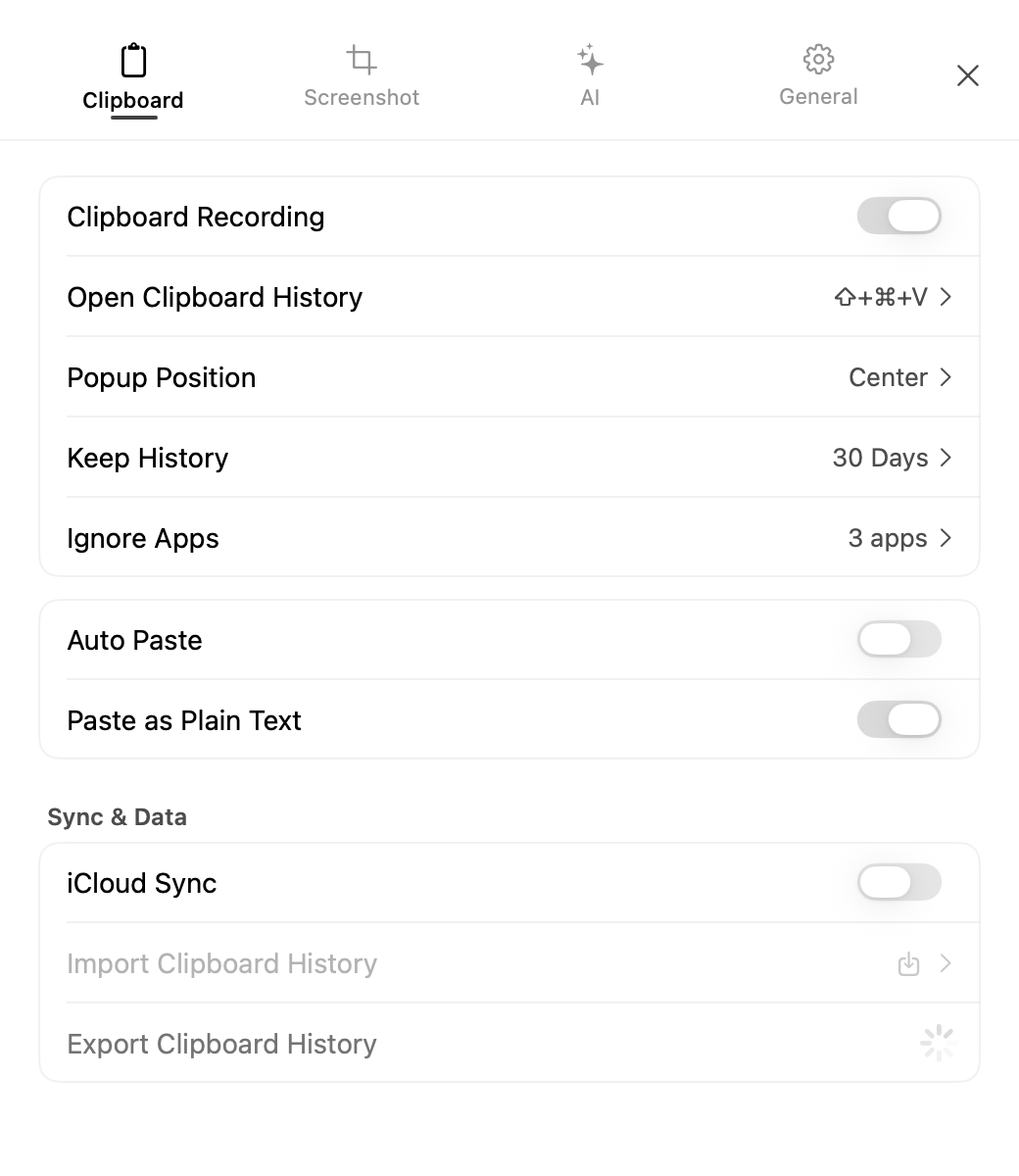
AegisClip exports history data as CSV. Image items are stored in an accompanying images folder, and the CSV keeps a relative path to those files.
Exported data can include:
- clip content
- item type
- tags
- pinned state
- timestamp
- image file references
Keep the CSV and image folder together. Moving one without the other can break image restoration.
This is a portable work-data export, not a lossless archive of every pasteboard representation. RTF, RTFD, HTML, PDFs, file URLs, and unknown non-image types import as plain text using the CSV content field.
When export is useful
Use export when you are:
- moving to a new Mac
- cleaning a large clipboard history
- archiving a project snippet set
- backing up reusable templates
- preserving tagged content before major changes
Export is not meant to save every temporary clipboard item forever. It works best after you remove noise and tag the content that actually matters.
How to prepare a clean export
- Delete private or useless clipboard items.
- Add tags to reusable clips.
- Confirm pinned items are still worth keeping.
- Export the history or selected set.
- Store the CSV and images folder together.
Because CSV is plain text, do not share an export that contains sensitive content unless you have reviewed it carefully.
Import and restore
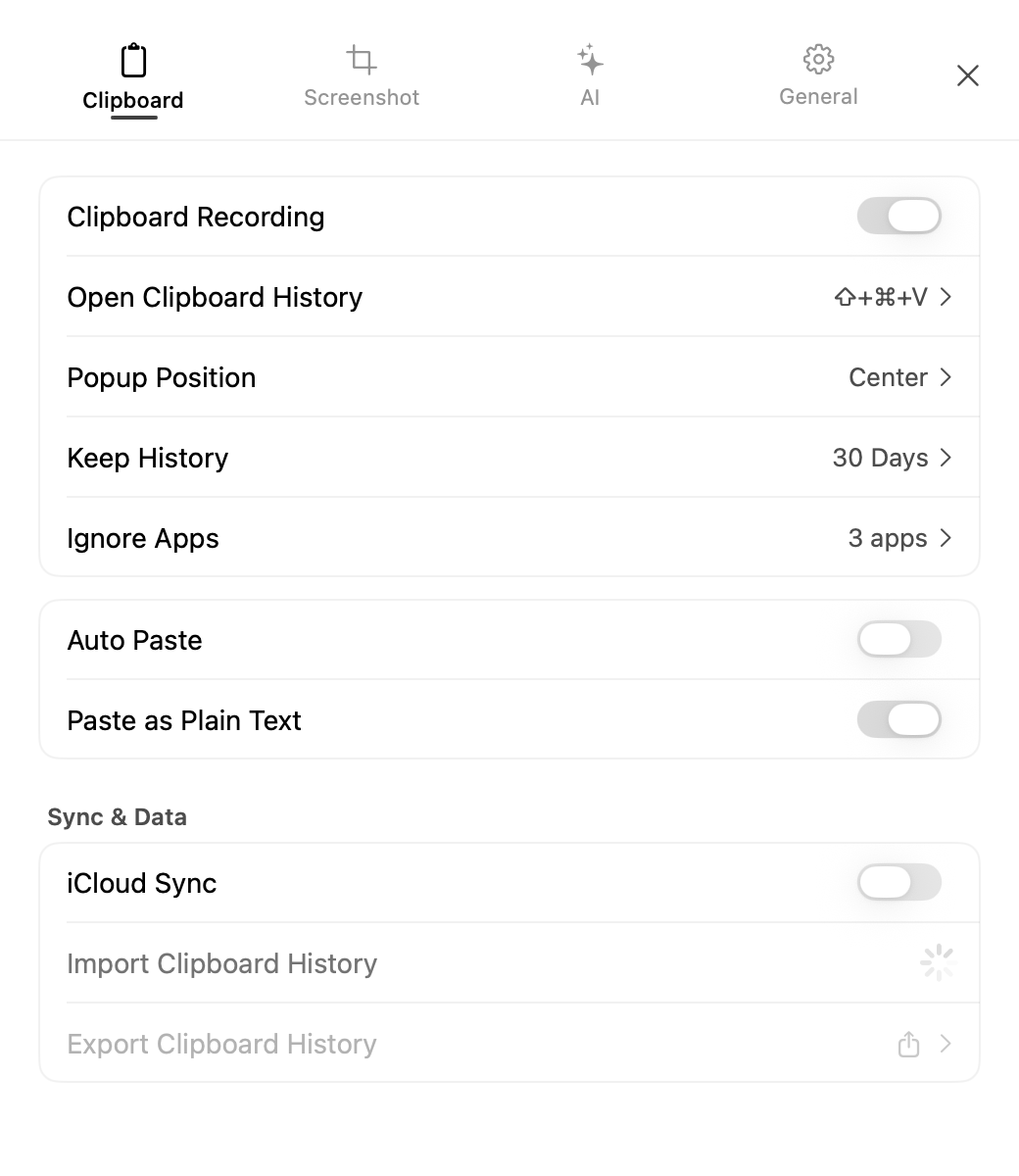
Import reads the CSV, restores text and image entries when possible, and recreates tag relationships. Imported items can be identified by source, which helps you distinguish restored material from naturally captured history.
Large imports may take time to refresh. After importing, check tags, images, and pinned items before relying on the restored library.
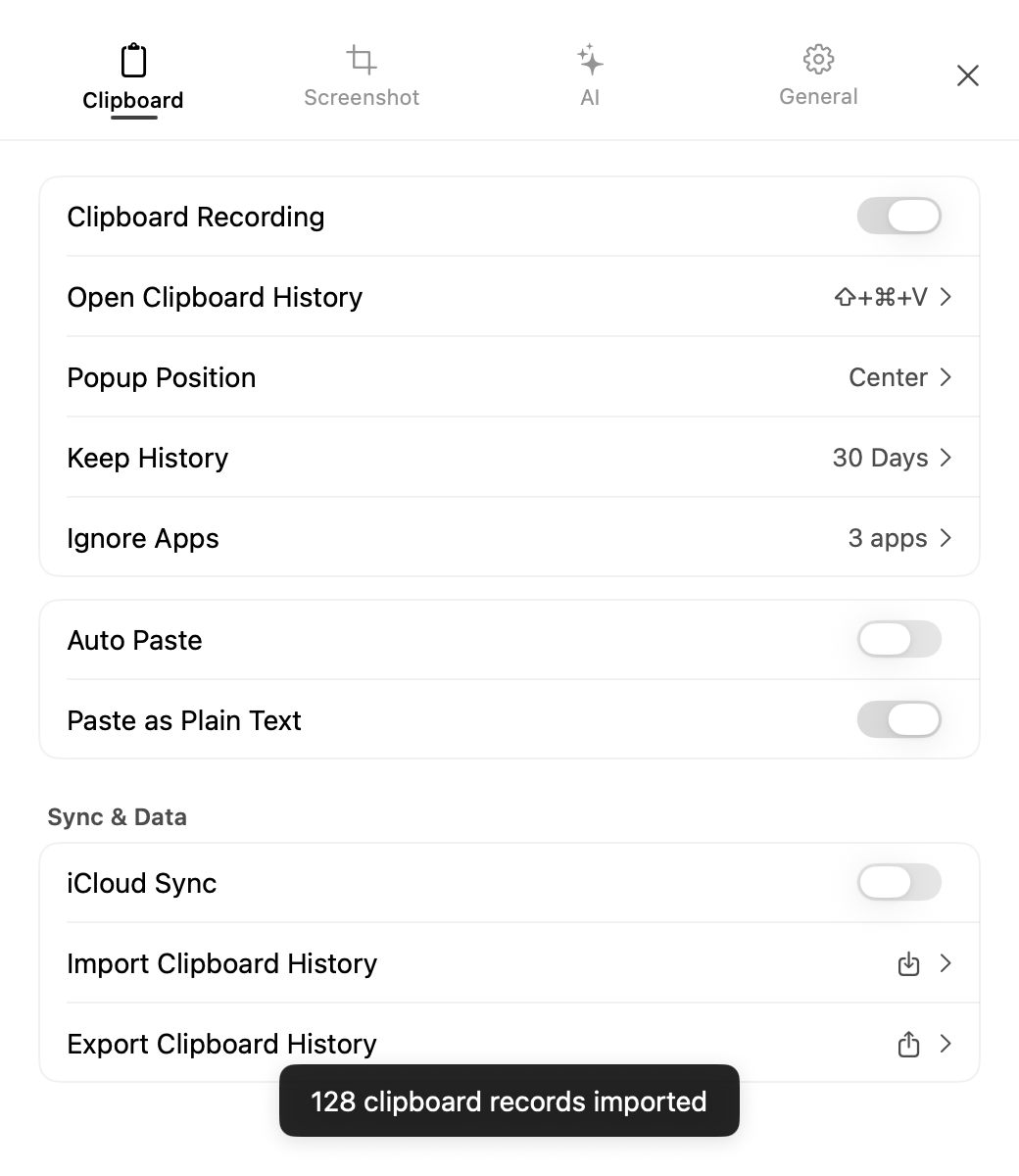
Image restoration requires both an image type in the CSV and a valid relative images/... path next to that CSV. Bad encoding, missing files, edited columns, or malformed quoting may produce partial failures. Long text can also be truncated to stay within safe CSV cell limits.
Because CSV and exported images are ordinary unencrypted files, keep the original export in a protected location and remove passwords, tokens, customer data, and one-time secrets before sharing. For full device disaster recovery, use an appropriate protected Mac backup in addition to this feature.
What to pair it with
Use Tag Management before export so restored content stays organized. Use Search and Filter to isolate the subset worth keeping. For category-level context, read Clipboard Manager for Mac.
FAQ
What does Clipboard Import and Export include?
AegisClip exports clipboard history to CSV and stores image files in an images folder. Text, type, tags, pinned state, and timestamps are recorded; only image items return as images. Other imported types become plain-text items.
Is the exported CSV private?
The CSV is a plain file. Treat it as sensitive if it contains private clipboard content, and store or share it carefully.
When should I export clipboard history?
Export before migrating to a new Mac, cleaning a large history, archiving project snippets, or preserving a set of reusable clips.
What can go wrong during import?
Missing image folders, edited CSV structure, bad encoding, or very large imports can cause partial failures. Keep the CSV and images folder together.
Download AegisClip
Clipboard · Screenshot OCR · AI Bar — core history stays on your Mac by default.
Free download · 7-day full trial · Optional one-time upgrade.