AegisClip Mac Settings: Clipboard, Screenshot, AI, and General
Configure AegisClip from the Clipboard, Screenshot, AI, and General tabs: recording, paste behavior, retention, shortcuts, OCR, iCloud, and appearance.
On this page10 sections
Mac clipboard app settings decide whether a clipboard manager feels like a quiet part of the system or another app to manage. The best setup keeps AegisClip available, predictable, and visually comfortable without turning the clipboard into a distraction.
Use this page to tune menu bar behavior, startup, appearance, language, sync choices, and reliability settings around the way you actually work.
Minimal menu bar behavior
AegisClip is designed to stay out of the way until you open it from the menu bar or keyboard shortcut. Left- and right-clicking the menu bar icon open the same menu for showing the window, pausing monitoring, capturing a screenshot, importing/exporting, or quitting.
The clipboard window can open centered, near the pointer, or at its previous position. This matters because clipboard history is a support surface, not the main workspace.
Use the menu bar entry when you want a visual reminder that the app is running. Use Mac Clipboard Shortcuts when you prefer to stay on the keyboard.
Personalize the workflow
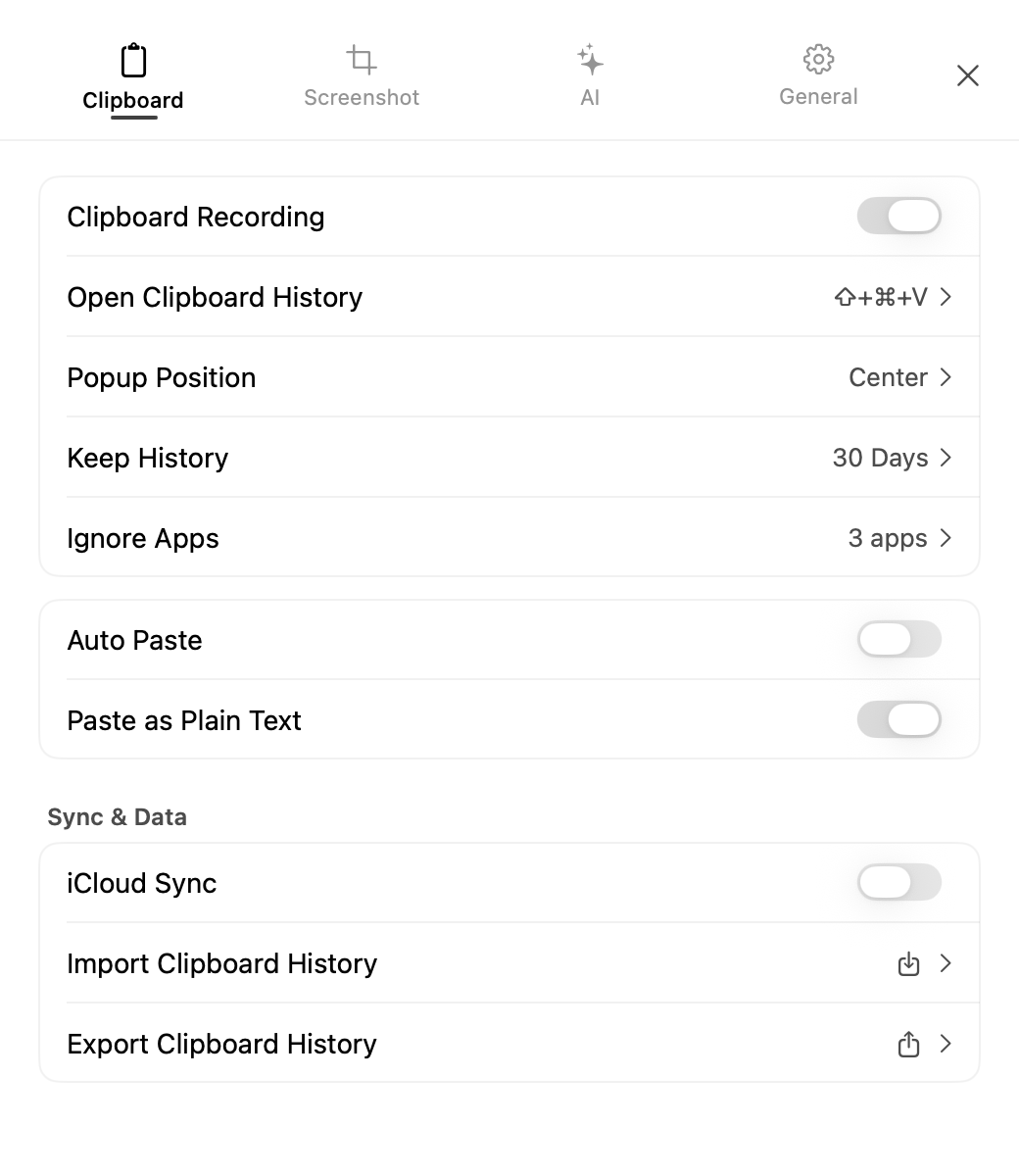
The current settings window has four tabs:
- Clipboard covers recording, retention, Auto Paste, plain-text paste, iCloud, import/export, ignored apps, and the clipboard shortcut.
- Screenshot covers capture availability, its shortcut, OCR translation defaults, and permission guidance.
- AI covers providers, API keys, models, AI Bar triggers, custom prompts, built-in operations, and external search actions.
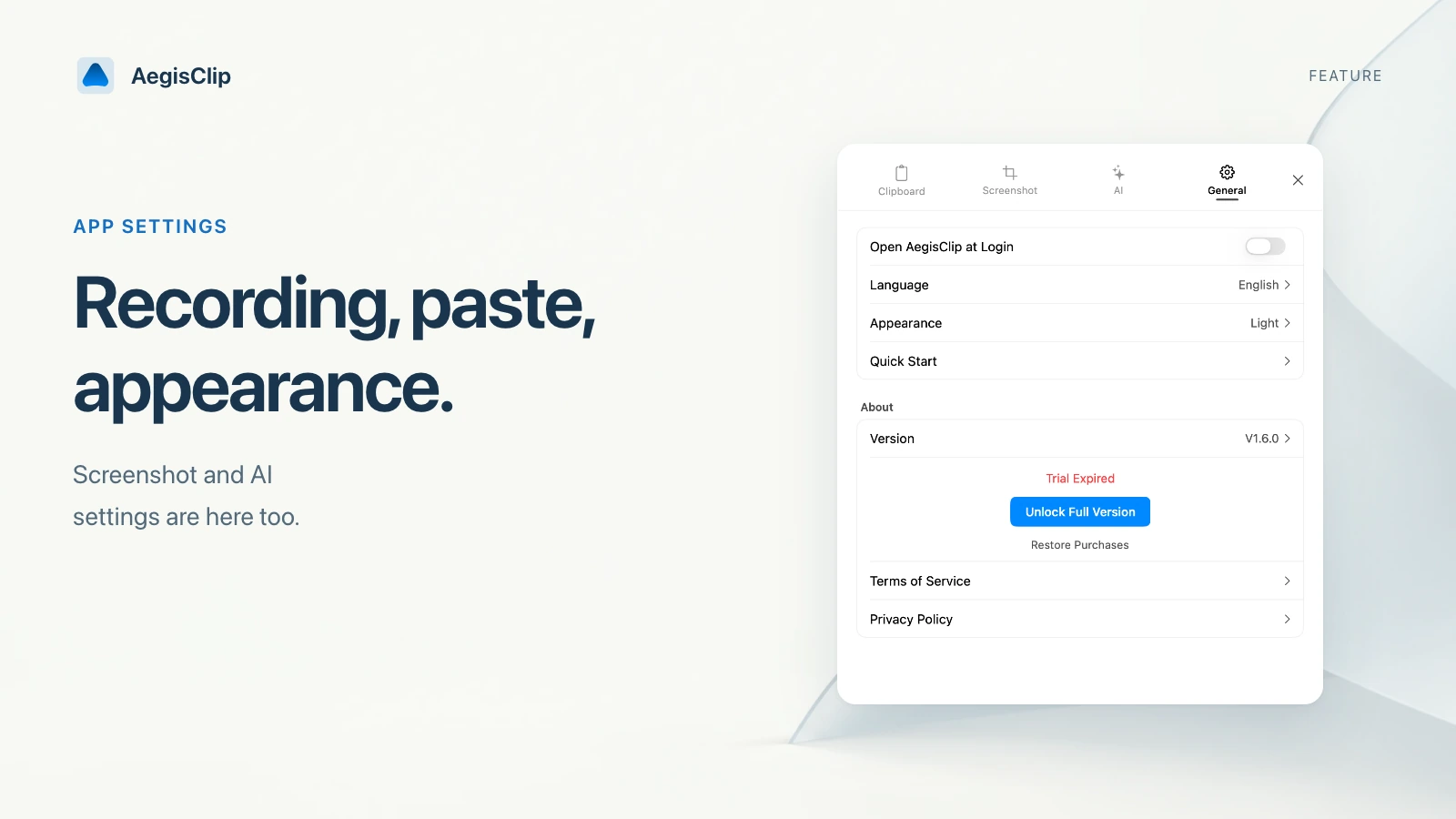
- General covers launch at login, interface language, appearance, and more information.
Most regular preferences apply immediately. Custom AI prompts and web actions use a draft editor that must be saved. Enabling iCloud also prompts for a restart. Start with the default history workflow, then add Auto Paste, Step Paste, screenshots, AI, or sync when the task calls for it.
Start AegisClip at login
Launch at login is useful when clipboard history should be ready as soon as your Mac starts. Writers, developers, operators, and support teams often benefit because copied material begins accumulating from the first work session.
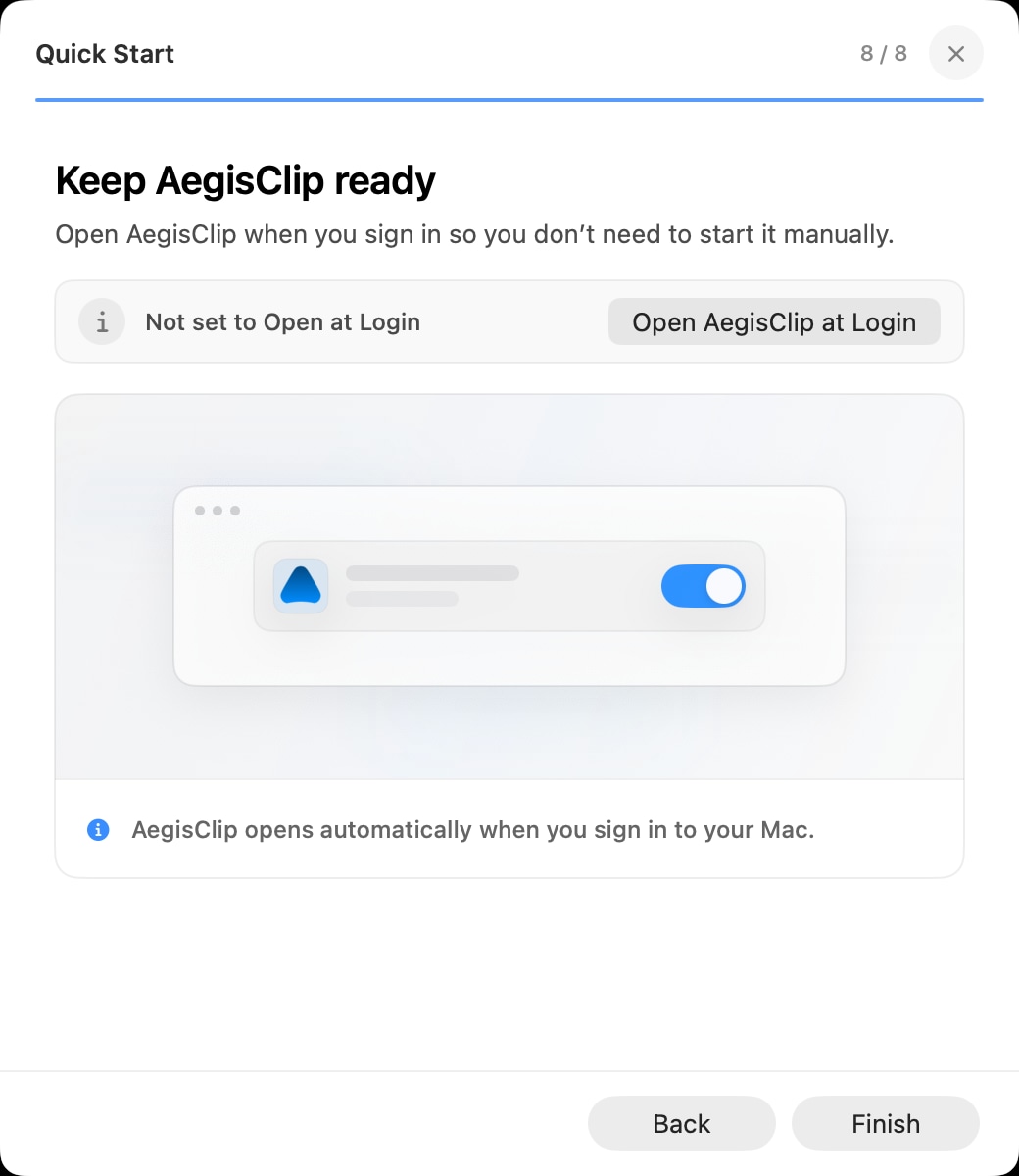
If you only use AegisClip occasionally, keep launch at login off and start the app when needed.
Multi-language interface
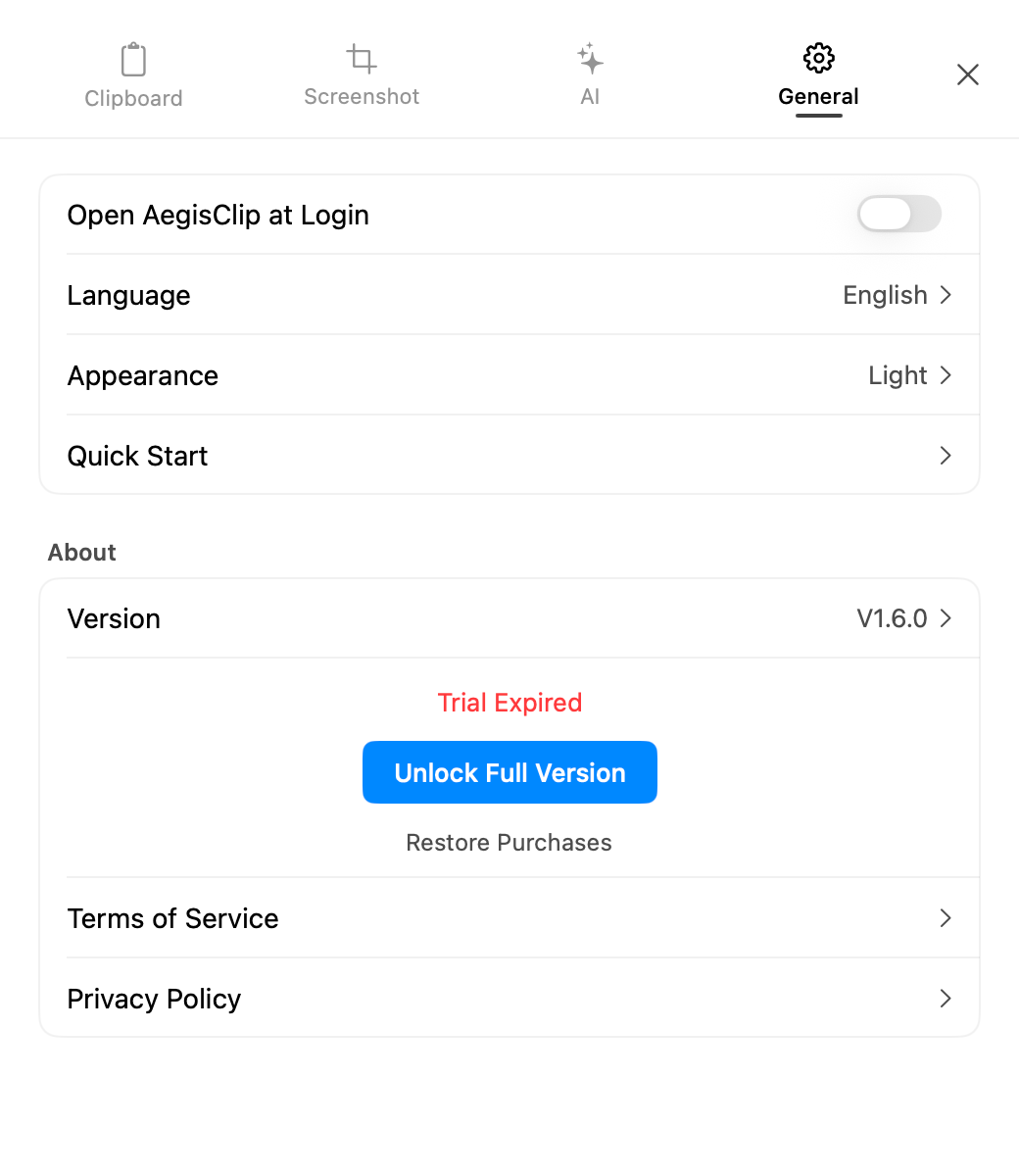
The interface can follow the system language or use a manually selected published language. This reduces friction in settings, permissions, and troubleshooting because labels match the language users expect.
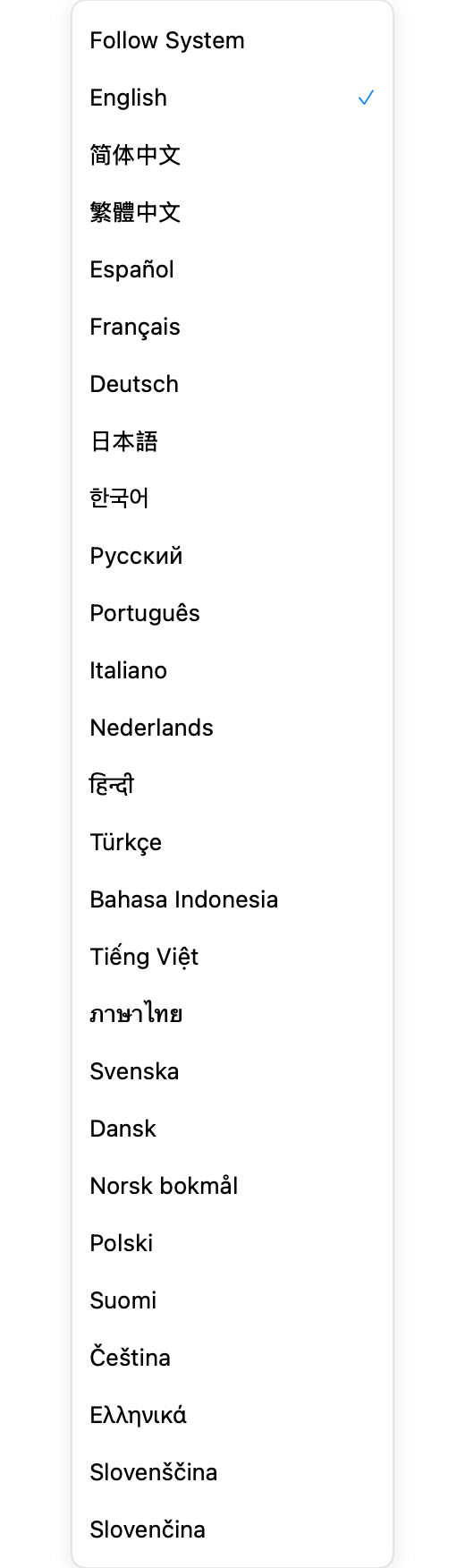
This is especially useful for bilingual users who copy between English tools, Chinese notes, product docs, and customer conversations.
Dark mode and appearance
Dark mode is not only decoration. A clipboard panel may be opened dozens of times per day. Matching light, dark, or system appearance keeps the panel from feeling visually disruptive.
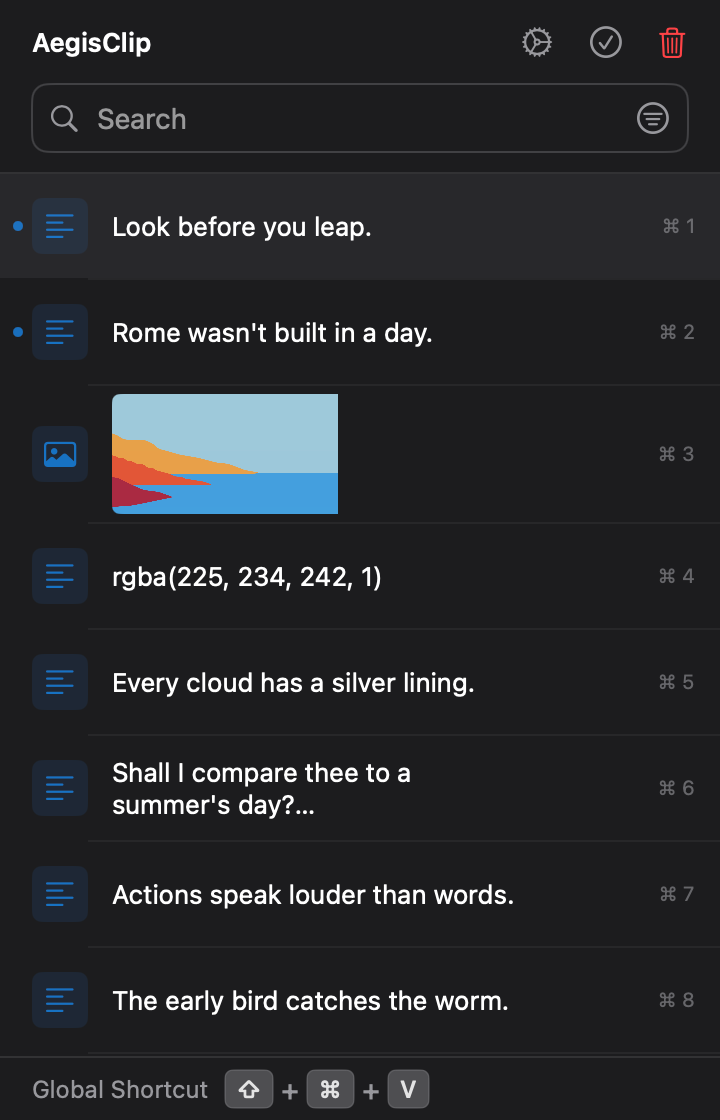
For long work sessions, choose the appearance that matches your main apps and workspace lighting.
App Intents and Shortcuts
System automation is useful when clipboard actions become repeatable steps. macOS does not support Apple's App Shortcuts presentation, but it does support App Intent actions that users can place in custom Shortcuts.
AegisClip exposes actions to get the first accessible item in the current sort order, copy by index, search history, clear history with confirmation, and return statistics. "First" is not guaranteed to mean newest because a pinned clip may sort ahead of recent history. Intent reads follow the same accessible-history entitlement rules as the app.
Keep automation narrow. Automate predictable actions, but do not use shortcuts to hide privacy decisions such as recording sensitive content or sending material into another app.
iCloud sync choices
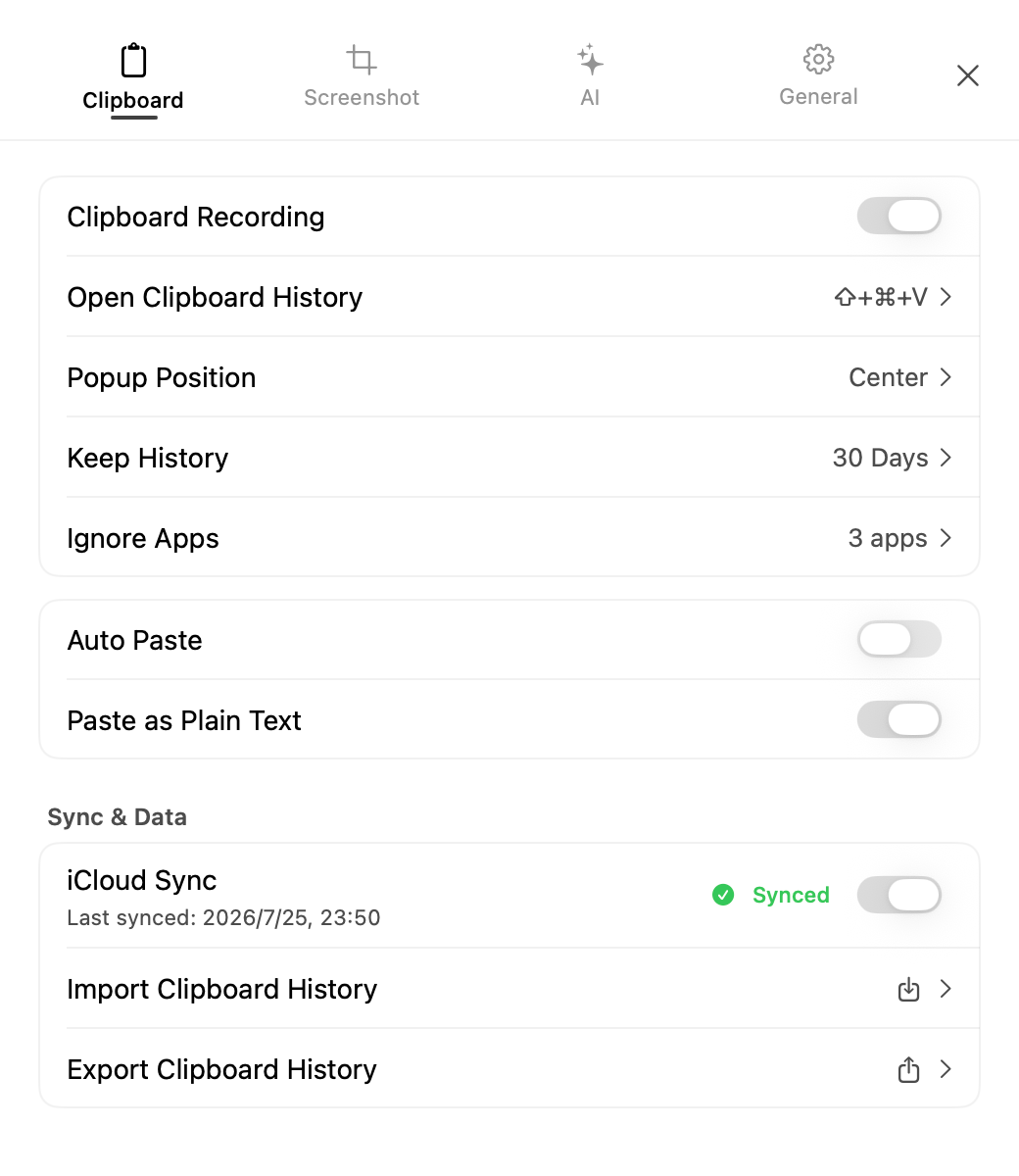
iCloud sync belongs behind an explicit choice. Confirm the Mac is signed in to iCloud, enable sync, and restart AegisClip when prompted. CloudKit works asynchronously; it should not be described as a guaranteed real-time handoff. Turning the switch off stops future sync but does not automatically delete data already stored in CloudKit.
If the main priority is privacy and local control, review Clipboard Privacy and Ignore Apps before enabling sync-related workflows.
Low memory usage
A clipboard manager may run all day, so it should stay lightweight while handling growing history, images, previews, and shortcuts. "Low Memory Usage" describes an engineering goal and behavior, not a separate Low Memory Mode toggle in Settings.
The practical test is simple: AegisClip should remain responsive after a real day of copying text, links, images, and files.
Performance and reliability
Reliability comes from a set of engineering choices: lazy loading, image and thumbnail caches, memory-pressure handling, safe Core Data access, duplicate-ID filtering, CloudKit retries, window-state management, keyboard protection, and input-method compatibility.
These choices aim to reduce stalls and inconsistent state, but they are not an absolute promise that any history size, critical disk pressure, CloudKit failure, or destination app will behave perfectly.
Recommended setup order
- Confirm AegisClip opens from the menu bar and keyboard shortcut.
- Decide whether launch at login fits your daily work.
- Match appearance and language to your system preference.
- Enable paste automation only if you need fewer manual paste steps.
- Configure a provider and model for AI work, or use external search actions when browser lookup is enough.
- Add iCloud only when continuity is needed, then restart and verify sync status.
- Build custom Shortcuts only after the action and privacy boundary are clear.
For migration and backup settings, read Clipboard Import and Export. For shortcut setup, read Mac Clipboard Shortcuts.
FAQ
Why do clipboard app settings matter?
A clipboard manager runs alongside daily work. Menu bar behavior, startup, appearance, shortcuts, sync, and performance settings decide whether it feels helpful or intrusive.
Should AegisClip launch at login?
Enable launch at login if you expect clipboard history to be ready from the start of the workday. Leave it off if you only use the app occasionally.
Is dark mode only cosmetic?
No. Matching system appearance reduces visual friction during long work sessions, especially when the clipboard panel is opened often.
Does sync need to be enabled for local use?
No. AegisClip is local-first. Sync-related options should be treated as explicit workflow choices, not a requirement for normal local clipboard history.
Where do I configure AI providers and browser search actions?
Use the AI tab for providers, API keys, models, AI Bar triggers, custom prompts, and external search actions. AI requests and browser search actions use different data paths.
Does enabling iCloud sync require a restart?
Yes. Sign in to iCloud, enable sync, and restart AegisClip when prompted. CloudKit sync is asynchronous rather than guaranteed real time, and turning sync off does not delete data already stored in iCloud.
Does macOS support App Shortcuts?
macOS does not support Apple's App Shortcuts presentation, but it does support App Intent actions. You can use AegisClip actions when building a custom shortcut in the Shortcuts app.
Download AegisClip
Clipboard · Screenshot OCR · AI Bar — core history stays on your Mac by default.
Free download · 7-day full trial · Optional one-time upgrade.