Multiple Copy Paste on Mac
Learn multiple copy paste on Mac: use clipboard history, Copy All for one combined output, and Step Paste for several fields in order.
On this page6 sections
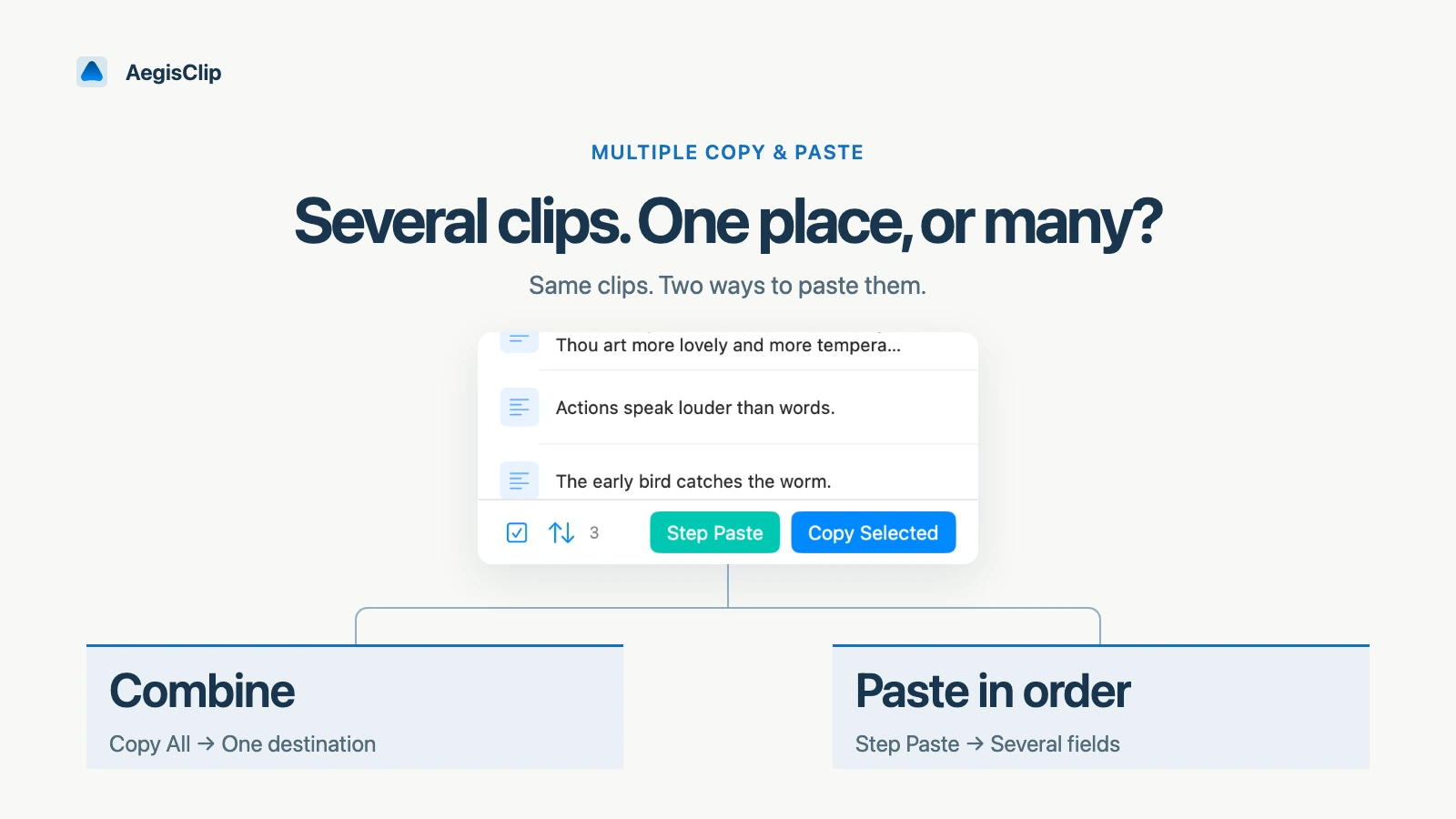
Multiple copy paste on Mac usually means one of two things: combine several copied items into one place, or paste several copied items into several places. Those are different workflows, and choosing the right one prevents most mistakes.
The built-in Mac clipboard is still centered on the current item. Universal Clipboard can move a copied item between nearby Apple devices, but it remains temporary. For several saved items, use a clipboard manager such as AegisClip.
First choose the output
Before selecting clips, ask where the content should go:
| Goal | Use |
|---|---|
| Several links, notes, or replies into one document | Copy All |
| Name, phone, address, and note into separate fields | Step Paste |
| One old item from history into the active app | Auto Paste |
| A long copied block split into parts first | Split Text into Items |
If you skip this decision, multiple copy paste Mac workflows become confusing. The tool can help only after the target shape is clear.
Use Copy All for one combined output
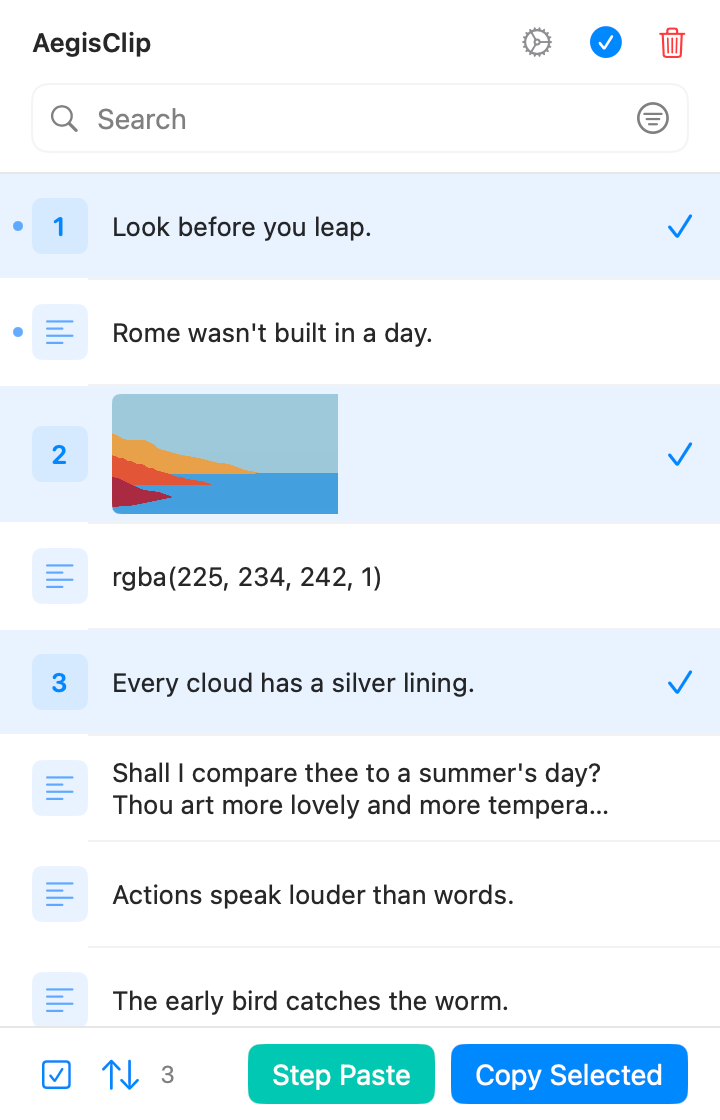
Use Copy Multiple Clipboard Items when selected clips should become one paste:
- Copy the text, links, or snippets you need.
- Open AegisClip with
Shift + Command + V. - Enter multi-select mode.
- Select the items in the order you want.
- Choose Copy All or press
Command + Enter. - Paste the combined result into the target app.
This works well for research notes, meeting summaries, support replies, links, prompts, and code snippets that belong together.
Use Step Paste for several fields
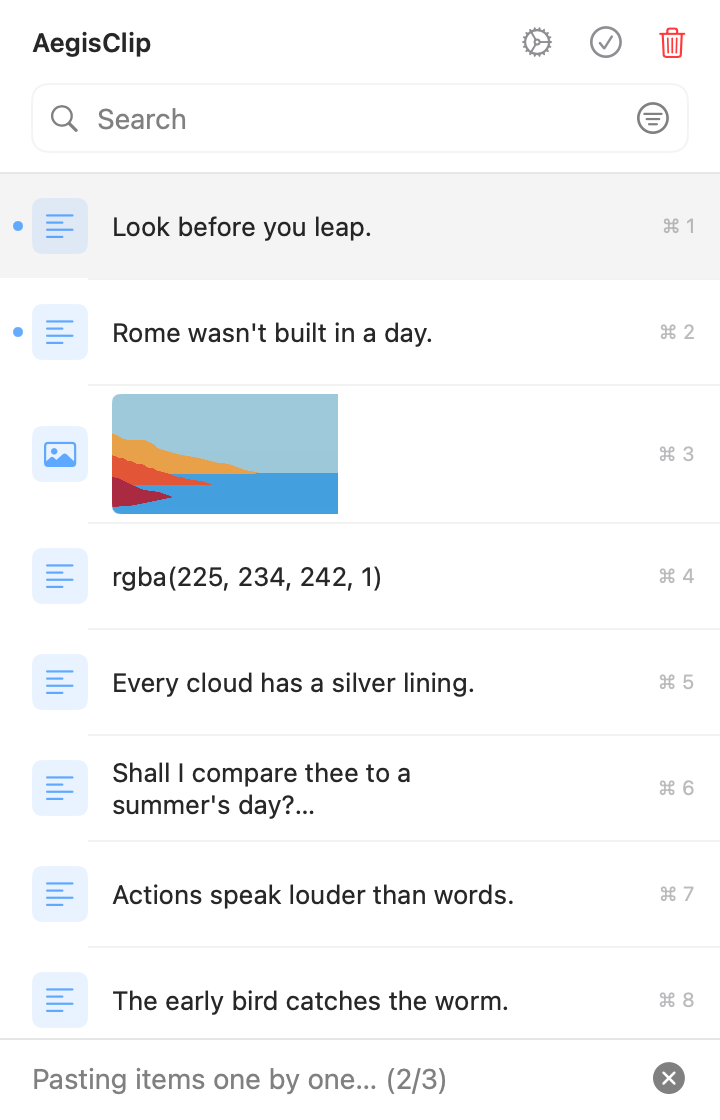
Use Step Paste on Mac when each item needs a separate destination:
- Open AegisClip and enter multi-select mode.
- Select 2 to 30 items in the desired order.
- Start Step Paste from the toolbar or press
Option + Enter. - Return to the target app.
- Press
Command + Vin each field. AegisClip advances to the next item after each paste.
Step Paste is useful for forms, CRM records, spreadsheets, translation fields, test data, and setup values. It stays controlled because you decide where each paste lands.
Split long text before pasting
Sometimes the source is one long copied block: a list of addresses, several paragraphs, multiple replies, or a set of titles. Use Split Text into Items first, then choose Copy All or Step Paste.
Smaller clips are easier to search, reorder, tag, and paste correctly.
Common mistakes
- Using Copy All when the target has separate fields.
- Using Step Paste when all clips should become one note.
- Forgetting to check the order before starting.
- Manually changing the system clipboard during Step Paste.
- Trying to paste image or rich content into an app that only accepts text.
For important data, test with three sample clips before using the workflow on the real set.
A small first test
- Copy three short text items.
- Use Copy All to paste them into one note.
- Copy three more items.
- Use Step Paste to paste them into three separate fields.
- Decide which mode matches your real task.
If repeated input is a daily bottleneck, read Clipboard Manager for Mac or compare broader options in Best Clipboard Manager for Mac.
FAQ
Can Mac copy and paste multiple items by default?
The normal Mac clipboard mainly pastes the current item. Universal Clipboard can move content between Apple devices, but it is still temporary and replaced by the next copied item. For multiple items, use a clipboard manager.
What is the difference between Copy All and Step Paste?
Copy All combines selected clips into one output. Step Paste prepares several clips and advances through them one by one as you paste into separate fields or positions.
When should I use multiple copy paste on Mac?
Use it for research notes, support replies, form fields, CRM data, spreadsheet values, test accounts, code snippets, translation fields, and other repeated input tasks.
How should I start?
If the target is one document, start with Copy All. If the target has several fields, start with Step Paste. Both begin by selecting several items from AegisClip history.
Download AegisClip
Clipboard · Screenshot OCR · AI Bar — core history stays on your Mac by default.
Free download · 7-day full trial · Optional one-time upgrade.