Split Text into Items
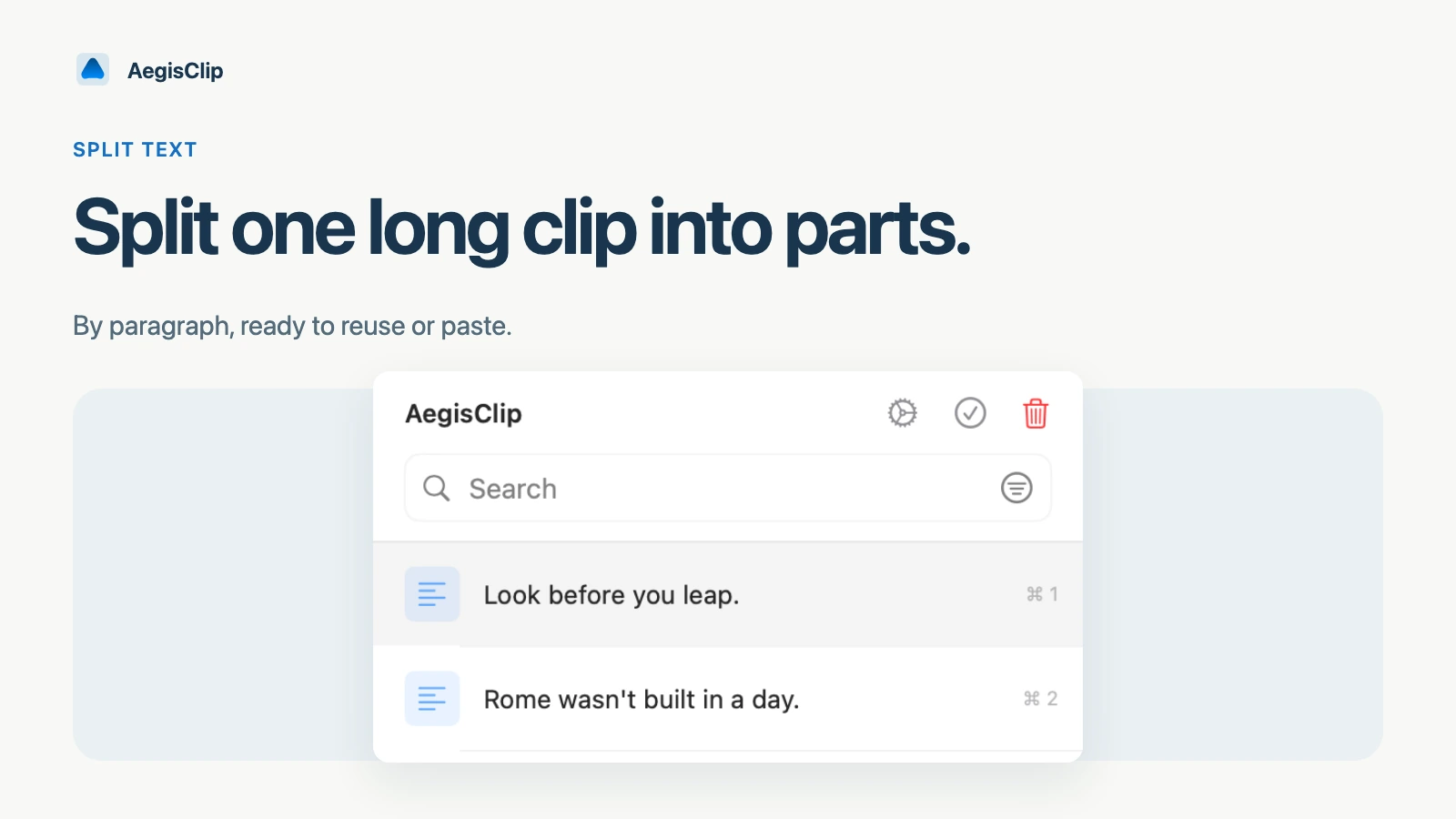
Split one clipboard item by paragraph into up to 50 reusable clips. New items inherit the original tags; an unpinned source item is removed.
On this page5 sections
The splitting action is for copied content that is too large to be useful as one clip. A long article excerpt, AI response, address list, template, or research note may contain several pieces you want to reuse separately.
Splitting makes each part easier to search, tag, copy, and paste.
Why long clips are hard to reuse
One large clipboard item creates friction:
- the useful sentence is buried inside the block
- tags apply to everything, even if only one part matters
- Copy All and Step Paste cannot use the pieces independently
- you may need to paste into a temporary document just to clean it up
When the copied content already has clear sections, splitting is usually faster.
How to use it
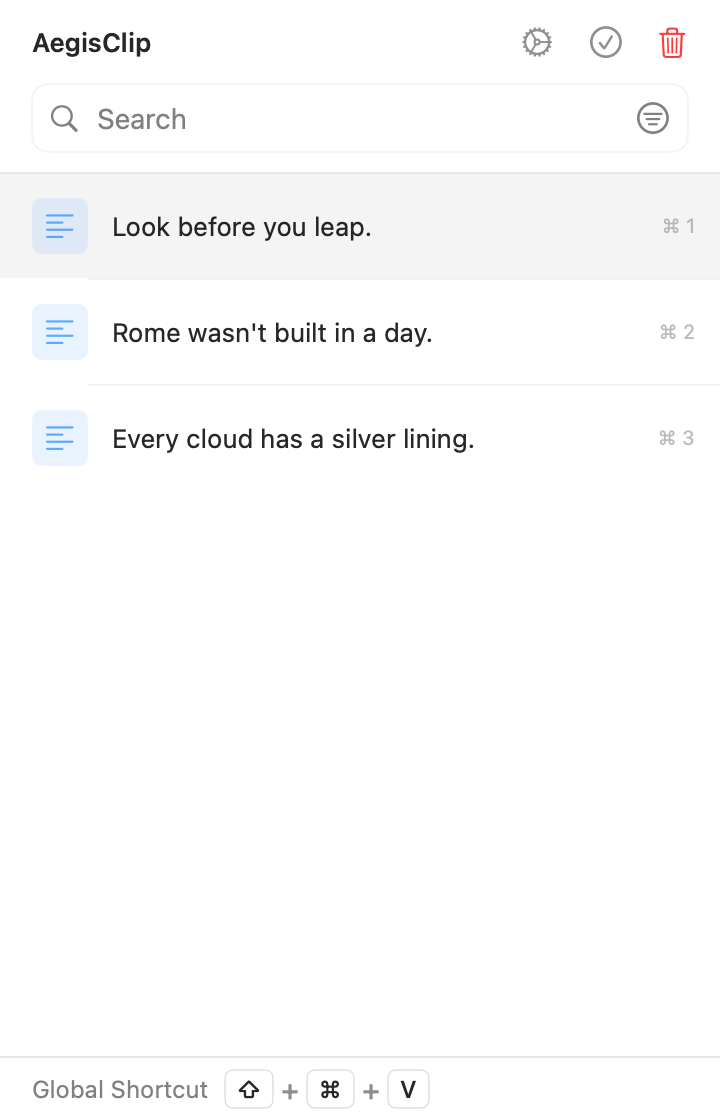
- Copy a long text block.
- Open AegisClip and find the item.
- Use the context menu to split the text.
- Review the new items.
- Tag, copy, delete, or paste the pieces you actually need.
Split items can then be used with Copy Multiple Clipboard Items, Step Paste, Search and Filter, or tags.
The operation creates at most 50 new items. When a source has more than 50 parsed paragraphs, AegisClip uses the first 50 rather than creating an unlimited history burst. Paragraph splitting supports plain text, HTML, RTF, and RTFD; it does not split images, PDFs, file URLs, or unknown types.
Good examples
Writers can split several quotes or paragraph notes. Students can split research excerpts into topic-sized clips. Developers can split command lists, config notes, or generated code explanations. Support teams can split a long reply template into greeting, explanation, troubleshooting, and closing blocks.
The feature works best when the text already has paragraph or list structure.
Important limits
This action is not for every long clip. If the text needs to preserve rich formatting, or if the meaning depends on the whole block staying together, keep it as one item.
Comma-, semicolon-, or custom-delimiter splitting is not available. Restructure that material into paragraphs before running the action. If image text is involved, use Screenshot OCR for Mac, copy the result as text, then decide whether to split it.
Practical next step
Try it with a safe three-paragraph note first. After splitting, use tags on the pieces worth keeping and delete the rest. That habit keeps clipboard history useful instead of turning it into another cluttered archive.
For the larger workflow, read Multiple Copy Paste on Mac.
FAQ
What does Split Text into Items do?
It turns one long text clip into separate clipboard items using paragraph boundaries, so each part can be searched, tagged, copied, or pasted independently.
When should I split clipboard text?
Use it for research notes, quote collections, address lists, reply templates, generated drafts, commands, or any copied block that contains several independent pieces.
What happens to the original clip?
New items inherit the source tags. AegisClip removes an unpinned source item after splitting, but keeps a pinned source item. Pin or duplicate material first when the complete original must remain.
What should not be split?
Do not split content that must stay together, content without clear boundaries, or rich text where preserving original formatting matters more than separate reuse.
Download AegisClip
Clipboard · Screenshot OCR · AI Bar — core history stays on your Mac by default.
Free download · 7-day full trial · Optional one-time upgrade.