Step Paste on Mac
Select 2–30 clipboard items, start Step Paste, then advance the queue only when you press Command-V in each destination. Accessibility permission is required.
On this page5 sections
Step Paste on Mac is for structured input. You already have several clipboard items, but they should not be pasted all at once. Each item needs its own field, row, message, paragraph, or position.
AegisClip turns the selected items into a paste sequence.
How it works
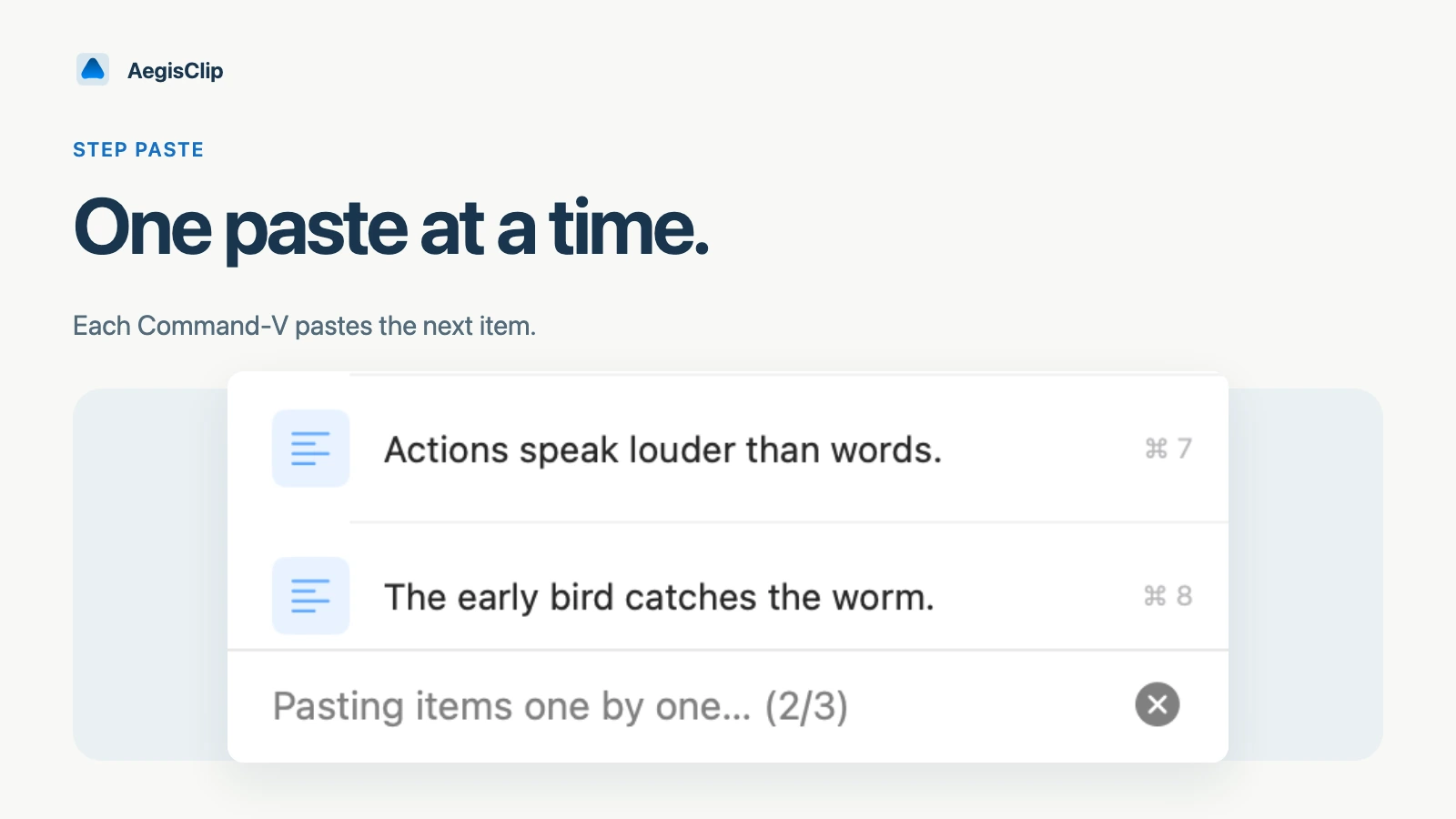
Step Paste treats selected clips like a queue. AegisClip puts the first item on the system clipboard. You return to the target app and press Command + V. After that paste, AegisClip prepares the next item.
This keeps your attention on the destination, not on reopening clipboard history after every field.
Common uses
Step Paste works well for:
- names, phone numbers, addresses, and notes in a form
- CRM or admin fields
- spreadsheet values entered one by one
- translation fields
- test data or setup values
- outline points inserted in order
It is not full automation. You still choose each destination. That makes it more controlled than auto-filling a form blindly.
How to use it
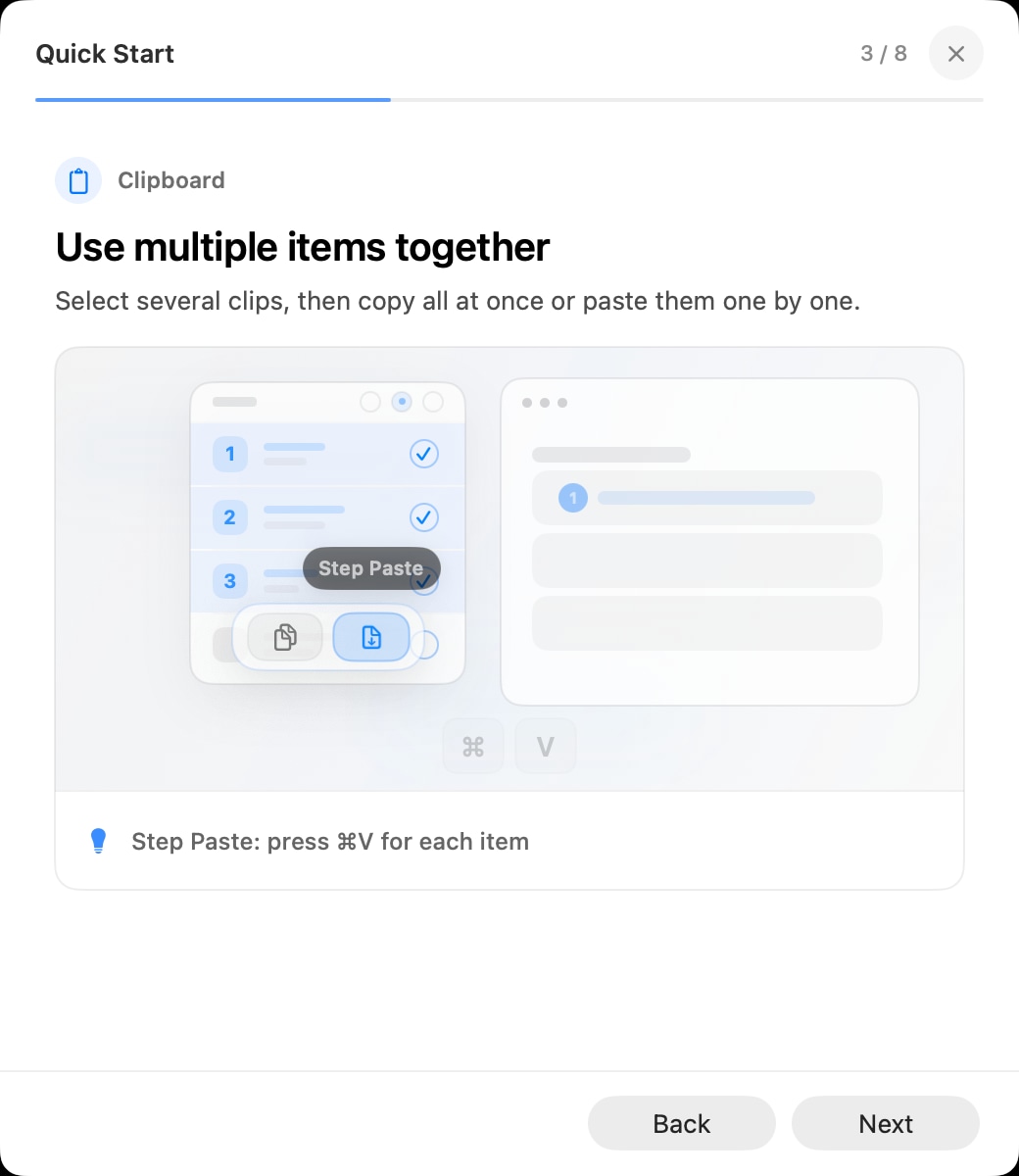
- Open AegisClip.
- Enter multi-select mode.
- Select 2–30 clips in the order you want.
- Start Step Paste from the toolbar or press
Option + Enter. - Return to the target app.
- Press
Command + Vin each destination field.
Check the order before starting. If you change the system clipboard manually during the sequence, you may interrupt the flow.
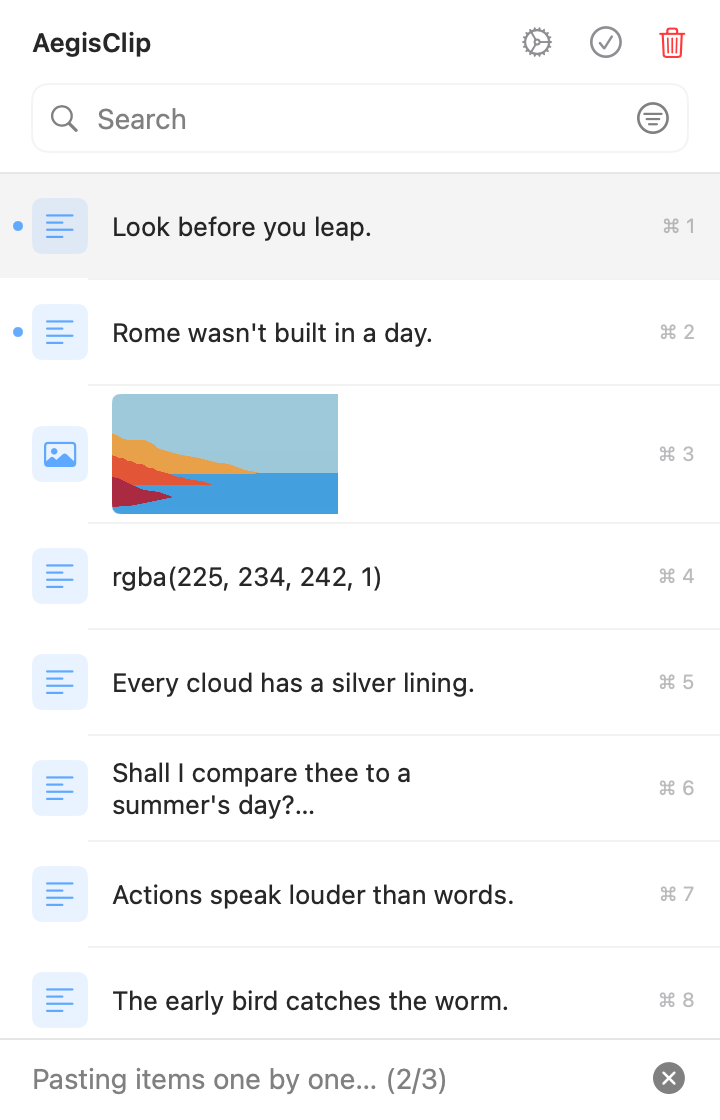
While active, AegisClip shows progress such as "Pasting (2/4)" and provides an exit control. When the queue finishes, it exits Step Paste and can send a completion notification if notification permission is available. Denying notifications does not block the queue.
Step Paste reuses normal clipboard-item copying, so text, images, rich text, and file items can enter a sequence. The destination app still decides whether it can paste each type.
Step Paste vs Copy All vs Auto Paste
Use Copy All when everything should be pasted into one place. Use Auto Paste when you want one selected clip sent into the active app. Use Step Paste when several clips need several destinations.
That difference is the key to using multiple clipboard items without confusion.
Permission and reliability
Step Paste needs Accessibility permission because it listens for paste actions and updates the clipboard sequence. If it does not work, verify Accessibility permission and try a simple native app first.
For the broader workflow, read Multiple Copy Paste on Mac.
FAQ
What is Step Paste on Mac?
Step Paste lets you select several clipboard items, start a sequence, and paste them one by one. After each paste, AegisClip prepares the next item.
When should I use Step Paste instead of Copy All?
Use Step Paste when each item needs a separate field or position. Use Copy All when the selected items should become one combined output.
Does Step Paste need Accessibility permission?
Yes. Step Paste relies on keyboard event handling and clipboard updates, so macOS Accessibility permission is required.
How many items should I use?
Step Paste accepts 2–30 valid items. Start with three, confirm the order and destination behavior, then use larger sequences. Split more than 30 items into separate queues.
Download AegisClip
Clipboard · Screenshot OCR · AI Bar — core history stays on your Mac by default.
Free download · 7-day full trial · Optional one-time upgrade.