AegisClip Screen Recording Permission
Enable AegisClip Screen Recording Permission on Mac for Screenshot Enhancement, region capture, markup, pinning, and OCR workflows.
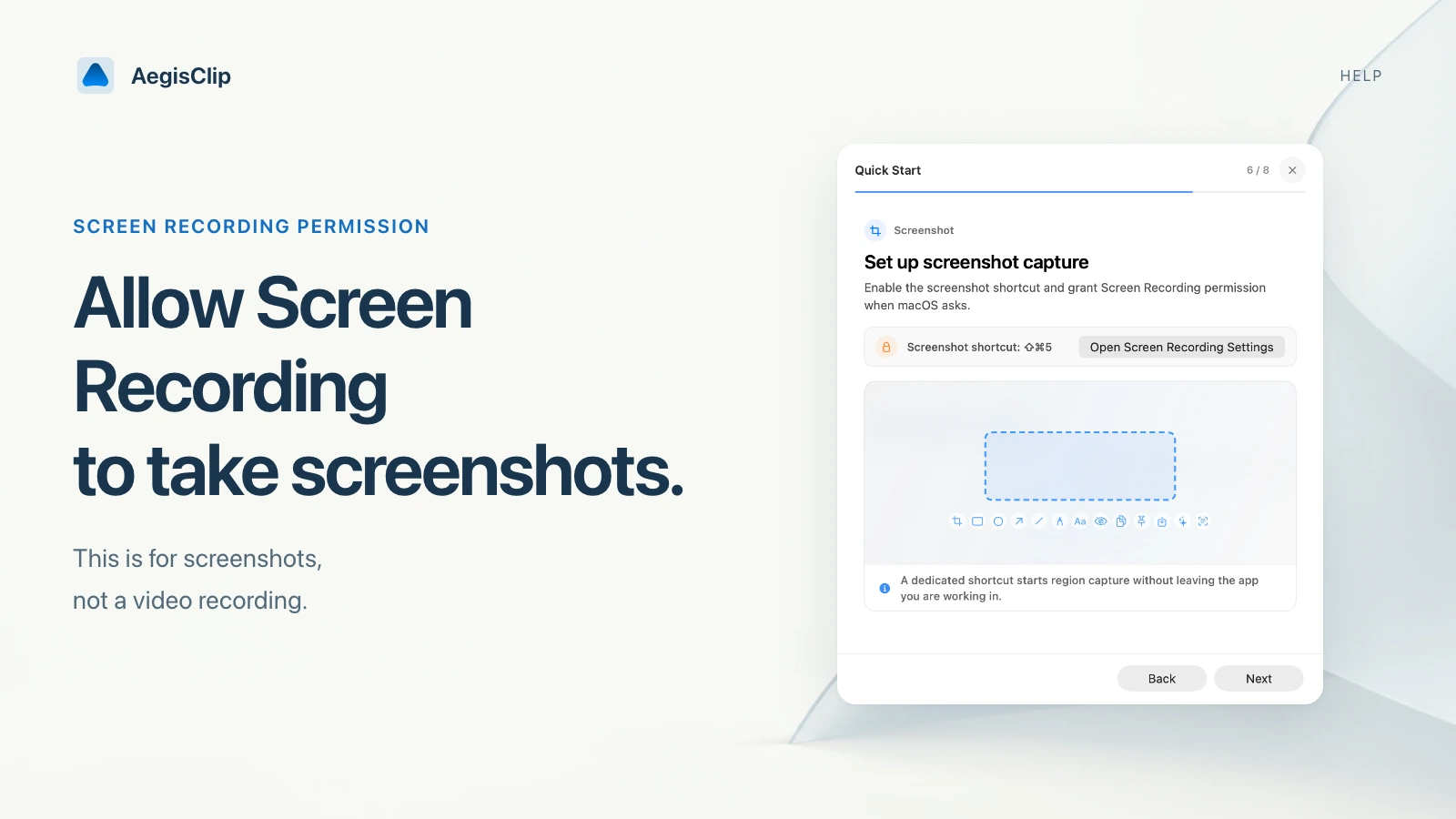
On this page4 sections
AegisClip Screen Recording Permission on Mac is needed only when Screenshot Enhancement needs to capture what is visible on your display. This supports selected-region capture, markup, pinning, copying, saving, and sending screenshots to OCR.
It is not used to continuously record your screen.
You may never need this permission if you only use clipboard history for text. You do need it when you want AegisClip to capture part of the screen, keep a screenshot visible as a reference, annotate an image, or extract text from a screenshot with OCR.
Enable the permission
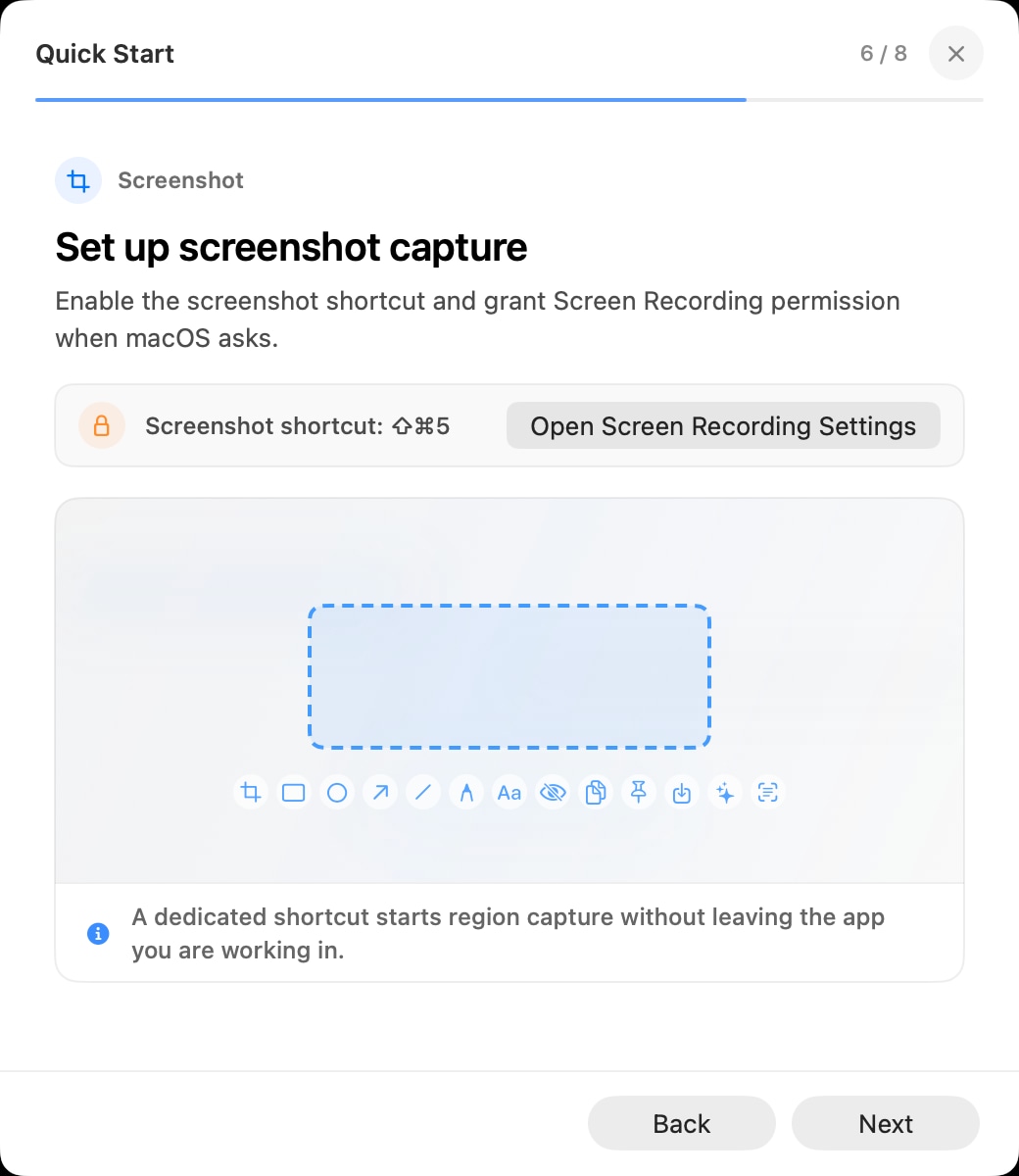
- Open AegisClip.
- Start Screenshot Enhancement from the app or shortcut.
- When macOS asks for permission, open System Settings.
- Go to Privacy & Security.
- Enable AegisClip under Screen Recording or Screen & System Audio Recording.
- Quit and reopen AegisClip if macOS asks you to restart the app.
The exact label can vary by macOS version, but it is the privacy section that controls screen capture and screen/audio recording.
After enabling it, start a new screenshot instead of reusing a failed one. macOS permission changes apply to new capture sessions, and many apps need to be reopened before the new state is used.
If AegisClip is not listed
Try this order:
- Quit and reopen AegisClip.
- Start Screenshot Enhancement again so macOS prompts for permission.
- Open System Settings manually and search for Screen Recording.
- If macOS provides an add button, add AegisClip from Applications.
Some managed Macs may restrict changes to privacy permissions. In that case, contact the administrator.
If AegisClip was launched from a Downloads folder or a disk image, move it to Applications first. Then reopen it and start the screenshot flow again so macOS can register the installed app cleanly.
If screenshots are black or blank
Blank or black captures usually mean macOS has not granted or refreshed the permission.
- Turn AegisClip off in the Screen Recording permission list.
- Quit AegisClip.
- Turn AegisClip on again.
- Reopen AegisClip.
- Start a new screenshot.
If the issue remains, restart the Mac so the privacy service refreshes fully.
Also test with a normal desktop window before capturing protected content such as DRM video, secure login windows, remote desktop sessions, or certain system prompts. Those areas may restrict capture even when permission is enabled.
Privacy note
Screen Recording permission lets AegisClip capture the selected area you request. Screenshot results stay in the local-first clipboard workflow unless you explicitly save, export, sync, or send them elsewhere.
For paste automation permission, read AegisClip Accessibility Permission. For the screenshot feature itself, read Screenshot Tool for Mac.
FAQ
Why does AegisClip need Screen Recording permission?
macOS requires approval before an app can capture screen content. AegisClip uses this permission for Screenshot Enhancement, including region capture, markup, pinning, and OCR workflows.
Is AegisClip continuously recording my screen?
No. The permission allows screen capture when you start a screenshot workflow. It is not used to continuously record your screen.
Where do I enable it?
Open System Settings, go to Privacy & Security, then enable AegisClip under Screen Recording or Screen & System Audio Recording, depending on your macOS version.
Why are screenshots blank or black?
The permission may not be granted or refreshed. Toggle the permission off and on, quit and reopen AegisClip, then try a new screenshot.
Download AegisClip
Clipboard · Screenshot OCR · AI Bar — core history stays on your Mac by default.
Free download · 7-day full trial · Optional one-time upgrade.