Screenshot Tool for Mac
Capture, annotate, copy, save, pin, OCR, translate, or ask AI across displays. Screen Recording is required; saving and screenshot AI need Full.
On this page6 sections
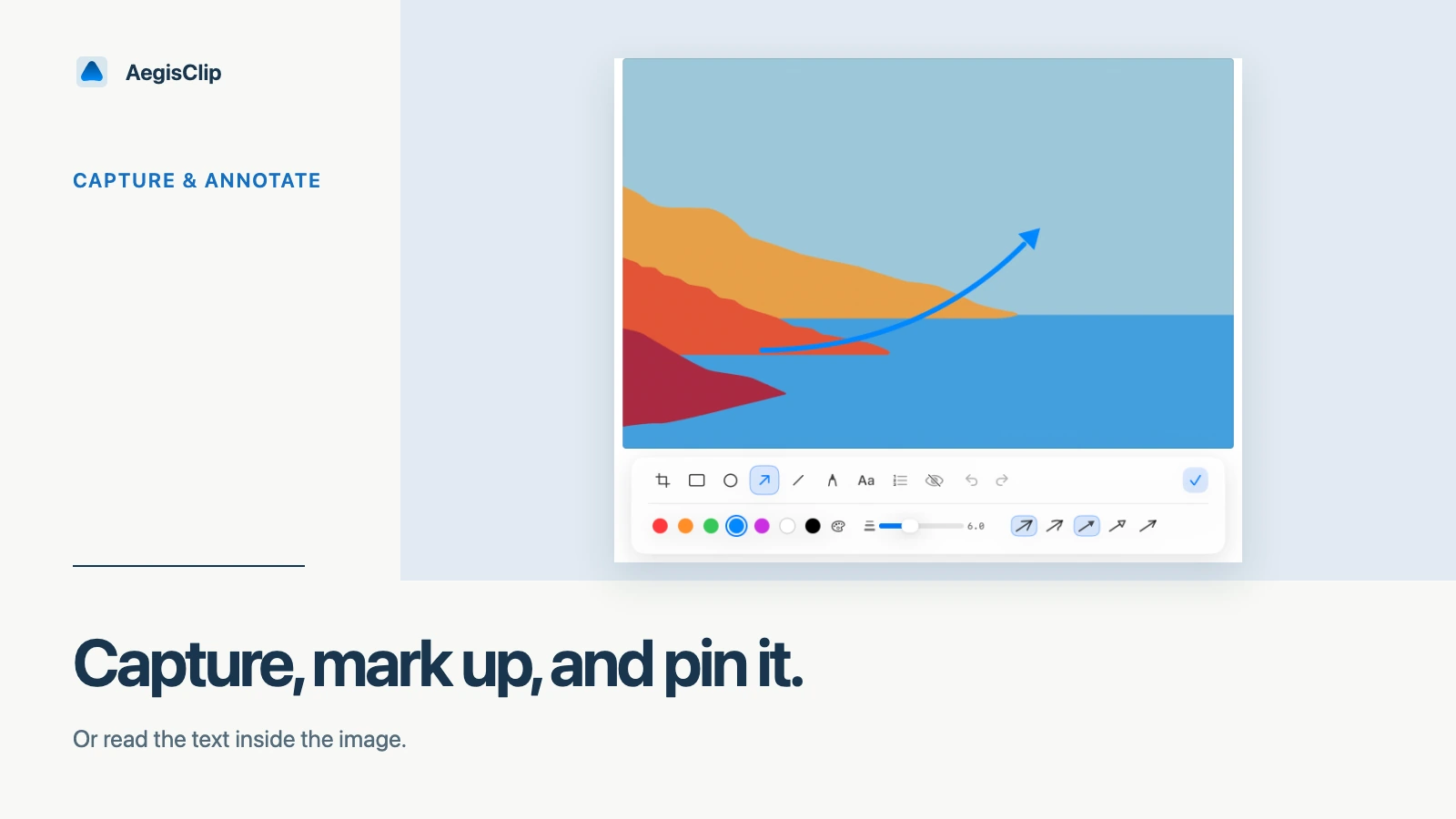
This screenshot tool for Mac is for the steps after capture. A normal screenshot may need an arrow, a blurred private value, a floating reference, a quick copy into chat, or OCR when text is trapped inside the image.
AegisClip keeps those actions close to clipboard history, so screenshots do not become scattered one-off files.
What the workflow covers
With AegisClip Screenshot Enhancement, you can:
- capture across displays, select the full screen, revisit region history, sample a color, and nudge a region precisely
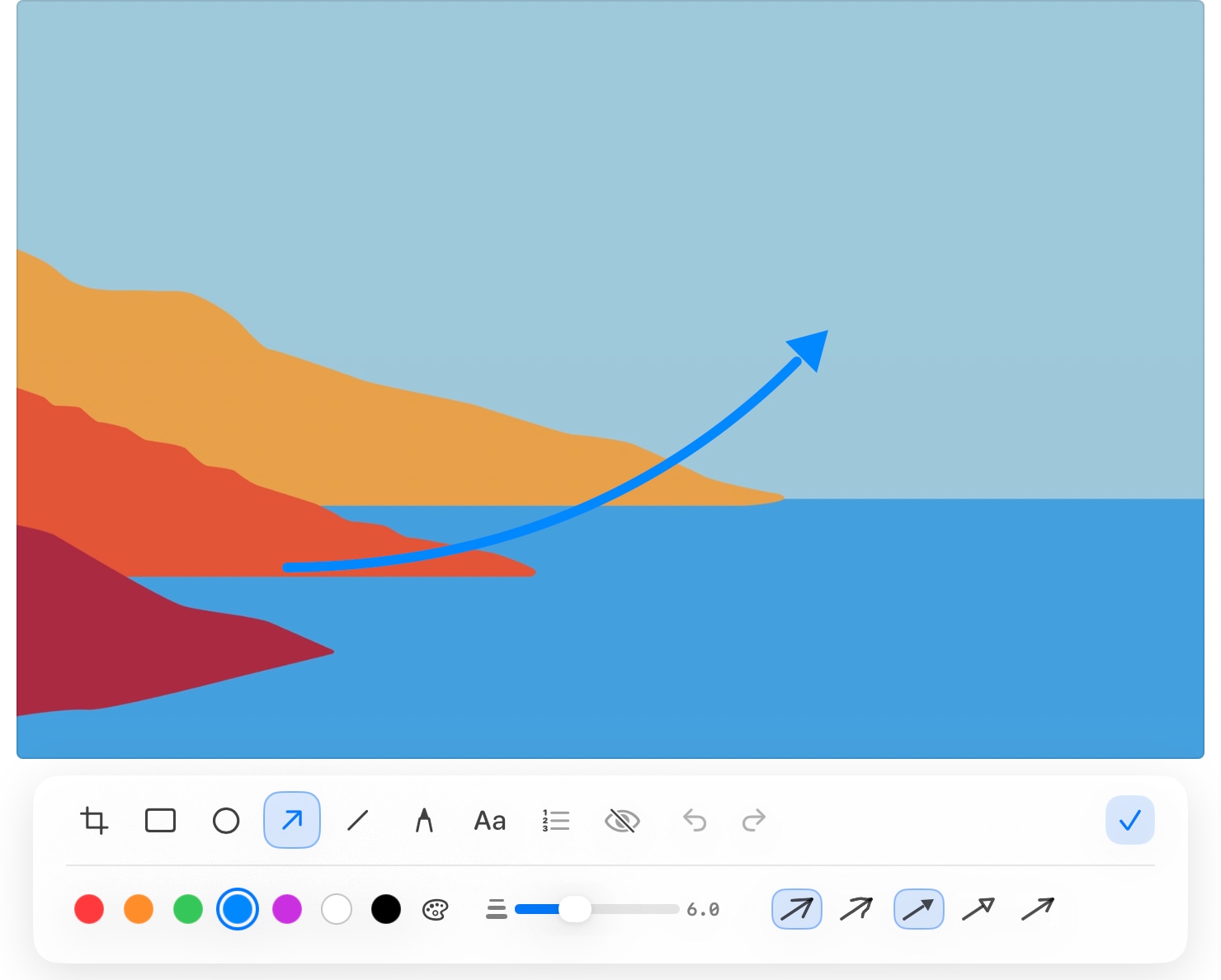
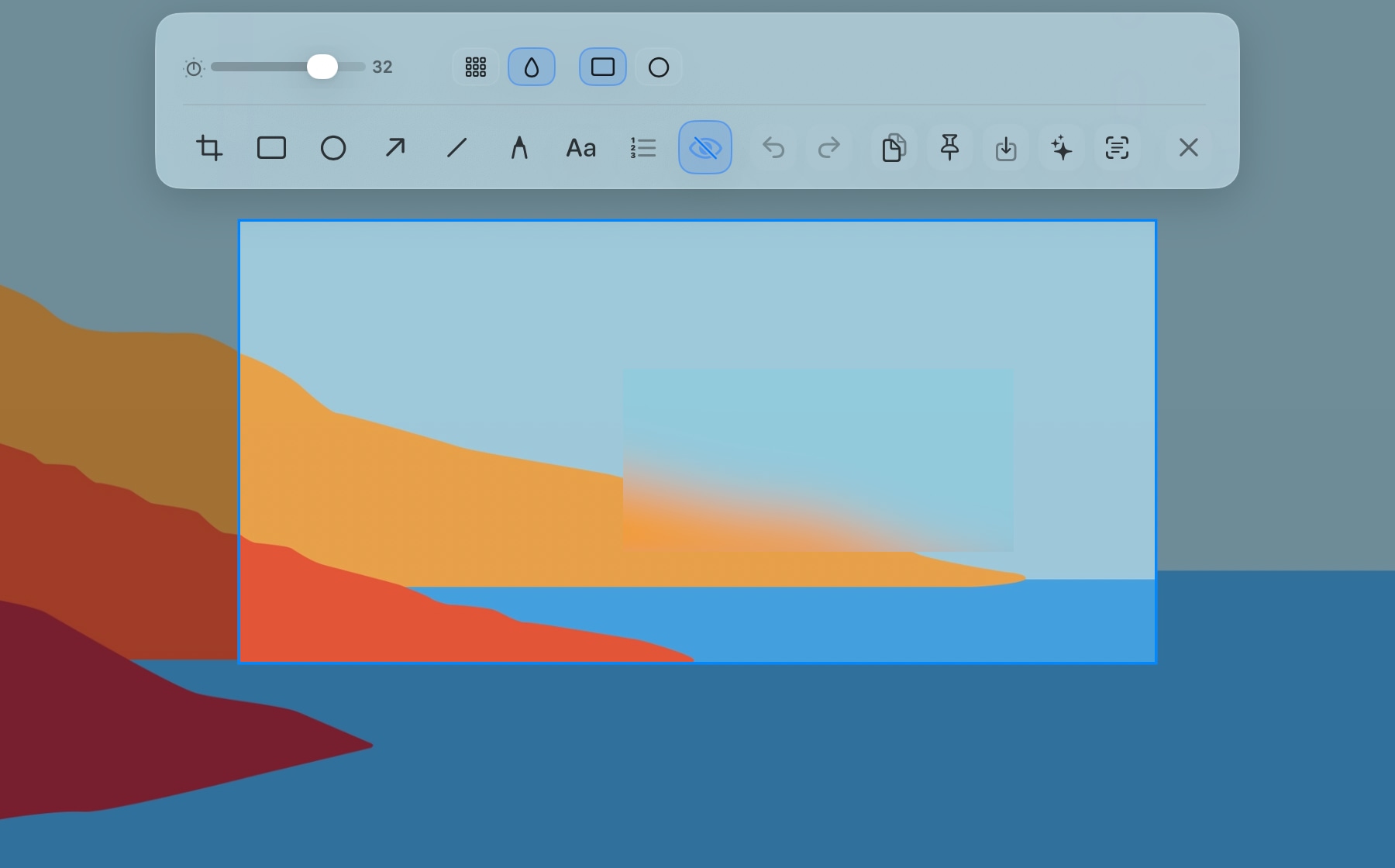
- add rectangles, ellipses, arrows, lines, drawing, text, numbering, mosaic, or blur
- copy the screenshot to the clipboard
- save the screenshot when needed
- pin the screenshot above other windows
- send the image to OCR or translation
- send the screenshot to the AI Bar for image analysis
- reuse copied screenshots from clipboard history
It is not meant to replace a design app. It is meant to shorten the everyday screenshot loop.
Capture and mark up
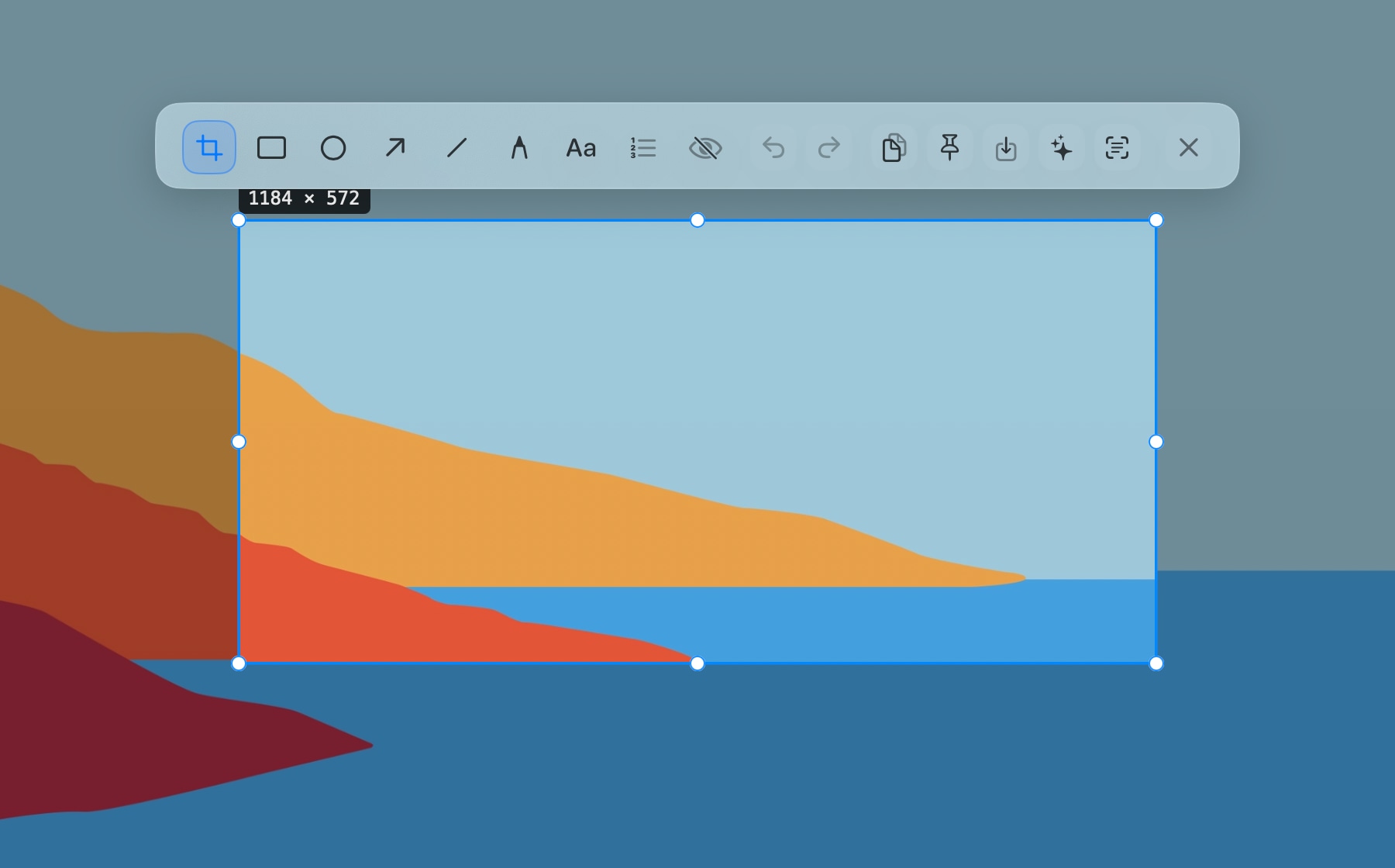
The most common use case is communication: show someone exactly where the issue is, hide private information, and paste the result into a message, ticket, document, or email.
Markup tools are useful for:
- UI bugs and product feedback
- support instructions
- design review notes
- highlighted error messages
- redacted receipts or account details
Use the smallest amount of markup that makes the screenshot clear.
Pin screenshots for reference
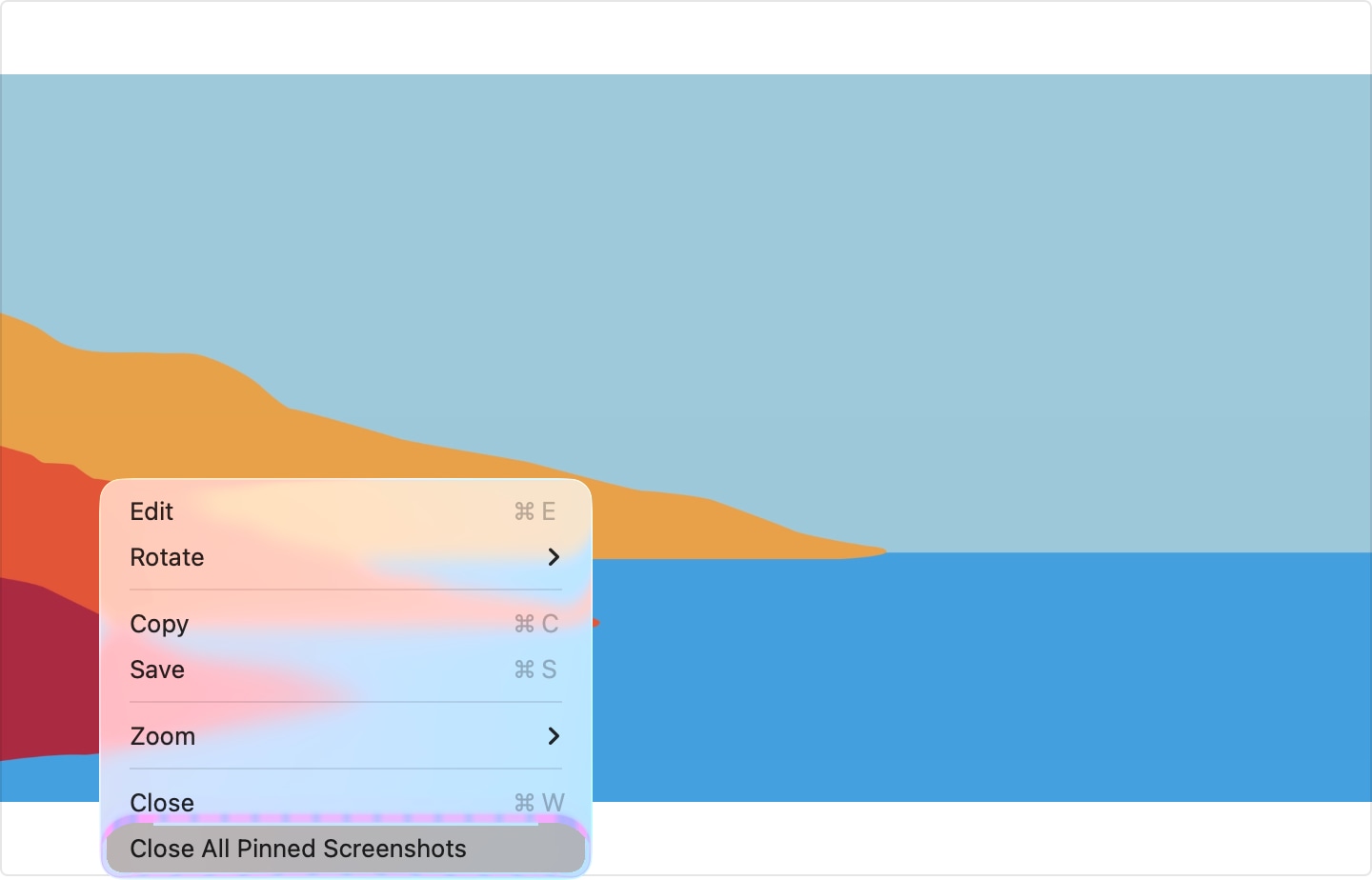
Some screenshots are not meant to be sent. They are temporary references. You might pin a code, a table, a UI state, a form value, or a design detail while working in another app.
Pinned screenshots save window switching. They are especially helpful when comparing two pieces of information that cannot easily be shown side by side.
OCR and image text
When a screenshot contains text you need to reuse, send it to Screenshot OCR for Mac. AegisClip can recognize text, detect QR codes, and let you copy the result.
OCR is useful for dialogs, remote desktops, videos, scanned files, and images where the original text cannot be selected.
When the task is to understand a UI, chart, or error state rather than extract its words, send the screenshot to the AI Bar. Vision models receive the image attachment. Non-vision models do not receive the image and instead use text extracted locally through OCR and QR recognition.
Permission and privacy
Screenshot capture requires macOS Screen Recording permission. AegisClip uses that permission to capture the selected screen area for this feature. OCR and QR detection on an image already in clipboard history do not require it. If capture is blocked or the screenshot is blank, read Screen Recording Permission on Mac.
Copied screenshots can become part of local clipboard history. Delete private screenshots when they are no longer needed, and use blur or mosaic before sharing sensitive areas.
Saving a screenshot to a local file and asking AI to analyze the screenshot require the Full Version. An AI request sends the disclosed image or fallback text to your selected provider, so review the capture before sending it.
Where to go next
Pair screenshots with Search and Filter when image history grows, Auto Paste when you reuse clips often, and Clipboard Manager for Mac for the larger workflow.
FAQ
How is AegisClip different from the built-in Mac screenshot tool?
AegisClip connects region capture, markup, pinning, clipboard copy, screenshot history, and OCR in one workflow. The built-in tool is still fine for simple screenshots.
Does this screenshot tool for Mac need permission?
Yes. macOS requires Screen Recording permission before an app can capture the screen. AegisClip uses it for the selected screenshot workflow.
What is pinned screenshot useful for?
Pinning is useful for temporary reference: codes, tables, UI details, form values, design comparisons, or any detail you need visible while working elsewhere.
Can screenshots be sent to OCR?
Yes. Captured screenshots can be sent to Image Insight for OCR, QR code detection, copying recognized text, and system or AI-assisted translation.
Can I ask AI about a screenshot?
Yes. A vision model receives the image; a non-vision model receives locally extracted OCR and QR text instead. Screenshot image analysis is a Full Version feature.
Download AegisClip
Clipboard · Screenshot OCR · AI Bar — core history stays on your Mac by default.
Free download · 7-day full trial · Optional one-time upgrade.