Clipboard Manager for Writers
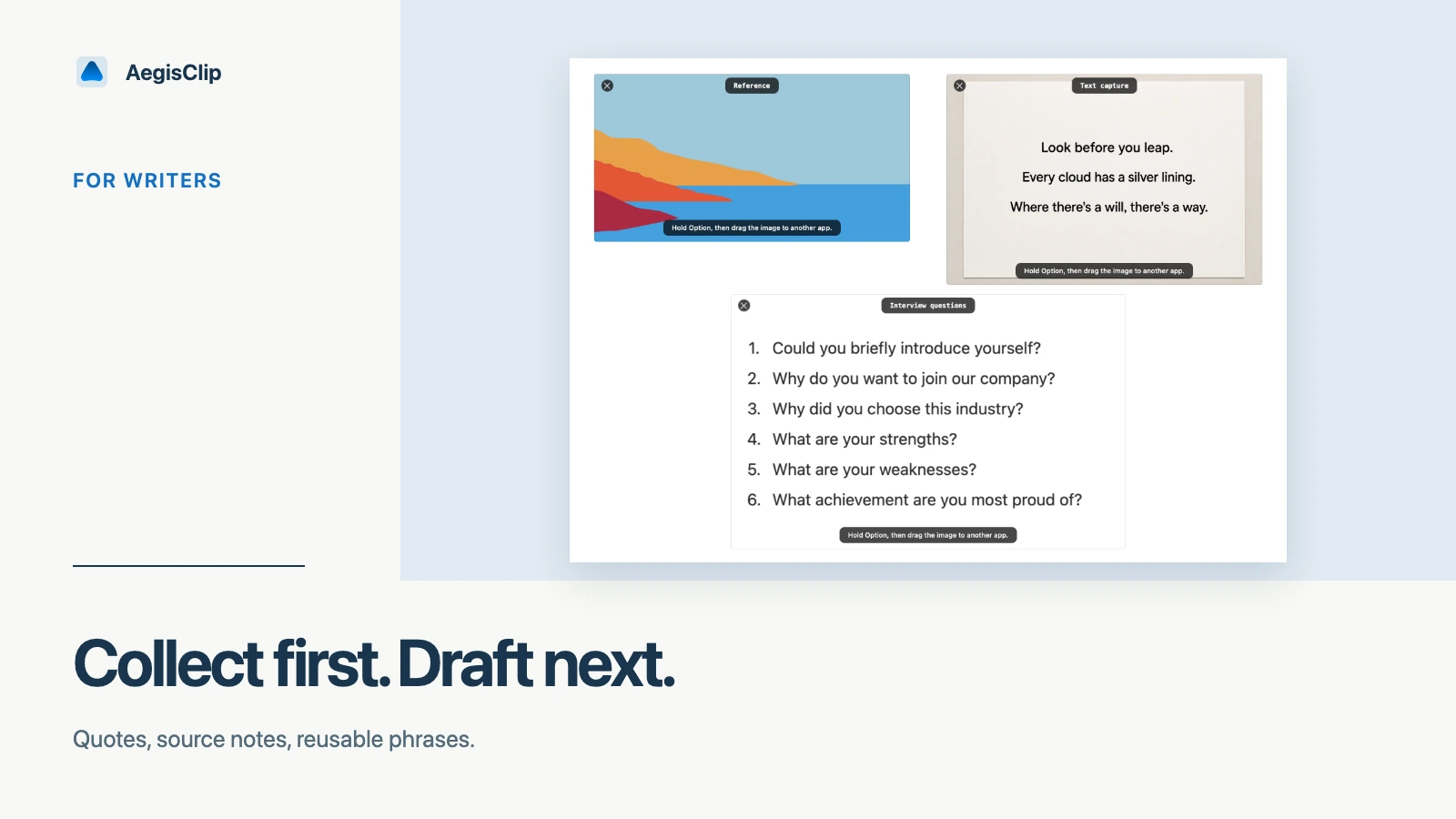
Collect quotes, source notes, title ideas, and reusable phrases while writing. Use AegisClip to search, tag, split, and insert clips.
On this page6 sections
Key Features
- Collect quotes, source notes, draft ideas, and reusable phrases
- Split long copied passages into smaller clips
- Tag clips by source, theme, article, chapter, or project
- Insert selected clips in order with Step Paste
- Paste clean text into writing apps, CMS fields, and documents
Why writers need a clipboard manager
Writing often starts before the draft. You read, copy, compare, collect, and move between sources: articles, interviews, PDFs, notes, research tools, documents, and CMS fields. The system clipboard only remembers the current item, so a useful quote or phrase can disappear as soon as you copy the next one.
A clipboard manager for writers gives active writing material a place to wait. AegisClip helps you collect quotes, source notes, title ideas, reusable phrases, and short passages, then search and insert them when they fit the draft.
This is not a replacement for a writing app or research database. It is a working tray beside the draft.
Used lightly, a clipboard manager for writers keeps the draft moving without turning every copied phrase into a permanent archive.
Collect with source context
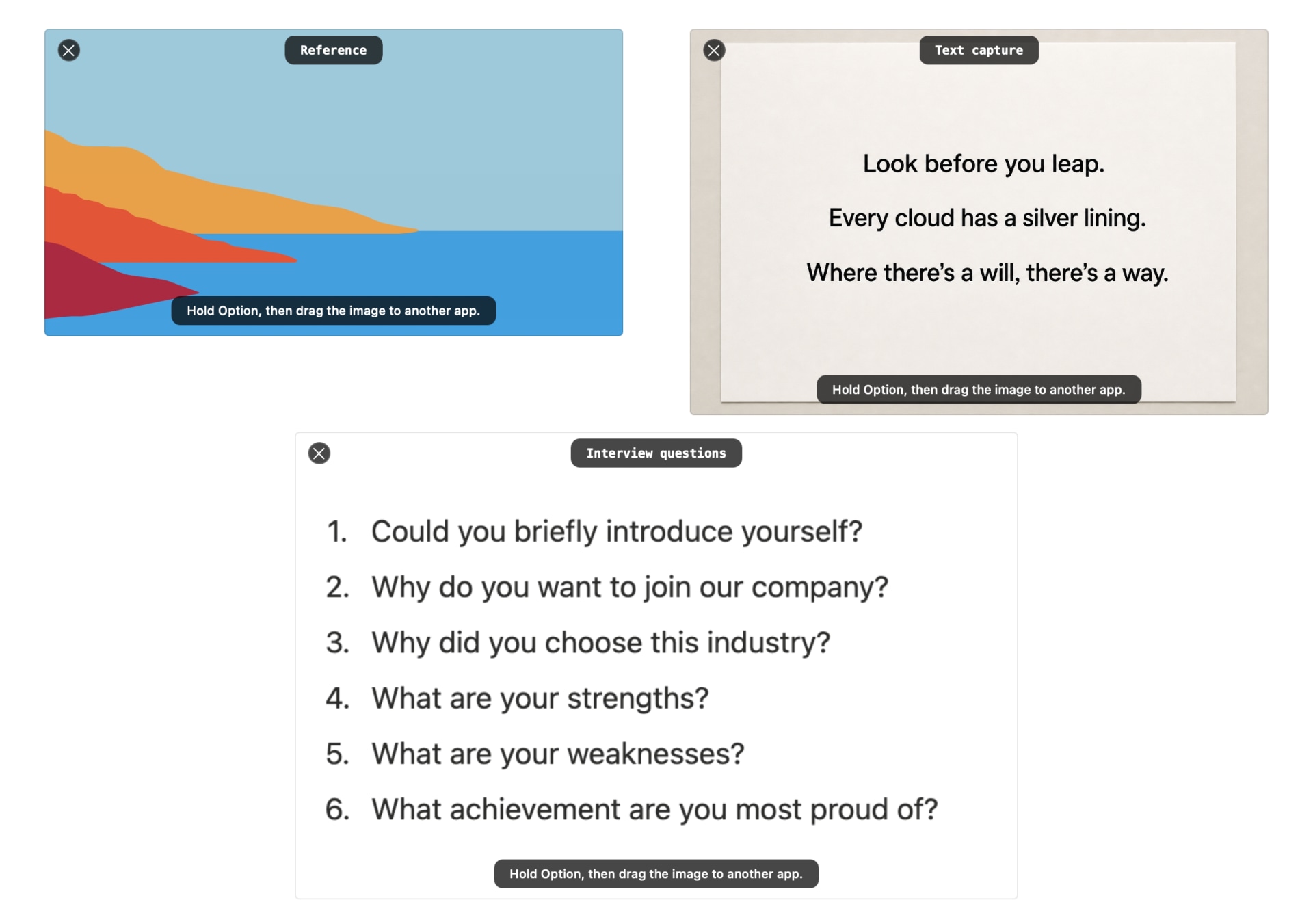
The most common writing mistake is saving the quote but losing where it came from. When possible, copy source details near the material:
- article title, book title, paper name, or interview label
- author, speaker, or publication
- URL, page number, timestamp, or section name
- a short note about why the quote matters
Use tags that match how you write:
- source:
interview,paper,book,web - theme:
opening,example,counterpoint,data - project:
newsletter,chapter-2,launch-post - status:
maybe,use,verify,cut
Clipboard Tag Management keeps those groups usable when the history gets long.
Split long passages into usable clips
Copying a long article section into one clipboard item is easy, but it is not easy to reuse. Use Split Text into Items when a copied passage contains several separate quotes, bullets, or ideas. Each part becomes easier to search, tag, and insert.
Keep only the clips that support the current piece. A cleaner working set is better than a giant archive of half-useful text.
Insert without breaking flow
When drafting, the goal is to stay in the sentence, not bounce through tabs. Use search to find the quote or note you remember, then paste it into the active draft. For multiple clips, Step Paste lets you prepare a sequence and insert each item one by one.
Paste as Plain Text on Mac is useful when moving material into Google Docs, Word, Scrivener, Ulysses, Notion, WordPress, or a CMS field. It keeps the words without dragging unwanted styling into the draft.
Good writing use cases
For research writing, use AegisClip to keep quotes, links, source notes, and short examples close while building an argument.
For creative writing, keep character notes, scene fragments, place descriptions, and repeated terms available without opening several reference documents.
For blog and marketing writing, save title ideas, calls to action, meta descriptions, boilerplate paragraphs, and reusable examples. Search and tags make these easier to reuse without turning them into clutter.
A first writing workflow
- Choose one draft you are already working on.
- Copy three useful references and one source note for each.
- Split any long copied passage into smaller clips.
- Tag the clips by source, theme, or project.
- Insert the useful clips into the draft with normal paste or Step Paste.
If this reduces the time you spend switching between browser, notes, and writing app, AegisClip is a good fit. For the basic setup, read How to View Clipboard History on Mac.
FAQ
What can writers save in a clipboard manager?
A clipboard manager for writers is useful for quotes, source notes, links, title ideas, reusable phrases, interview snippets, outline points, and short passages you are actively using.
How do I avoid losing source information?
Copy the source title, link, author, or note near the quote, then tag the clip by project or source. AegisClip helps you recover material, but final citation details should still be checked in your writing tool.
Can AegisClip replace a writing app?
No. Use your writing app for the draft. AegisClip works beside it as a temporary material tray for collecting, searching, splitting, and inserting clips.
How should I try this workflow?
Use one article, essay, or script. Copy a few references, split long passages, tag them by theme, then insert the useful clips into your draft in order.
Download AegisClip
Clipboard · Screenshot OCR · AI Bar — core history stays on your Mac by default.
Free download · 7-day full trial · Optional one-time upgrade.