How to View Clipboard History on Mac
Learn how to view clipboard history on Mac with Spotlight in macOS Tahoe 26, then use AegisClip for search, tags, Copy All, and Step Paste.
On this page6 sections
If you want to know how to view clipboard history on Mac, start with your macOS version. On macOS 26, Spotlight includes a clipboard history view. On older versions, or when you need stronger organization, a clipboard manager such as AegisClip is the practical route.
The important difference is simple: Spotlight helps you recover recent copied items. AegisClip helps you turn copied items into a searchable, reusable workflow.
View clipboard history with Spotlight
On macOS 26:
- Press
Command + Spaceto open Spotlight. - Click the Clipboard button near the search field, or press
Command + 4. - Search for the copied item you want.
- Copy the item from the history.
- Click the destination app and press
Command + V.
Apple notes that sensitive information may appear in clipboard history. Use the clear history option when private material should not stay visible.
This built-in method is good for a quick rescue: a link you just lost, a phrase from a few minutes ago, or a copied value you do not want to re-find.
If you do not see the Clipboard view
If Spotlight does not show a clipboard history view, check your macOS version first. Clipboard history in Spotlight is a macOS 26 feature, so older systems need a third-party clipboard manager for history.
If you are on macOS 26 and still do not see copied items, make a simple test: copy plain text from Notes or Safari, then open Spotlight again. Some apps may mark copied content as sensitive or temporary, and those items may not behave like normal text history.
View clipboard history with AegisClip
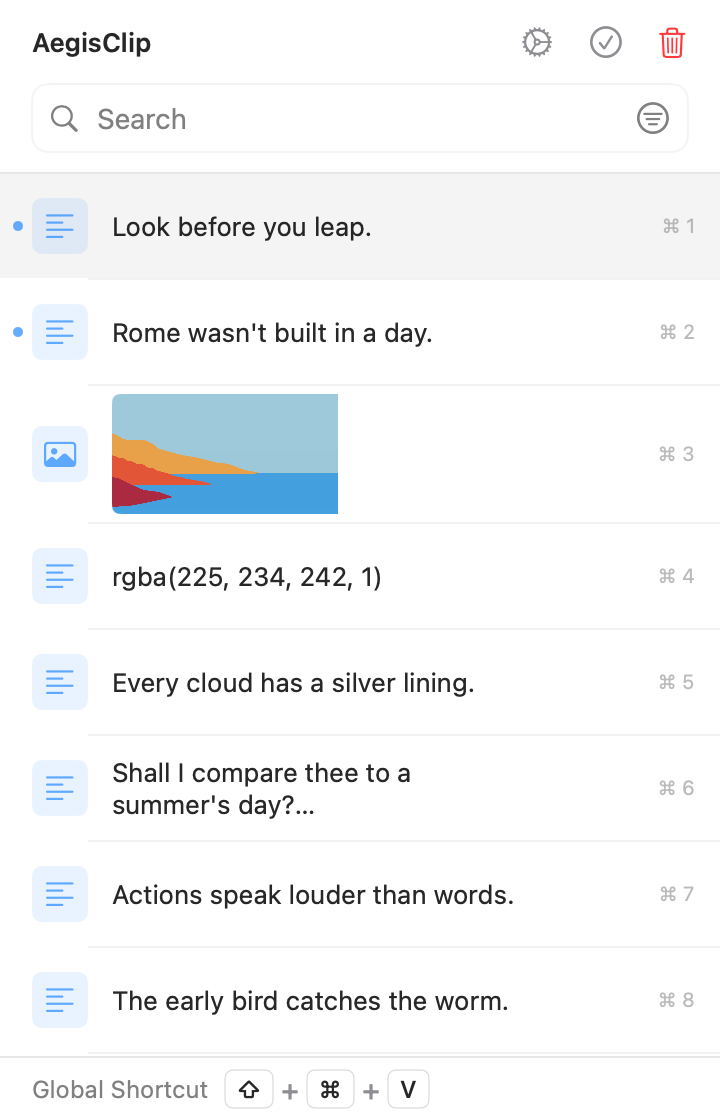
Use AegisClip when you need more than quick recovery:
- Install and open AegisClip.
- Copy text, links, images, files, or snippets while you work.
- Press
Shift + Command + Vto open the history panel. New installs use this by default; check Settings if you changed it. - Search by keyword, source app, type, date, or tag.
- Select the item and paste it into the active app.
This is especially helpful when you remember a fragment of the item, the app it came from, or the project it belongs to.
What to do if the item is missing
If you cannot find an item in clipboard history, check the likely causes:
- The content may not have copied successfully. Test by pasting into Notes.
- The source app may mark the copied content as sensitive or temporary.
- AegisClip may not have been running when the item was copied.
- The source app may be in your ignore list.
- Your search term may not match the saved text or preview.
- Image text may require OCR before it becomes selectable text.
Do not assume every missing clip is a search problem. Sometimes the item never entered history.
Turn viewed history into useful history
Once you can view old clips, the next question is how to reuse them.
Use Search and Filter when the list gets long. Use Clipboard Tag Management for project material, support replies, code snippets, research quotes, or design notes that you will need again.
If several old clips should become one output, use Copy Multiple Clipboard Items. If several clips need to land in several fields, use Step Paste.
Do not organize everything on day one. A better first habit is to tag only the clips that clearly repeat: templates, safe snippets, project links, source notes, and standard replies. Leave one-time items untagged and delete them when they are no longer useful.
When to use which option
| Situation | Better choice |
|---|---|
| Recover one recent item | Spotlight clipboard history |
| Search a larger history | AegisClip |
| Organize reusable material | AegisClip tags |
| Combine copied notes or links | Copy All |
| Fill several fields in order | Step Paste |
For a deeper category overview, read Clipboard History on Mac. If you want to choose a tool, continue to Clipboard Manager for Mac.
FAQ
Does Mac have clipboard history?
Yes, on macOS 26 Spotlight can search clipboard history. On older macOS versions, or for more advanced workflows, use a clipboard manager such as AegisClip.
How do I view clipboard history on Mac with Spotlight?
Press Command + Space, choose the Clipboard button or press Command + 4, then search or copy an item from the clipboard history view.
What is the difference between Spotlight and AegisClip?
Spotlight is useful for recent recovery. AegisClip adds longer workflow features such as search filters, tags, Auto Paste, Copy All, Step Paste, screenshots, and OCR.
Can I clear clipboard history?
Spotlight includes a Clear History action for its clipboard view. AegisClip also lets you delete clips, clear history, use ignore apps, and keep your history cleaner over time.
Download AegisClip
Clipboard · Screenshot OCR · AI Bar — core history stays on your Mac by default.
Free download · 7-day full trial · Optional one-time upgrade.