Clipboard Manager for Developers
Save commands, code snippets, API URLs, and error text in a searchable Mac clipboard workflow. Use plain text paste and tags to stay focused.
On this page5 sections
Key Features
- Save commands, API URLs, error messages, and reusable code snippets
- Paste as plain text to avoid hidden formatting in editors and terminals
- Search clipboard history by function name, error code, project, or source app
- Tag useful snippets by project, language, framework, or task
- Use Step Paste when several prepared values need to go into several fields
Why developers need a clipboard manager
Development work moves through documentation, browsers, terminals, editors, API tools, issue trackers, and chat. The same copied value may be useful five minutes later or three days later: an error message, a request body, a command, a config key, a regex, or a note from a pull request.
A clipboard manager for developers is not about saving everything forever. It is about keeping the active material around long enough to search it, clean it up, and paste it without reopening five tabs.
AegisClip is especially useful when your copied content sits between apps: documentation to editor, terminal output to issue, API response to notes, or repeated values into several form fields.
Used this way, a clipboard manager for developers becomes a small working layer between your tools, not another place to maintain permanent code.
What belongs in the workflow
Good developer clipboard material is useful but not permanent source code:
- terminal commands, install steps, and debugging commands
- API endpoints, request examples, headers without secrets, and error codes
- regex patterns, SQL queries, config fragments, and environment variable names
- pull request notes, README fragments, release notes, and support replies
- stack traces or error messages you need to compare while debugging
Do not use clipboard history as a vault. Passwords, private keys, production tokens, customer records, and database credentials should stay out of long-term clipboard storage.
Plain text paste for code
Copying from webpages, email, docs, or chat can bring formatting that does not belong in code: smart quotes, hidden rich text, styled lists, or strange spacing. That may be harmless in a document, but it can break a command, a string, or a YAML file.
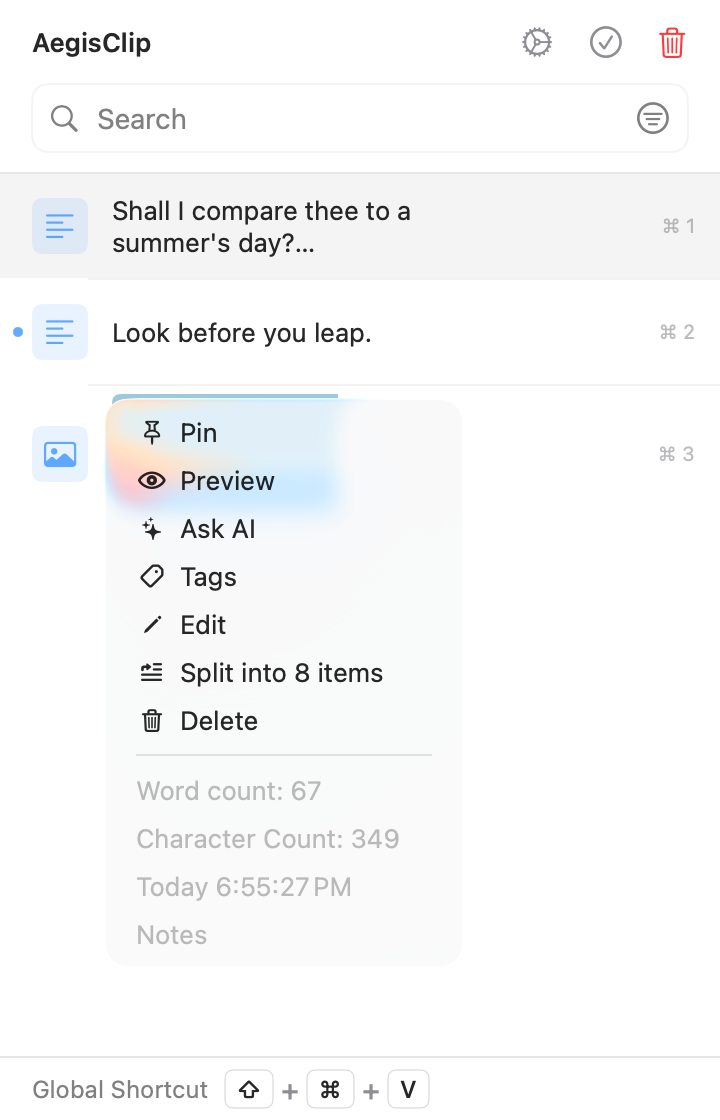
Paste as Plain Text on Mac keeps copied material cleaner when moving into editors, terminals, Markdown files, .env files, and issue fields. When you do need formatting, use normal paste. The point is control, not forcing every paste into one mode.
Search and tag by how you remember
Time order is rarely how developers remember copied content. Search for the thing you actually remember:
- project:
billing-api,website-v2,ios-client - language or stack:
swift,nextjs,sql,bash - task:
debug,deploy,regex,config,migration - clue: function name, status code, package name, or source app
Use Search and Filter for quick recall. Use Clipboard Tag Management for snippets that repeat across a project. Tags are most useful when they match your real habits, not when they become a complicated taxonomy.
A first setup to try
- Copy three commands, one error message, and one API URL from real work today.
- Open AegisClip and search by a project name, function name, or status code.
- Add one simple tag to anything you expect to reuse.
- Test plain text paste into your editor or terminal.
- If you need to fill several fields, try Step Paste with a small set first.
If that saves context switching between browser, terminal, and editor, AegisClip fits your development workflow. For keyboard setup, continue to Mac Clipboard Shortcuts, or start with How to View Clipboard History on Mac.
FAQ
What should developers save in a clipboard manager?
A clipboard manager for developers is useful for commands, API URLs, error text, regex patterns, SQL snippets, config examples, docs excerpts, and repeatable notes that are safe to keep locally.
How does plain text paste help developers?
Plain text paste removes rich formatting from webpages, docs, and chat tools before content lands in an editor, terminal, config file, or issue tracker.
Can AegisClip replace a code snippet manager?
No. Use a real snippet library or repository for permanent shared code. AegisClip is better for active, project-level clips that you need to search, clean up, and paste quickly.
What should I avoid saving?
Avoid keeping passwords, private keys, production tokens, customer data, and sensitive connection strings in clipboard history. Delete them after use or exclude sensitive apps.
Download AegisClip
Clipboard · Screenshot OCR · AI Bar — core history stays on your Mac by default.
Free download · 7-day full trial · Optional one-time upgrade.