How to Access Clipboard on Mac
Learn how to access clipboard on Mac, check the current item, open Spotlight clipboard history, and use AegisClip for searchable history.
On this page6 sections
If you are asking how to access clipboard on Mac, first separate two things: the current clipboard item and clipboard history.
The current clipboard is the latest thing your Mac will paste with Command + V. Clipboard history is a list of older copied items. On macOS 26, Spotlight can show clipboard history. AegisClip gives you a more complete history panel when you need search, tags, and faster reuse.
Check the current clipboard
The fastest way to check the current clipboard is to paste it somewhere safe:
- Open Notes, TextEdit, or another field where temporary text is safe.
- Press
Command + V. - If the content appears, that is the current clipboard item.
- Undo or delete the test paste if you do not need it.
You can also use Edit > Paste from the menu bar or Control-click and choose Paste in apps that support it. If Paste is unavailable, the target field may not accept the current clipboard type, or nothing usable is on the clipboard.
Open clipboard history in Spotlight
On macOS 26, Apple provides a Spotlight clipboard history view:
- Press
Command + Spaceto open Spotlight. - Choose the Clipboard button, or press
Command + 4. - Search your clipboard history if needed.
- Copy an item from the history.
- Click the destination field and press
Command + V.
This is useful when you need to recover one recent item. It is less suited to organizing reusable snippets, combining several copied items, or creating a repeated paste workflow.
What about clipboard files?
If you copy a file in Finder, the clipboard may contain a file reference rather than plain text. You normally access it by going to another Finder location and pressing Command + V, or using Edit > Paste Item. If the target app cannot accept files, Paste may be unavailable.
AegisClip can help you see file-related clipboard entries in history, but the final paste still depends on what the destination app supports. A copied image, file path, rich text block, or Finder item may behave differently from plain text.
Use AegisClip for a working history
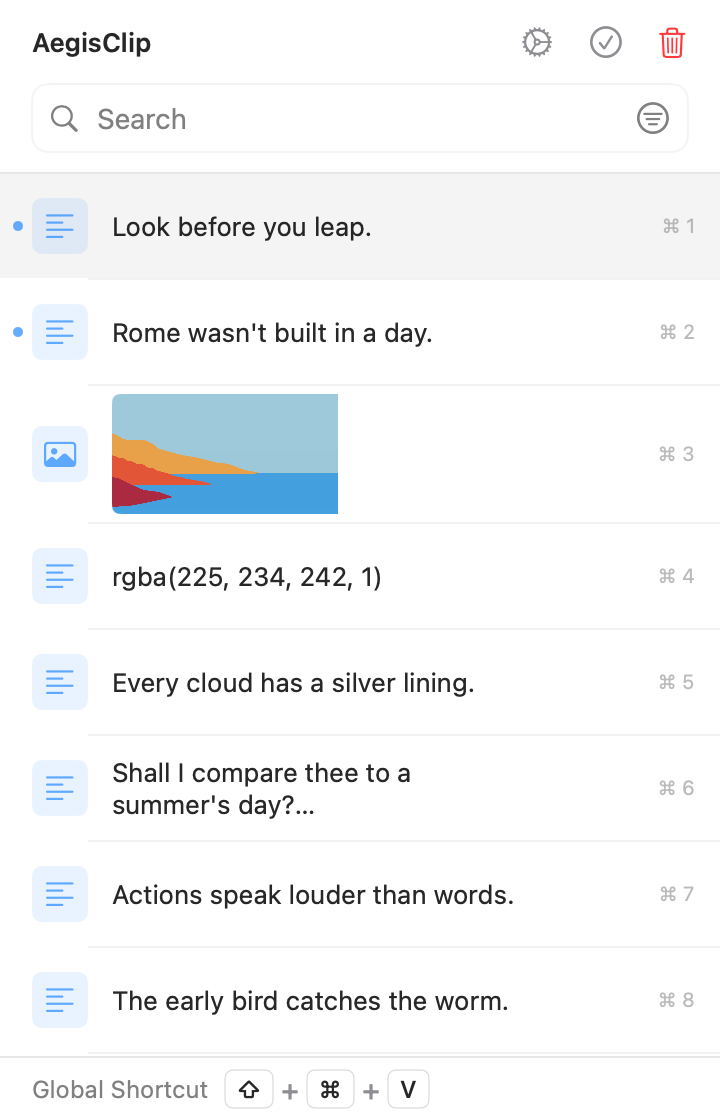
AegisClip is useful when "open clipboard on Mac" really means "find something I copied earlier and use it again." After installing AegisClip:
- Copy text, links, images, or files as usual.
- Press
Shift + Command + Vto open AegisClip, or use the shortcut recorded in Settings. - Search by text, source app, item type, time, or tag.
- Select a clip.
- Paste it manually or use Auto Paste when the target field is already focused.
That turns clipboard access into a repeatable workflow instead of a one-time check.
When each method is best
| Need | Best method |
|---|---|
| Check what will paste right now | Paste into a safe temporary field |
| Recover one recent copied item | Spotlight clipboard history |
| Search a larger clipboard history | AegisClip search and filters |
| Keep reusable items by project | AegisClip tags |
| Paste selected history faster | AegisClip Auto Paste |
| Combine multiple old clips | AegisClip Copy All |
If you are new to this, start with the first two rows. Once recovery feels easy, add AegisClip only for the parts that save real time: search, tags, direct paste, or multi-item workflows.
Troubleshooting
If you cannot find the clipboard item, check the simple things first:
- Did the copy action actually succeed?
- Did you copy from an app that blocks or clears sensitive clipboard content?
- Is AegisClip running if you expect it to record history?
- Did you add the source app to an ignore list?
- Are you searching with a word that actually appears in the saved clip?
For a deeper tutorial, read How to View Clipboard History on Mac. If you want to understand the full tool category, continue to Clipboard History on Mac or Clipboard Manager for Mac.
FAQ
How do I access the current clipboard on Mac?
Paste into a text field with Command + V, use Edit > Paste, or use a temporary note to check what is currently on the clipboard. The current clipboard is only the latest copied item.
How do I access clipboard history on Mac?
On macOS Tahoe 26, open Spotlight with Command + Space, choose the Clipboard view or press Command + 4, then search or copy a history item. For richer history, use AegisClip.
Why can I not find a fixed Clipboard app on Mac?
The Mac clipboard is a system service, not usually a standalone app window. Clipboard history appears through Spotlight on supported macOS versions or through a clipboard manager such as AegisClip.
What can AegisClip do after I open clipboard history?
AegisClip lets you search older clips, filter by type or source, add tags, Auto Paste into the active app, Copy All selected clips, and reuse clipboard history more deliberately.
Download AegisClip
Clipboard · Screenshot OCR · AI Bar — core history stays on your Mac by default.
Free download · 7-day full trial · Optional one-time upgrade.