Paste as Plain Text on Mac
New AegisClip installs paste as plain text by default. Enter uses your current setting; Shift-Enter forces a formatted copy for the selected item.
On this page5 sections
Plain text paste on Mac solves a common problem: the words are right, but the formatting is wrong. You copy from a webpage, PDF, email, chat, or document, then paste into another app and bring along fonts, colors, links, spacing, or hidden styling you did not want.
AegisClip keeps plain text paste close to clipboard history, so you can find an old clip and insert it cleanly.
Why formatting causes friction
Rich text is useful when you want to preserve appearance. It becomes a problem when the destination should decide the style:
- code editors and terminals
- CMS fields and Markdown editors
- support reply boxes
- spreadsheets and form fields
- internal docs and writing tools
In these places, unwanted formatting can break layout, introduce inconsistent spacing, or make pasted content look out of place.
How AegisClip handles it
Plain text paste strips the presentation layer and keeps the readable content. The text then adopts the formatting of the destination app.
Use it when you want clean text. Use normal paste when formatting is part of the content, such as styled notes, rich email drafts, or formatted document sections.
The "Paste as plain text" setting is enabled by default on a new install. Enter or clicking an item follows the current setting; Shift + Enter forces a formatted copy for the current clip without changing the global preference.
How to use it
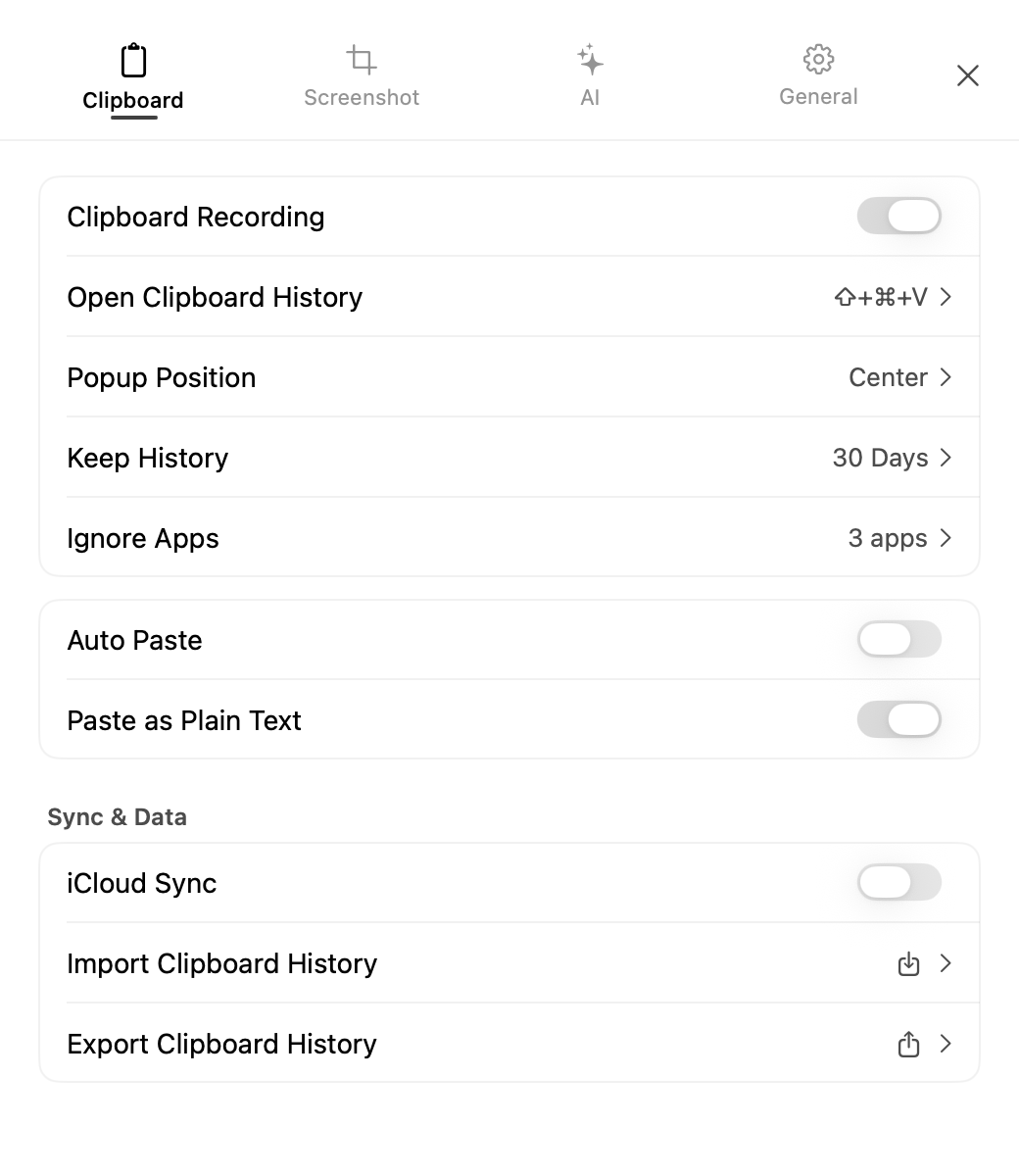
- Copy content from a webpage, document, chat, or PDF.
- Open AegisClip.
- Select the clip you want.
- Paste as plain text when the destination should control formatting.
- Use normal paste when source formatting should be preserved.
Keyboard shortcuts make this workflow faster; see Mac Clipboard Shortcuts.
Plain-text output only changes what AegisClip writes to the system clipboard for this action. It does not delete or rewrite the saved clip. Saving through the separate text editor does convert supported rich content into a plain-text item.
Where it helps most
Developers can copy commands, API examples, and configuration values without dragging web styling into editors or terminals. Writers can move quotes and notes into drafts without inconsistent fonts. Support and operations teams can reuse replies while keeping the destination tool's style.
Plain text paste is a small feature, but it is easy to feel when you paste from many different sources every day.
Best pairings
Use Search and Filter to find the right old clip, Auto Paste to insert it faster, and Tag Management when clean text snippets become reusable material.
For the full beginner path, read How to Paste on Mac.
FAQ
What is plain text paste on Mac?
Plain text paste inserts the text content without source fonts, colors, links, rich text styling, or hidden layout that may come from webpages, documents, email, or chat tools.
When should I paste without formatting?
Use it for code editors, terminals, CMS fields, Markdown, support tools, spreadsheets, forms, and any destination where source styling creates cleanup work.
Is plain text paste the same as Auto Paste?
No. Auto Paste controls how quickly a clip is sent into the active app. Plain text paste controls the format of what gets inserted.
Can I keep formatting when I need it?
Yes. Use normal paste or the preserve-format shortcut when formatting matters. Plain text mode is for the cases where the destination should control appearance.
Download AegisClip
Clipboard · Screenshot OCR · AI Bar — core history stays on your Mac by default.
Free download · 7-day full trial · Optional one-time upgrade.