Clipboard Tag Management
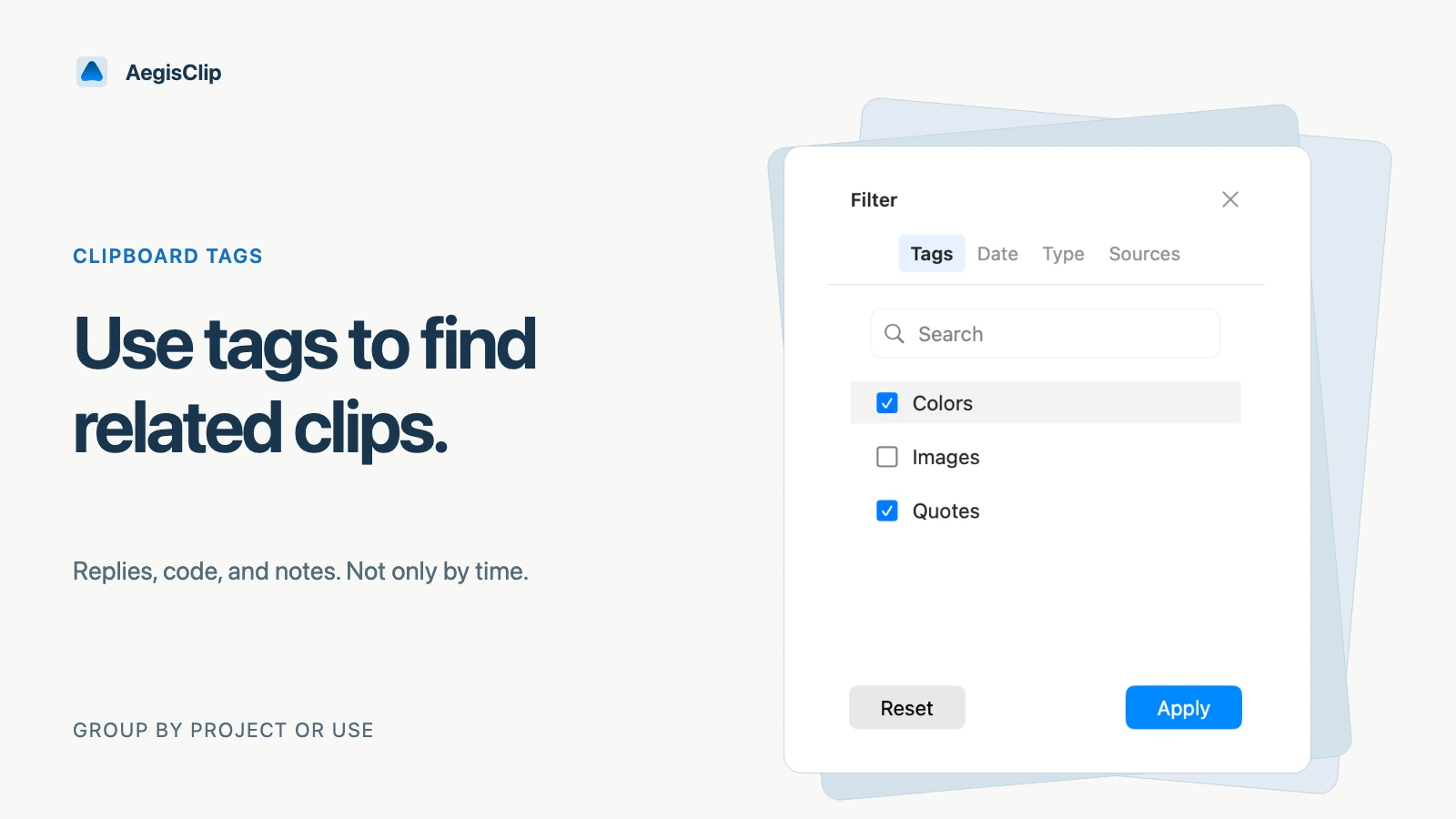
Assign multiple tags to reusable clips, then create, rename, delete, and search them. Deleting a tag clears its links without deleting your clips.
On this page5 sections
Clipboard Tag Management helps when clipboard history stops being a simple time list. Search is good when you remember a word. Tags are better when you know the context: a project, client, source, course, language, or workflow.
AegisClip tags are meant to stay lightweight. The goal is not to classify everything. The goal is to make reusable clips easy to find again.
What tags are good for
Use tags for clips that may matter later:
- support replies and standard explanations
- project links, IDs, and safe notes
- code snippets, commands, and configuration examples
- research quotes and source notes
- design colors, screenshots, and handoff text
- frequently reused writing blocks
Temporary clips do not need tags. If you will never reuse the item, leave it alone or delete it after the task.
How to use tags
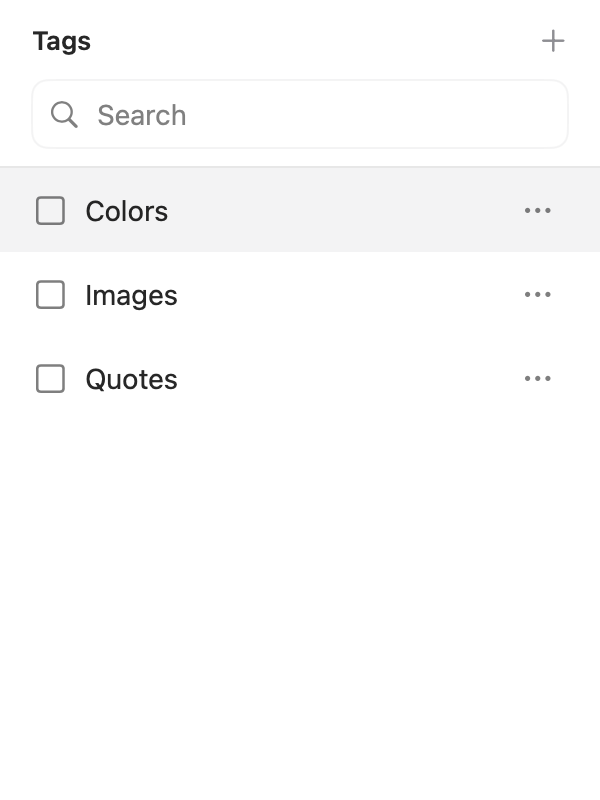
- Select a clipboard item worth keeping.
- Press
Command + Tor open the context menu. - Create or choose a tag.
- Later, filter history by that tag.
- Clean up old tags when a project ends.
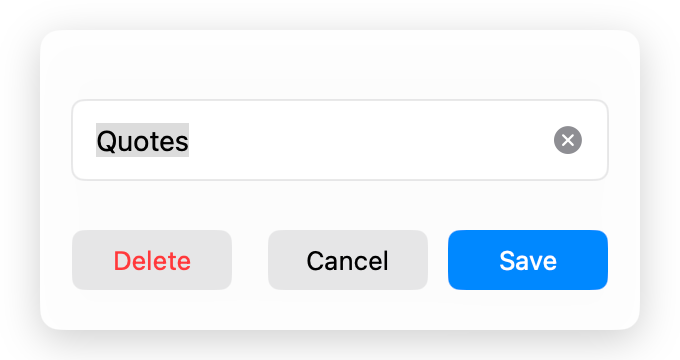
One clip can have more than one tag, and one tag can contain many clips. Tags do not change the content itself.
Keep the system simple
Good tag systems are small and predictable. Start with tags you already think in:
- project names
- clients or teams
- content types
- courses or topics
- languages or frameworks
- status labels such as
review,draft, oruse
Avoid near-duplicates like client-a, Client A, and client_a. Reuse existing tags whenever possible.
Tags and search together
Tags narrow the context. Search finds the exact item. For example, choose a project tag first, then search for a function name, quote fragment, color value, or URL.
When several tags are selected as filters, an item appears if it has any selected tag; it does not need every selected tag.
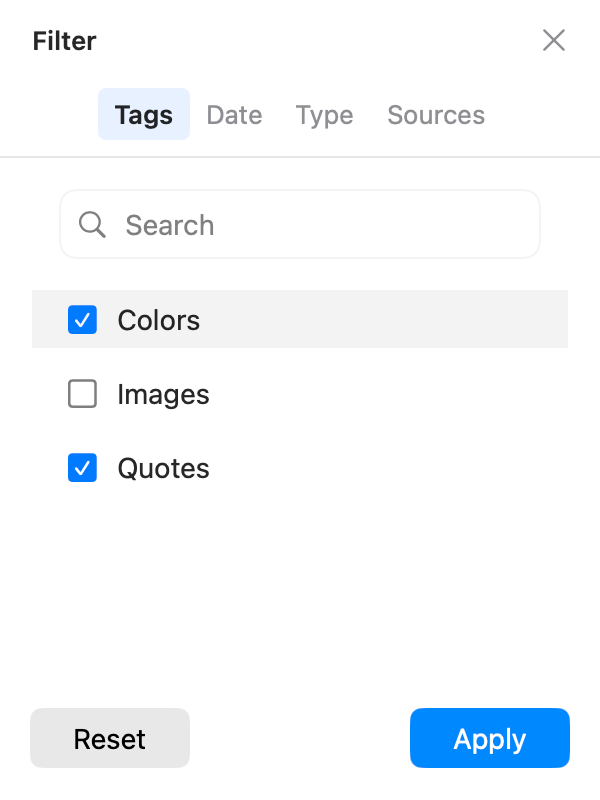
This is faster than scrolling through everything, and less fragile than trying to remember the exact text from the start.
Limits and cleanup
Tags can become clutter if every copied item gets labeled. Review tags occasionally, delete unused ones, and keep only the groups that help you work faster.
Deleting a tag does not delete the clipboard items. It only removes the organizational layer.
Export writes multiple tag names into CSV, and import can restore those relationships. Review the plain-text export before sharing and keep the original file when testing edits; see Clipboard Import and Export.
For deeper retrieval, pair tags with Search Clipboard History on Mac, Split Text into Items, and the broader Clipboard Manager for Mac guide.
FAQ
What is clipboard tag management?
Clipboard tag management lets you assign one or more tags to clipboard items, then find related clips by project, topic, source, or workflow instead of relying only on time order.
When should I tag a clipboard item?
Tag clips you expect to reuse: templates, project links, safe snippets, source notes, design references, replies, or research material. Do not tag every temporary item.
Does deleting a tag delete the clips?
No. Deleting a tag removes the tag relationship, not the clipboard items themselves.
What shortcut opens the tag panel?
Select an item and press Command + T to open the tag panel. You can also use the item context menu.
Download AegisClip
Clipboard · Screenshot OCR · AI Bar — core history stays on your Mac by default.
Free download · 7-day full trial · Optional one-time upgrade.