Search Clipboard History on Mac
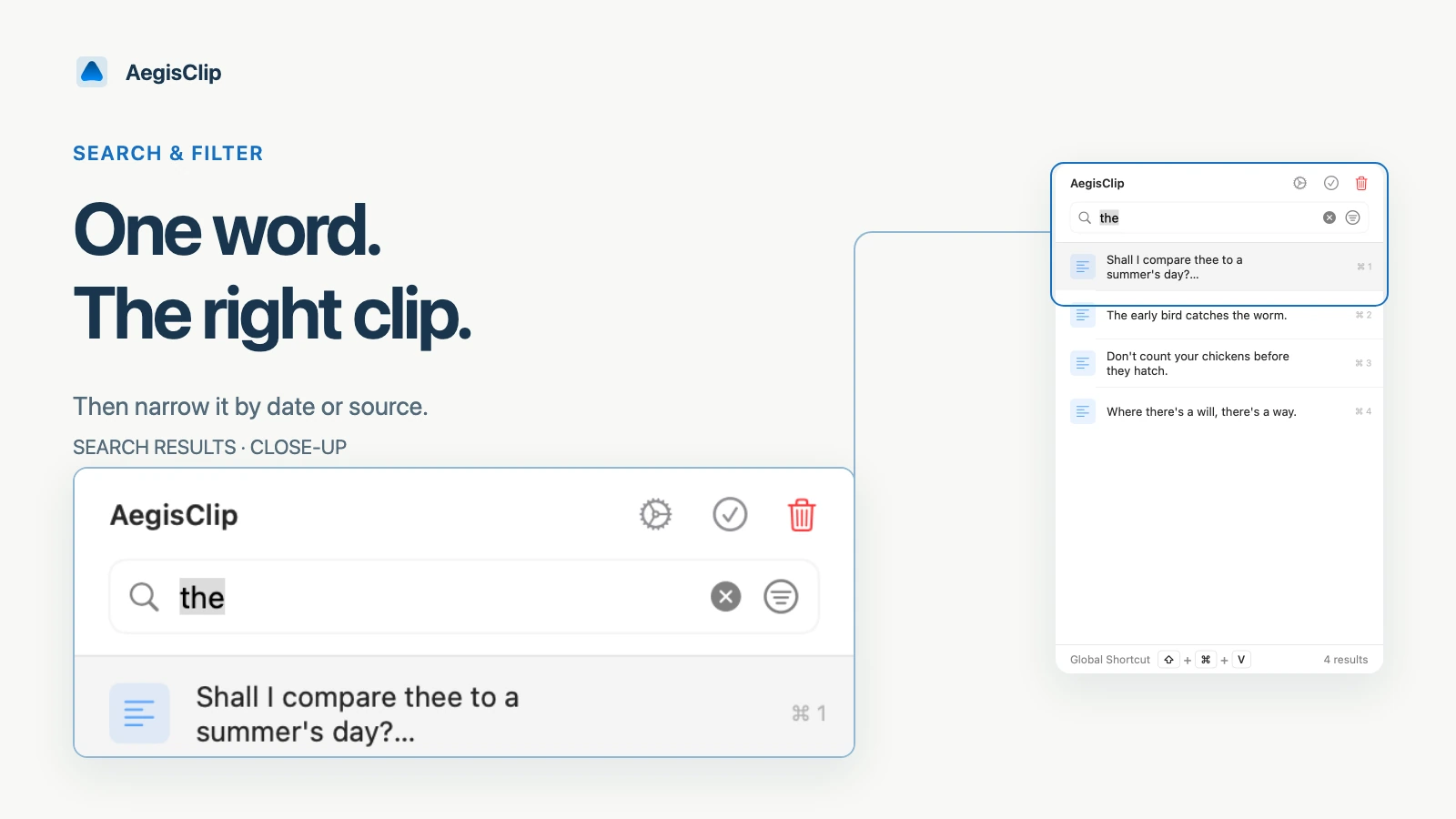
Search saved text, file paths, source apps, tags, and image keywords, then filter by date range, item type, source app, or tag.
On this page5 sections
Search clipboard history on Mac when scrolling stops working. A short history can be browsed by time. A real working history needs better signals: words, source app, item type, date, and tags.
AegisClip combines search and filters so you can start with what you remember and narrow from there.
Start with the strongest clue
Use the most distinctive clue first:
- an order number or ticket ID
- a function name or error code
- a domain, file name, or app name
- a person's name or project code
- a short phrase from the copied content
If the result list is still too wide, add filters instead of trying to remember the full text.
What filters add
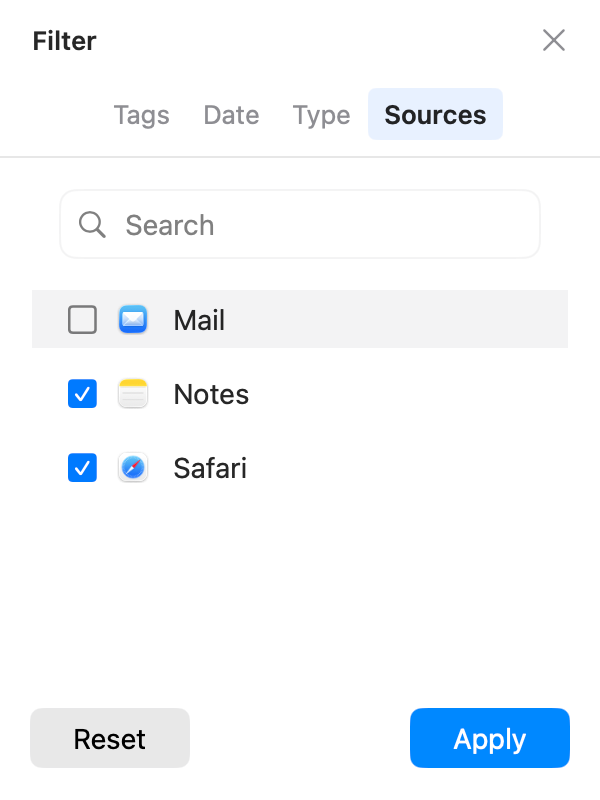
Filters are useful when many clips share similar words. AegisClip can narrow history by:
- tag
- date
- item type
- source app
Date options are All Time, Today, This Week, and a custom range. Type options are All, Text, and Image; "Text" currently means every non-image type, including HTML, RTF, PDFs, and file URLs. Multiple selected tags match when an item has any selected tag.
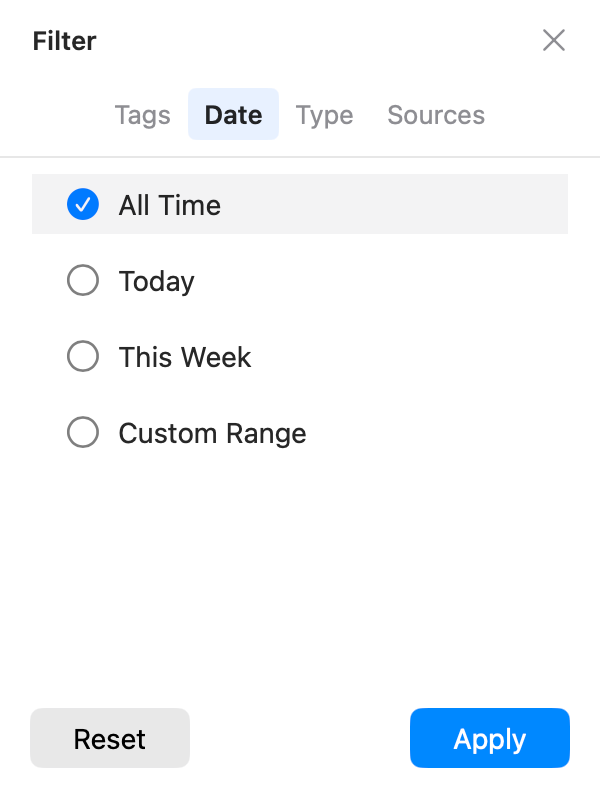
For example, you may remember that a quote came from Safari yesterday, or that a snippet belonged to a project tag but not the exact wording. Filters make that kind of memory useful.
How to search effectively
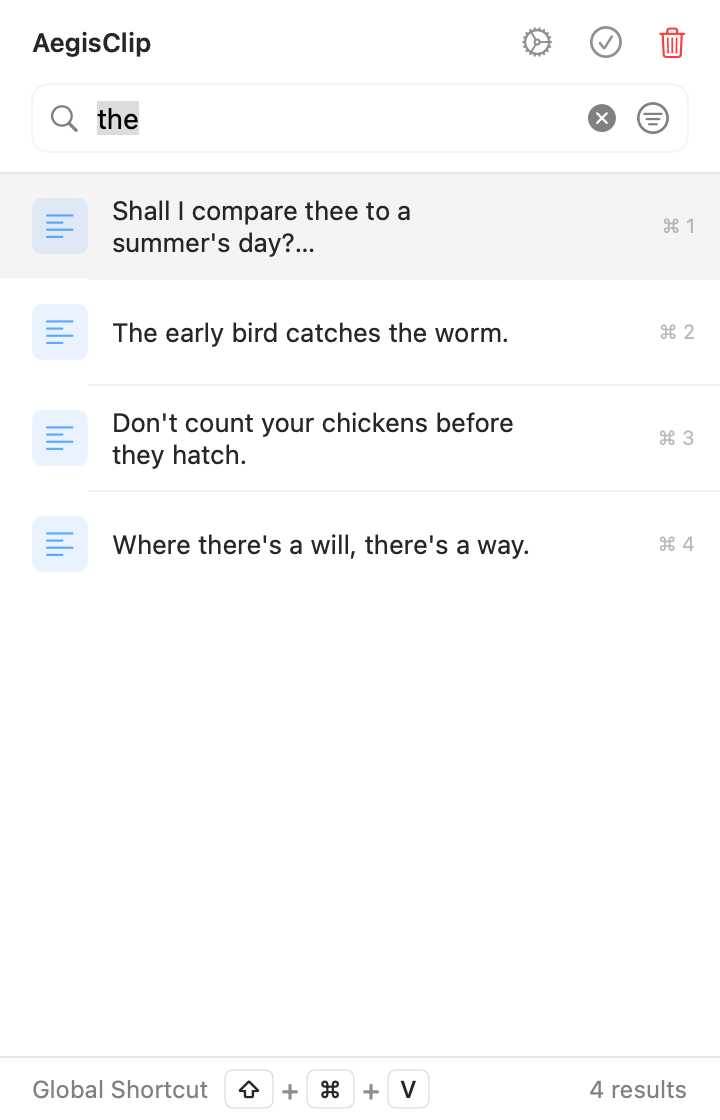
- Open AegisClip.
- Type a short keyword in the search field.
- If results are broad, open filters with
Command + F. - Narrow by tag, date, type, or source app.
- Preview similar items before pasting.
- Reset filters with
Command + Rwhen finished.
Preview is important when several clips look similar. A short list is not enough if you cannot trust which item you selected.
Real examples
Developers can search by function name, package, error code, command, or source app. Writers and students can search by quote fragment, source title, topic tag, or date. Support teams can find standard replies by customer type, product area, or saved tag.
Search is for recall. Tags are for reuse. Use both when the same material appears again and again.
Limits to understand
Search depends on the text or preview data AegisClip saved, so very long content may only match the stored summary. Image clips can be found by image keywords and type filters, but text recognized by Screenshot OCR for Mac does not automatically become part of the image item's main search index.
For reusable material, pair search with Clipboard Tag Management. For a full category overview, read Clipboard History on Mac.
FAQ
What can AegisClip search?
AegisClip can search saved text, preview text, file paths, source app names, tag names, and built-in image keywords for image clips.
When should I use filters?
Use filters when keyword search returns too many results. Date, type, source app, and tag filters help narrow the list without guessing more exact words.
Can I search images?
Image clips can be found through built-in image keywords and the image filter. OCR results are currently cached in memory and are not written back into the image item's searchable text; copy the result as a text clip to keep it searchable.
What shortcut opens filters?
Use Command + F to open or close the filter panel, Command + R to reset filters, and Command + Enter to apply filter changes.
Download AegisClip
Clipboard · Screenshot OCR · AI Bar — core history stays on your Mac by default.
Free download · 7-day full trial · Optional one-time upgrade.