Clipboard History on Mac
macOS Tahoe 26 adds Spotlight clipboard history. AegisClip extends it with longer retention, tag and source filters, pins, Copy All, Step Paste, and OCR.
On this page7 sections
Clipboard History on Mac solves a simple problem: you copied something useful, then copied something else, and now you want the earlier item back. The built-in clipboard is still designed around the current item. Clipboard history gives you a way to recover more than the last thing you copied.
On macOS Tahoe 26, Apple added clipboard history to Spotlight. Press Command + Space, open the Clipboard view or press Command + 4, then search, copy, or clear items from there. That is a good starting point for recent recovery.
AegisClip is for the next layer: when clipboard history becomes part of daily work, not just a place to rescue one lost item.
Start with your macOS version
If you are on macOS 26, try Spotlight first. It is built in, quick to open, and good enough when you only need to search recent clipboard items, copy one back, and paste it manually.
If you are on an older macOS version, or if Spotlight history does not fit your workflow, use a dedicated clipboard manager. That is also the better path when you want history to survive as a useful workspace instead of a temporary recovery list.
The practical question is not "does Mac have clipboard history?" anymore. It is "what do I need to do after I find the old item?"
What Mac clipboard history is good for
Clipboard history is most useful when your work spans several apps. You may copy a link from Safari, a line from Slack, a command from documentation, a quote from a PDF, and a screenshot from another app. Without history, each new copy replaces the previous one.
With a history view, you can:
- recover recently copied text, links, images, or file paths
- search for a phrase or URL you copied earlier
- copy an old item back to the system clipboard
- reduce the need to reopen the source app
- clear history when private material should not remain visible
For light use, that may be all you need.
Where the built-in option is limited
The built-in clipboard history on Mac is useful, but it is still closer to a recovery tool than a full workflow. It helps you find and copy an old item. It does not try to turn clipboard history into a reusable library.
That difference matters when you want to:
- keep project snippets organized by tag
- combine several copied items into one output
- paste several prepared clips into several fields
- paste directly into the active app with fewer steps
- split a long copied block into smaller reusable pieces
- keep screenshots, markup, OCR, and text history in one place
If your use case stops at "find one recent item", use the system feature first. If your use case continues into "organize, reuse, and paste faster", a dedicated clipboard manager makes more sense.
How AegisClip extends the workflow
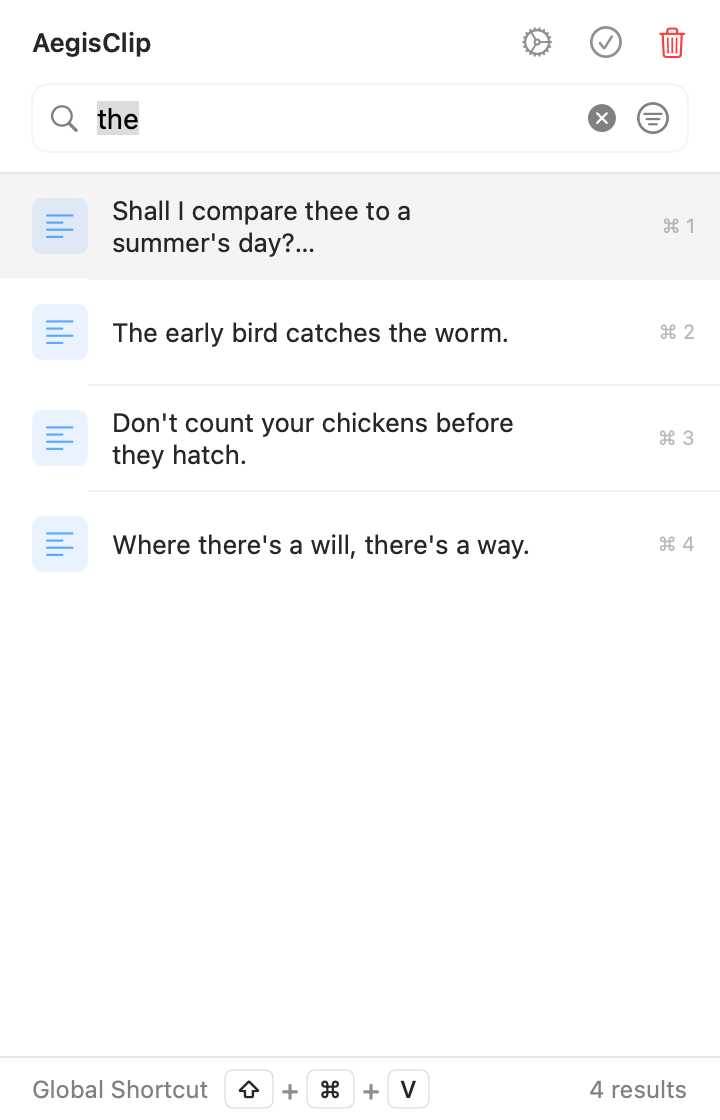
AegisClip treats clipboard history as a working surface. You can search by text, source, type, date, or tags; preview items before using them; and keep reusable clips grouped by project or topic.
For repeated input, Auto Paste lets you select a clip and send it into the active app. Copy Multiple Clipboard Items combines selected clips into one batch. Step Paste prepares a sequence so each Command + V advances to the next item.
That makes AegisClip more useful for writing, research, support replies, development snippets, design references, and form-filling workflows.
It also changes how you clean up history. Instead of keeping everything, you can tag the few items worth reusing, delete private or temporary clips, and let the history stay focused. A small, well-kept clipboard history is more useful than a giant list nobody wants to search.
A simple way to decide
Ask yourself how often you move beyond recovery:
| Need | Good starting point |
|---|---|
| Find one copied item from a few minutes ago | Spotlight clipboard history |
| Search a larger history by text, type, source, or tag | AegisClip |
| Keep reusable snippets by project or topic | AegisClip tags |
| Paste one old item faster into the active app | AegisClip Auto Paste |
| Combine several copied notes, links, or replies | AegisClip Copy All |
| Fill several fields with several prepared clips | AegisClip Step Paste |
The built-in feature and AegisClip do not need to compete. You can use Spotlight as the quick system-level safety net and AegisClip as the daily clipboard workspace.
Privacy and cleanup
Clipboard history can contain passwords, two-factor codes, private messages, internal links, API tokens, and customer information. Treat it like a sensitive working area.
AegisClip is local-first. It stores history on your Mac by default, supports deletion and cleanup, and lets you ignore apps you do not want recorded. iCloud sync is a separate choice, not required for basic local use.
As a rule, keep useful reusable content and delete what should not remain. A clean clipboard history is easier to search and safer to use.
For a first week, keep the rule simple: save common replies, safe snippets, project links, source notes, and design references; clear passwords, one-time codes, private chats, and anything you would not want to see again in a history panel.
Start here
If you want step-by-step setup, read How to View Clipboard History on Mac. If you are choosing a tool, continue to Clipboard Manager for Mac or Best Clipboard Manager for Mac.
FAQ
Does Mac have clipboard history?
On macOS Tahoe 26, Spotlight includes a clipboard history view. It is useful for recent recovery, search, copying an old item, and clearing history. Older versions still need a third-party clipboard manager for history.
When is the built-in clipboard history on Mac enough?
It is enough when you only need to find one recent copied item and paste it manually. If you need tags, batch copying, sequential paste, screenshots, or reusable organization, use a dedicated tool.
What does AegisClip add beyond basic clipboard history?
AegisClip adds searchable history, filters, tags, Auto Paste, Copy All, Step Paste, screenshot tools, OCR, and a local-first workflow for people who reuse copied content every day.
Is clipboard history safe to use?
Clipboard history can contain sensitive information. Use ignore apps, delete private clips, clear history when needed, and avoid saving passwords, tokens, private keys, or confidential customer data.
Download AegisClip
Clipboard · Screenshot OCR · AI Bar — core history stays on your Mac by default.
Free download · 7-day full trial · Optional one-time upgrade.