CopyClip Alternative: Free CopyClip, CopyClip 2, and AegisClip
Looking for a CopyClip alternative? Compare AegisClip with CopyClip and CopyClip 2 using a feature checklist covering text history, search, pinning, images, OCR, and multi-item paste, plus price and migration. If text history is enough, CopyClip works; for images and organizing, try AegisClip.
On this page8 sections
Looking for a CopyClip alternative? First tell the two versions apart: free CopyClip is text history only, while CopyClip 2 adds search, pinning, editing, and direct paste — but both handle text only. AegisClip covers the recording, search, and paste, and adds tags, text from images, and multi-item paste. If text history is enough, CopyClip works; for images and organizing, try AegisClip.
Quick answer
Choose AegisClip if you…
- Handle screenshots often and need to annotate or extract the text
- Want to organize reusable content by project and purpose
- Paste several items into several places every day
Choose CopyClip if you…
- Work with text only and never images
- The free version or CopyClip 2 already covers your needs
- You like a global shortcut and a quick menu
What CopyClip and CopyClip 2 are
First, the names: this article compares FIPLAB's free CopyClip and paid CopyClip 2, not other apps with the same name.
- Free CopyClip: lists copied text in the menu bar; good for recalling a sentence, URL, or command now and then.
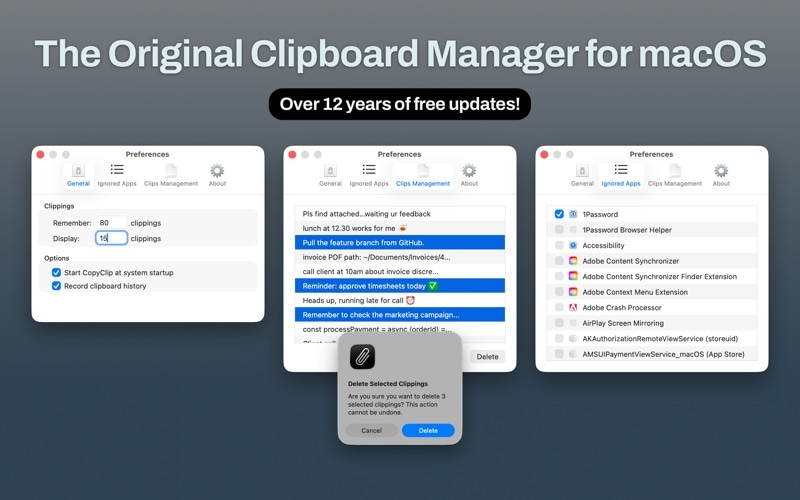
- CopyClip 2: for more text management, adding instant search, pinning, editing, plain-text paste, and direct paste, plus ⌘+number shortcuts for the first ten clips.
The shared boundary: text only, no images. To see the whole category first, read Best Clipboard Manager for Mac and Mac Clipboard Manager.
How the apps differ
CopyClip opens a menu-bar list: a run of text history, plus shortcuts and search. It wants to hand "the text you copied" back to you fast.
AegisClip opens a window with a shortcut: search and filters on top, preview in the list, and once you find something you can tag it, handle the image, then merge or paste in order. One is a plain text list; the other is a window you find and organize in.
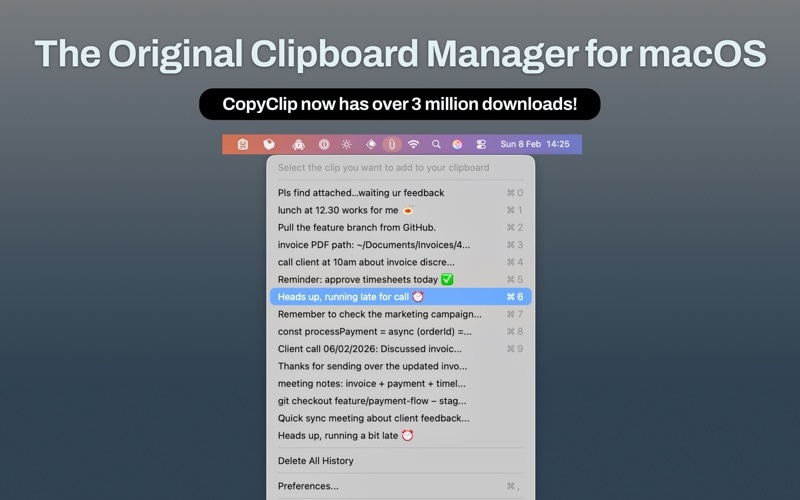
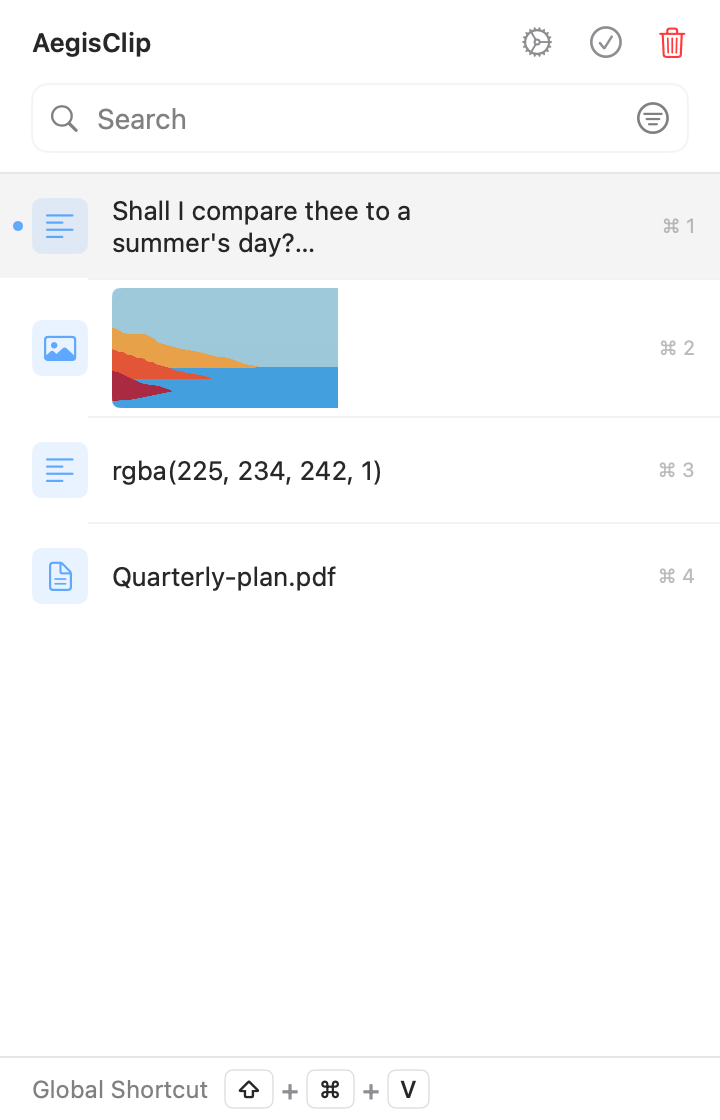
Left: a plain text list. Right: a workspace for text and images together.
Feature checklist
Here is the full feature list. A check means supported, a cross means not supported, and a dash means partial or limited. The table reflects paid CopyClip 2; free CopyClip does less.
| AegisClip | CopyClip 2 | |
|---|---|---|
| Capture & find | ||
| Text history | ||
| Image and file history | ||
| Keyword search | ||
| Filter by source, date, or type | ||
| Pin items | ||
| Organize | ||
| Several tags on one item | ||
| Built-in text editing | ||
| Split long text into items | ||
| Paste & output | ||
| Paste directly (simulate Command+V) | ||
| Paste as plain text | ||
| Merge several items into one copy | ||
| Paste several items in order | ||
| Screenshots & images | ||
| Screenshots | ||
| Annotate and blur | ||
| Pin to screen | ||
| Text from images (OCR) | ||
| Privacy & data | ||
| Ignore specific apps | ||
| Pause recording | ||
| Set a history retention period | ||
| Import / export | ||
| Price & license | ||
| Open source | ||
| Free to use | ||
| Shortcuts / automation | ||
Capture & find
- Text historyAegisClipCopyClip 2
- Image and file historyAegisClipCopyClip 2
- Keyword searchAegisClipCopyClip 2
- Filter by source, date, or typeAegisClipCopyClip 2
- Pin itemsAegisClipCopyClip 2
Organize
- Several tags on one itemAegisClipCopyClip 2
- Built-in text editingAegisClipCopyClip 2
- Split long text into itemsAegisClipCopyClip 2
Paste & output
- Paste directly (simulate Command+V)AegisClipCopyClip 2
- Paste as plain textAegisClipCopyClip 2
- Merge several items into one copyAegisClipCopyClip 2
- Paste several items in orderAegisClipCopyClip 2
Screenshots & images
- ScreenshotsAegisClipCopyClip 2
- Annotate and blurAegisClipCopyClip 2
- Pin to screenAegisClipCopyClip 2
- Text from images (OCR)AegisClipCopyClip 2
Privacy & data
- Ignore specific appsAegisClipCopyClip 2
- Pause recordingAegisClipCopyClip 2
- Set a history retention periodAegisClipCopyClip 2
- Import / exportAegisClipCopyClip 2
Price & license
- Open sourceAegisClipCopyClip 2
- Free to useAegisClipCopyClip 2
- Shortcuts / automationAegisClipCopyClip 2
FIPLAB's official help states that CopyClip and CopyClip 2 are both text clipboards and do not save images, and that CopyClip 2 does not support merging or queuing multiple items. The free version lacks search, pinning, editing, and direct paste. Check the current versions.
A URL, code, or color value can appear as text; copying an image is a different data type. Seeing an image URL in a list does not mean the image file itself was saved.
When it is worth switching
1. You need text from an image. For a failed-payment screenshot, a handout, or a QR code, CopyClip cannot save or recognize images; AegisClip uses text from images (OCR) to extract text and QR content, and Screenshot Enhancement to annotate, blur, and pin.
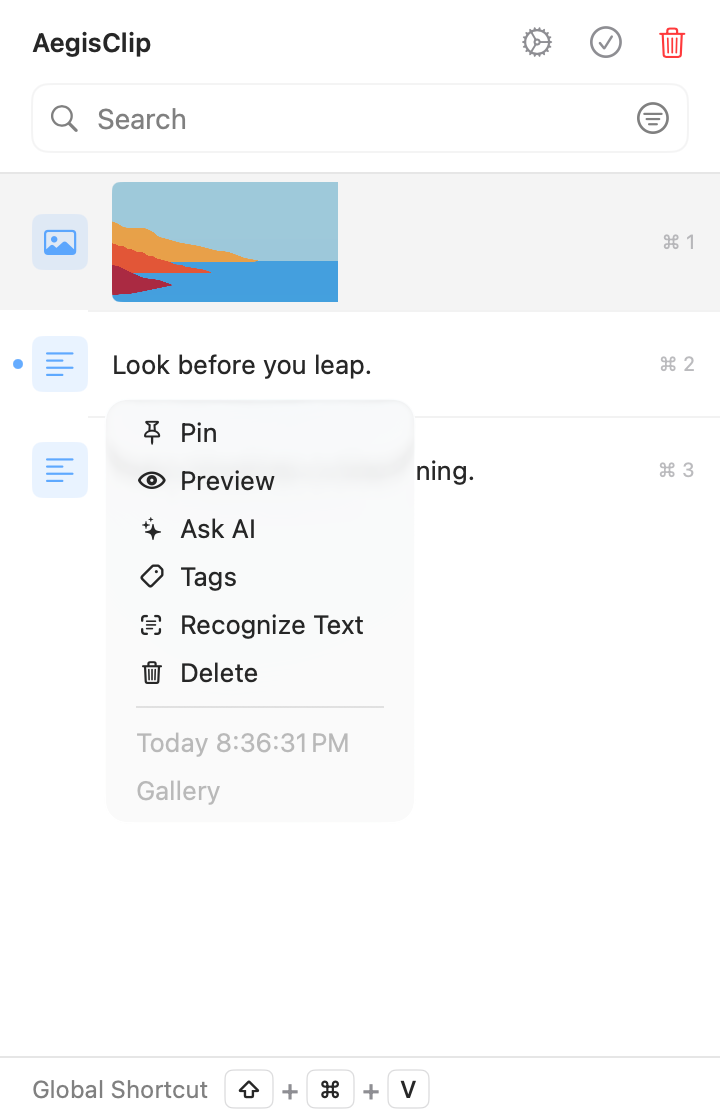
2. Reusable replies outgrow a line of pins. CopyClip 2's pinning and search suit a few high-frequency strings; when an item belongs to a project, a customer type, and a purpose at once, a single line of pins struggles to express it. AegisClip's tag management lets one item carry several purposes while keeping a single copy.
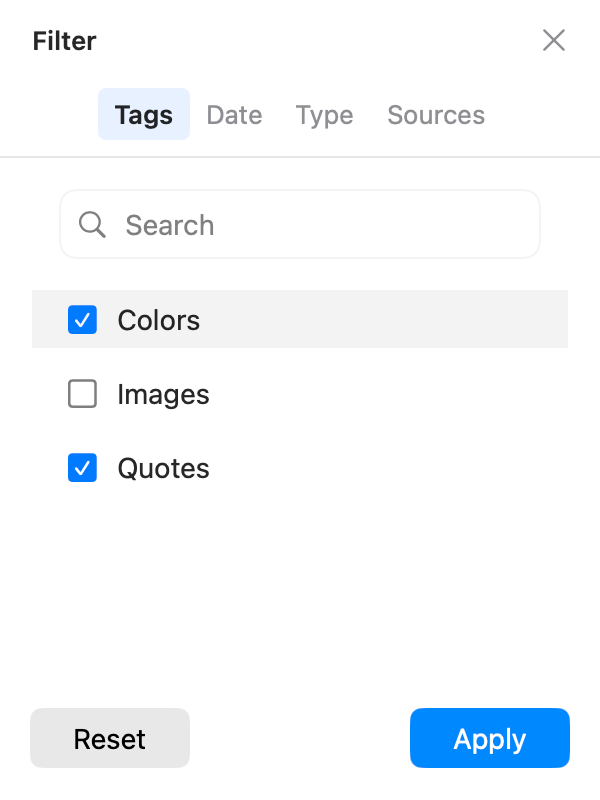
3. Several fields or passages need one pass. The official help says CopyClip 2 does not support merging or a queue. AegisClip lets you pick 2–30 items and paste them in order with Step Paste; to put several into one document, use Copy All.
Migrating from CopyClip to AegisClip
There is no one-click move, and you usually only migrate the few dozen text items you reuse.
- Pick the replies, links, and code snippets you still use.
- Rebuild purpose tags in AegisClip and pin the handful you use most.
- Search the same items in both tools and see which lookup feels faster.
- Give the two tools different global shortcuts and keep CopyClip until the trial ends.
AegisClip migrates content with Import / Export (CSV plus an image folder). It is not a universal database format, and non-image rows import as plain text, so test a small sample first.
Price and system
- AegisClip: free download with a 7-day full trial, then an optional one-time upgrade. After the trial, the most recent 9 items stay accessible. macOS 12+. See Free vs Full Version.
- CopyClip / CopyClip 2: the original is free; CopyClip 2 is a separate paid product with a trial. Check the App Store for current pricing and system requirements.
AegisClip keeps history on your Mac by default and needs no account for core features; both need Accessibility permission to paste directly.
Bottom line
If text history is enough, free CopyClip or CopyClip 2 is great — but both handle text only. AegisClip does what they do, plus tags, text from images, and multi-item paste. If you want less busywork, use AegisClip.
云贴更适合你的三个理由
- Save images and extract their text
- Tag items and find them by purpose instead of scrolling
- Merge several items or paste them in order
如果这些是你的硬需求,请保留原工具
- Text only, no images — keep CopyClip
- You already rely on CopyClip 2's shortcuts and pins
- You do not need multi-item output
To try it, start with three small tasks: find one old item, process one screenshot, and fill one multi-field form. Download AegisClip and see. Comparing other tools? Read AegisClip vs Maccy.
FAQ
What is the difference between CopyClip and CopyClip 2?
CopyClip is the free original that lists text history in the menu bar; CopyClip 2 is a separate paid product that adds search, pinning, editing, plain-text paste, and direct paste. Both handle text only and do not save images.
Does CopyClip support images?
No. FIPLAB's official help states that both CopyClip and CopyClip 2 are text clipboards and do not save images. For image history and text recognition, use a tool such as AegisClip.
Can CopyClip 2 paste multiple items at once?
No. The official help says it currently does not support merging multiple items or a queue; you pick one, paste, then pick the next. AegisClip offers Copy All and Step Paste for 2–30 items.
Is CopyClip free?
The original CopyClip is free; CopyClip 2 is a separate paid product with a trial. Check the App Store for current pricing and trial terms.
If I only recall a sentence now and then, should I switch?
No. If text history and search are enough, keep using CopyClip. Try AegisClip when you start handling images, organizing material, or pasting several items.
How do I move from CopyClip to AegisClip?
There is no direct import. AegisClip imports its own CSV and image folder, and non-image rows become plain text. Move a small set of frequently used items and keep the old tool while you decide.
Download AegisClip
Clipboard · Screenshot OCR · AI Bar — core history stays on your Mac by default.
Free download · 7-day full trial · Optional one-time upgrade.