Clipboard Management for Support and Operations Teams: Reusable Replies, Templates, and Forms
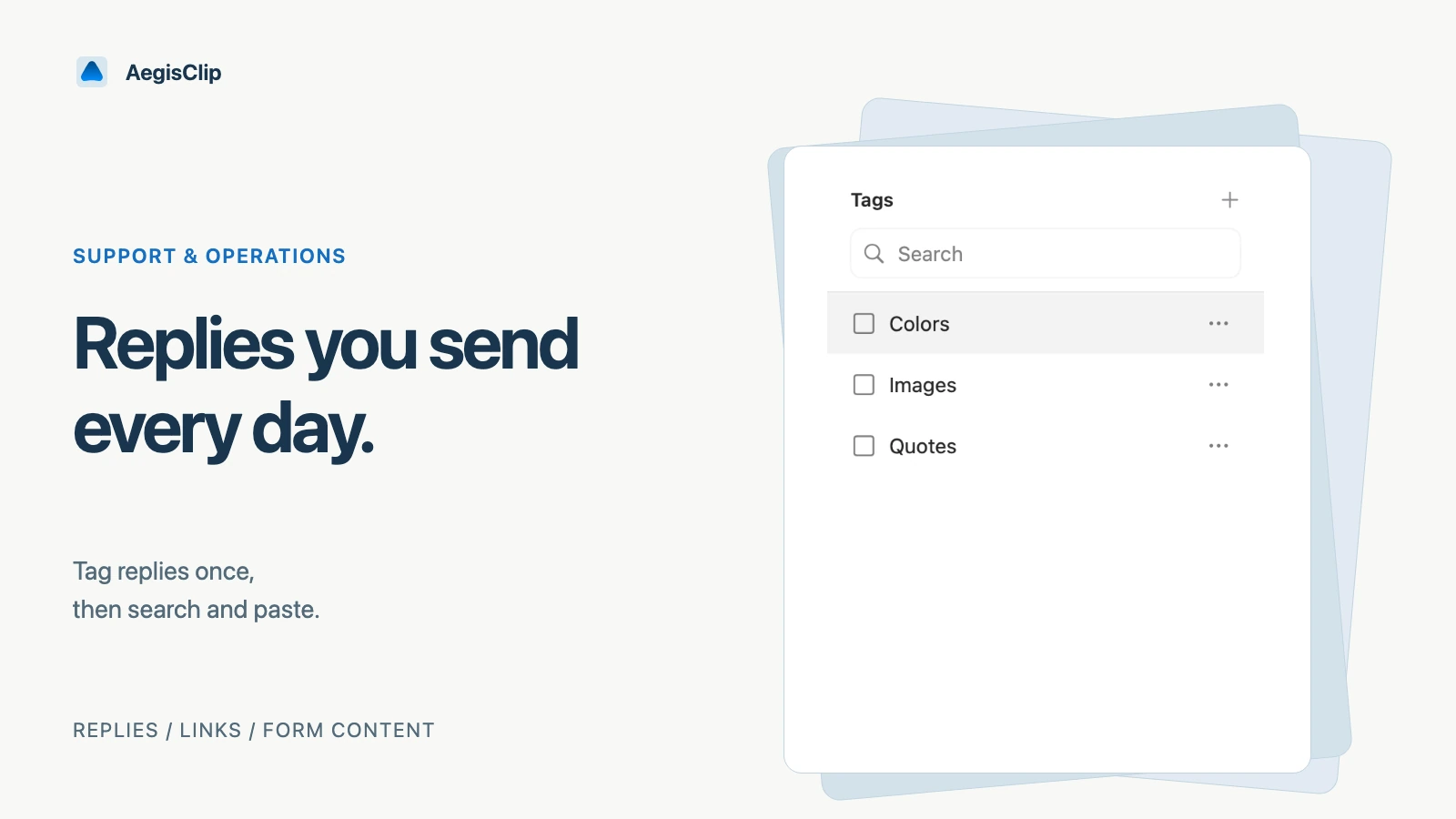
Support and operations teams reply to the same questions, paste the same links, and fill similar forms every day. AegisClip turns history search, tags, Auto Paste, and Step Paste into a reusable reply library.
On this page4 sections
Key Features
- Save high-frequency replies, links, and templates as searchable clips
- Use tags to organize by issue type, customer tier, and campaign
- Insert a reply directly into the input field with Auto Paste
- Merge several notes into one complete reply, or fill forms in order
- Keep sensitive customer data out of history with clear boundaries
Support and operations work is half repetition: explaining the same issues, sending the same links, filling similar forms. The system clipboard only keeps the last copy, so every time you start from scratch. AegisClip turns common replies, links, and notes into a searchable, taggable, one-click-insertable library.
What is worth saving
High-frequency support content is usually stable:
- Standard explanations for refunds, shipping, campaigns, and pricing
- Order lookup, invoice, and address change procedures
- Common links: storefront, campaign pages, help center, knowledge base
- Reply templates: greetings, closings, escalation scripts
- Default values for forms you fill repeatedly
Save only what you reuse. One-time verification codes, temporary addresses, and private customer details should be deleted after use — or kept out of history from the start.
Organize replies with tags
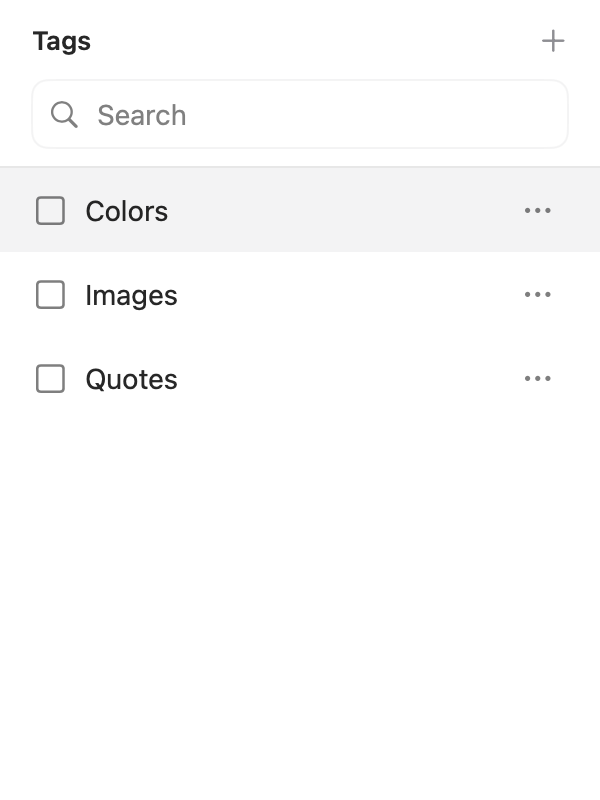
Build tags around how you actually reply:
- By issue: refund, shipping, campaign, after-sales
- By channel: chat, email, ticket
- By customer: new, returning, enterprise
- By status: follow-up, done, escalated
Use words you naturally say. When replying, pick the tag first, then search by customer name or issue keyword — two steps to the right reply.
Insert directly after finding
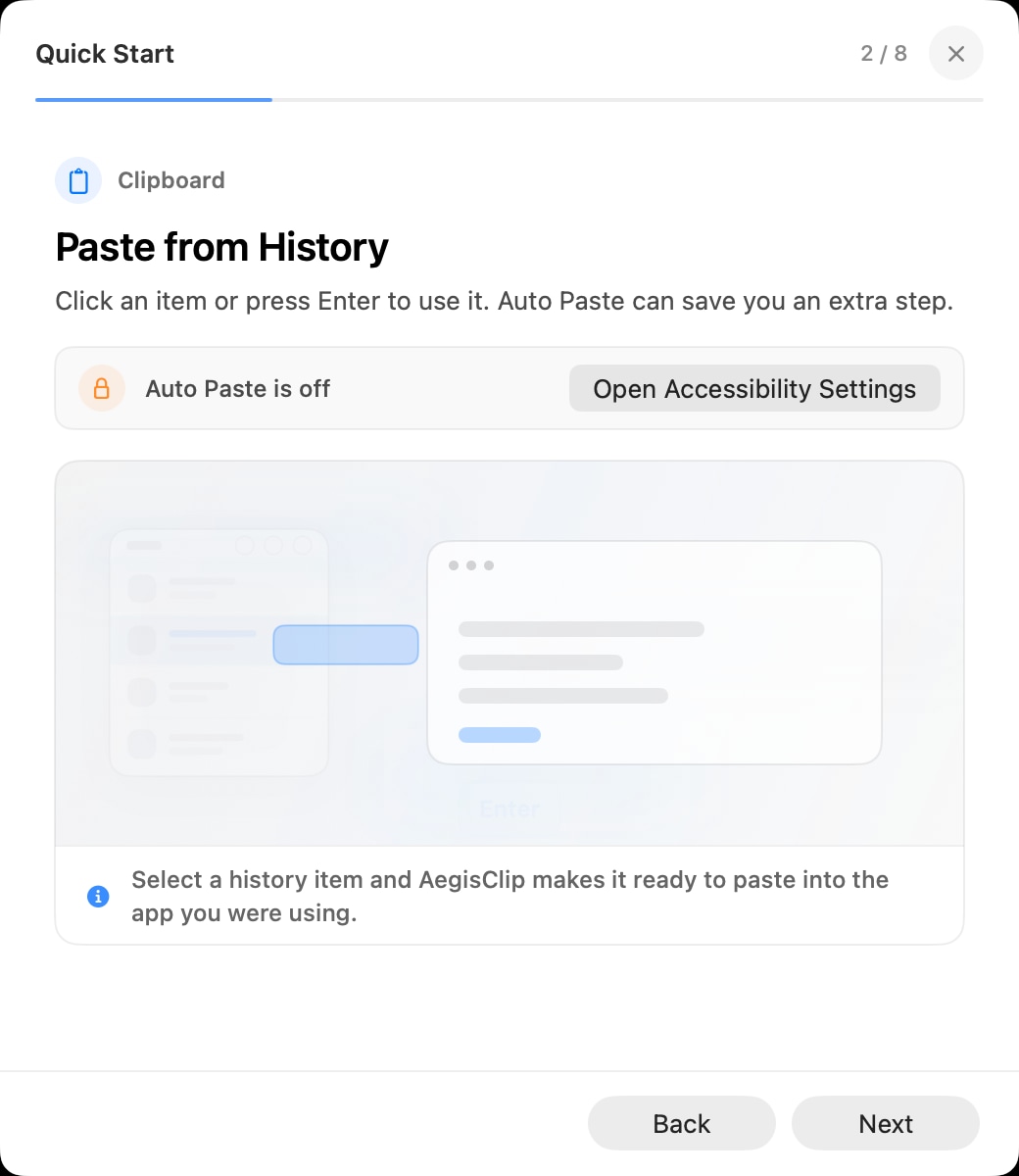
Auto Paste fits support workflows: place the cursor in the reply box, open AegisClip, and the selected reply goes straight into the input field — no extra Command+V. To combine several notes into one reply, use Copy All; to fill multiple fields in order, use Step Paste.
First test run
- Pick 3 high-frequency replies and 2 common links from today's real conversations.
- Copy them into AegisClip and tag them (for example, "refund" and "campaign").
- Open a real reply box, place the cursor, and insert one reply with Auto Paste.
- Use Copy All to merge two notes into one complete reply.
- Add sensitive sources such as your CRM to the ignore list.
If this flow reduces how often you dig through chat logs, AegisClip belongs in your daily support workflow. Start with How to View Clipboard History on Mac and Multiple Copy and Paste on Mac.
FAQ
What content should a support team keep in a clipboard manager?
High-frequency replies, refund and shipping explanations, campaign links, order lookup scripts, pricing notes, and FAQ answers. One-time verification codes and private customer details should not be saved.
What repetitive work does AegisClip remove for support teams?
Three things: digging through chat logs or documents for old replies, retyping the same responses, and switching between apps to paste multiple items.
How should reusable replies be organized?
Create tags by issue type (refund, shipping, campaign), customer tier (new, returning, enterprise), or channel (chat, email, ticket). Three to ten items per tag works best.
Will customer data be stored automatically?
Only what you copy is saved. You can add sensitive sources such as your CRM to the ignore list, or delete related records after use.
Download AegisClip
Clipboard · Screenshot OCR · AI Bar — core history stays on your Mac by default.
Free download · 7-day full trial · Optional one-time upgrade.