Clipboard Item Actions on Mac
Copy, preview, tag, pin, edit, split, delete, OCR, or ask AI from one item menu. Pinned clips support drag ordering and VoiceOver move actions.
On this page5 sections
Clipboard item actions on Mac answer the question that comes after search: what should happen to this clip now? A good clipboard manager should not stop at showing history. It should let you clean, inspect, pin, delete, and prepare the selected item without leaving the workflow.
AegisClip groups these small actions around the item itself, so they stay close to the content you are about to reuse.
Use the context menu for the next action
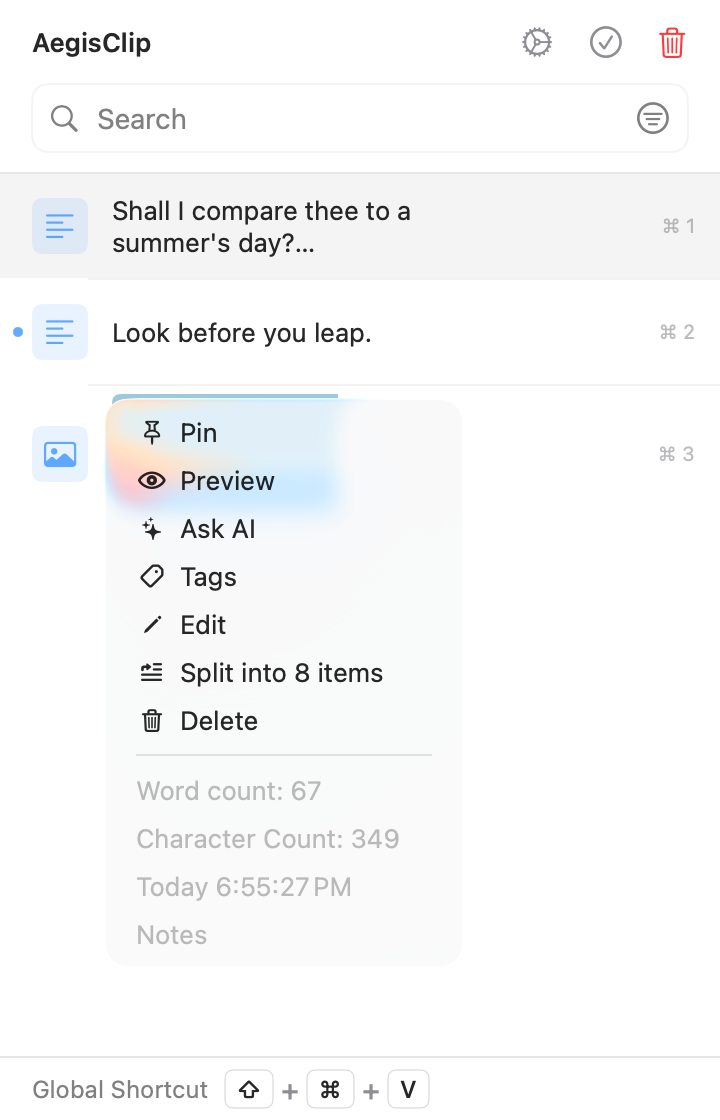
The context menu is the compact control surface for a saved clip. It keeps frequent actions close to the item:
- copy or paste the selected clip
- pin or unpin important content
- preview the complete item and add or remove tags
- edit text before saving or reusing it
- split supported paragraph text into new items
- send image content to OCR when needed
- ask AI about a text or image clip
- delete items that should not stay in history
- inspect word/character count, time, and source app
This is useful when the list view is enough to find the clip, but the clip still needs one more decision before it moves into another app.
Pin important clips to the top
Pinning is for content that is useful right now: a support reply, a meeting link, a customer note, a color value, a command, or a draft phrase you keep reusing during a task.
With two or more pinned clips, drag the reorder handle to arrange them. Reordering is intentionally unavailable while search, filters, multi-select, Step Paste, or data reorganization changes the visible list. VoiceOver users can perform the same change with move-up and move-down actions.
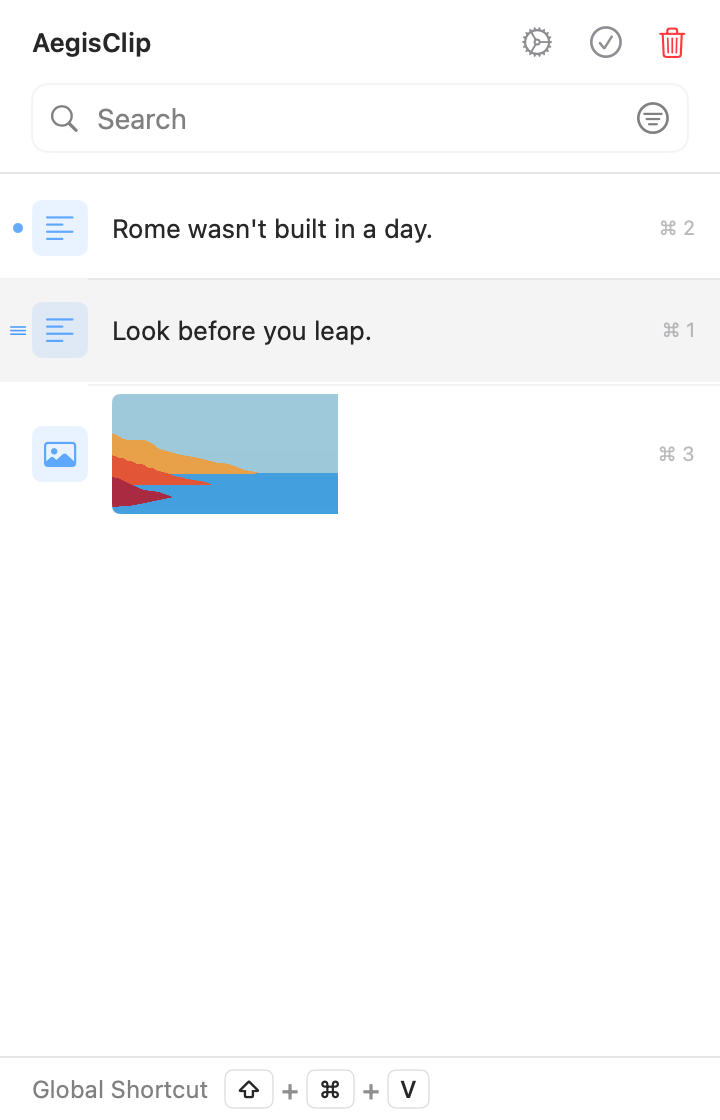
Pinned items should stay selective. If everything is pinned, the top area becomes another messy list. Use pins for active work, and use Clipboard Tag Management when the item belongs to a longer-term project or topic.
Edit text before reuse
Copied text often needs light cleanup: remove a greeting, fix spacing, trim a quote, update a placeholder, or turn a rough note into something ready to paste.
Editing inside the clipboard workflow is faster than pasting into a temporary document, cleaning it there, copying it again, and returning to the target app.
- Open AegisClip and find the text item.
- Open the item action menu or use the edit shortcut.
- Clean the text while keeping the original task in mind.
- Save the updated clip.
- Paste it normally, paste as plain text, or add a tag if it will be reused.
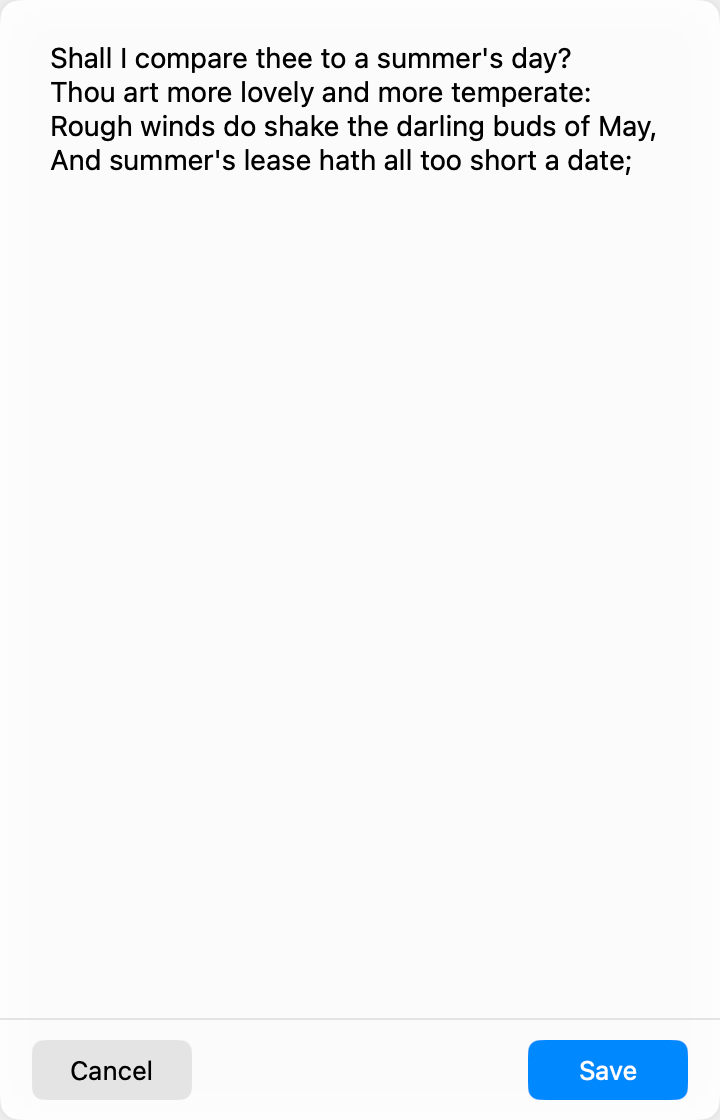
Saving an edit converts the AegisClip item to plain text, so original RTF, RTFD, or HTML formatting is not preserved. Canceling leaves it unchanged. Images use OCR rather than the text editor.
Check word and character count
Word count is small, but it removes guesswork. Use it before pasting into:
- prompt fields with length limits
- email replies and support forms
- social posts and review responses
- summaries, titles, and notes
- spreadsheets or CRM fields
If the text is too long, edit it first or use Split Text when the clip should become several reusable items.
How these actions fit together
Search and filters help find the clip. Preview helps confirm it. Item actions help prepare it. Tags keep reusable clips organized. Copy All and Step Paste handle multiple clips when one item is no longer enough.
Text and image clips can also open the AI Bar from the context menu. If the clip falls outside the accessible history range after the trial, AegisClip applies the same history entitlement check before opening AI.
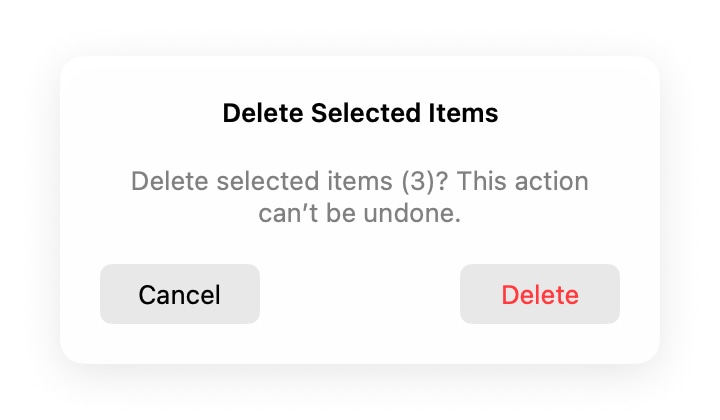
Single-item deletion cannot be undone. In multi-select, delete targets the captured selection and asks for confirmation; a zero-selection delete control does not fall back to clearing the entire history.
For the full selection and retrieval path, read Search Clipboard History on Mac. For multi-item output, read Copy Multiple Clipboard Items or Step Paste on Mac.
FAQ
What are clipboard item actions?
They are actions applied to one selected clip, such as pinning, editing, deleting, previewing, opening the context menu, checking length, or preparing the clip for another workflow.
When should I pin a clipboard item?
Pin a clip when it is reused during the current project or work session and should stay above the normal time-based history list.
Can I reorder multiple pinned clips?
Yes. When search, filters, multi-select, Step Paste, and data reorganization are inactive, drag the reorder handle on two or more pinned clips. VoiceOver also provides move-up and move-down actions.
Does editing change the original copied source?
It does not change the source web page, document, file, or message. It updates the saved AegisClip item and stores edited rich text as a plain-text version, so copy the original first when its formatting must remain.
Why include word count in a clipboard manager?
Word and character counts help before pasting into prompts, emails, forms, social posts, reports, and fields with length limits.
Download AegisClip
Clipboard · Screenshot OCR · AI Bar — core history stays on your Mac by default.
Free download · 7-day full trial · Optional one-time upgrade.